AI Story Video Generator: Build a Faceless YouTube Channel for Kids
Use an AI story video generator to build a faceless YouTube channel for kids: plan one series, fix character descriptions, script clear scenes and publish.
 Eimantas Kazėnas Marketing & Tech
- Published
- 6 min read
On this page Step 1: Plan One Story Series for Your Kids Channel
- Step 1: Plan One Story Series for Your Kids Channel
- Step 2: Write the First Episode as a Complete Script
- Step 3: Keep Production Simple with an AI Story Video Generator
- Step 4: Give Every Character a Fixed Description
- Step 5: Divide the Story into Scenes the Viewer Can See
- Step 6: Let the Narration Set the Pace
- Step 7: Review Each Episode from Beginning to End
- Step 8: Package Your Kids Story Video for YouTube
- FAQ
Independent and reader-supported. Some links may earn us a commission; it never changes our rankings. Editorial policy
You can run a children’s story channel on YouTube without appearing on screen. Each episode can be carried by animated characters, a narrator, and a simple plot. An AI story video generator can produce these elements from a script, making regular publishing possible for a solo creator. The harder part is keeping every episode clear, original, and consistent enough to feel like it belongs to the same channel.
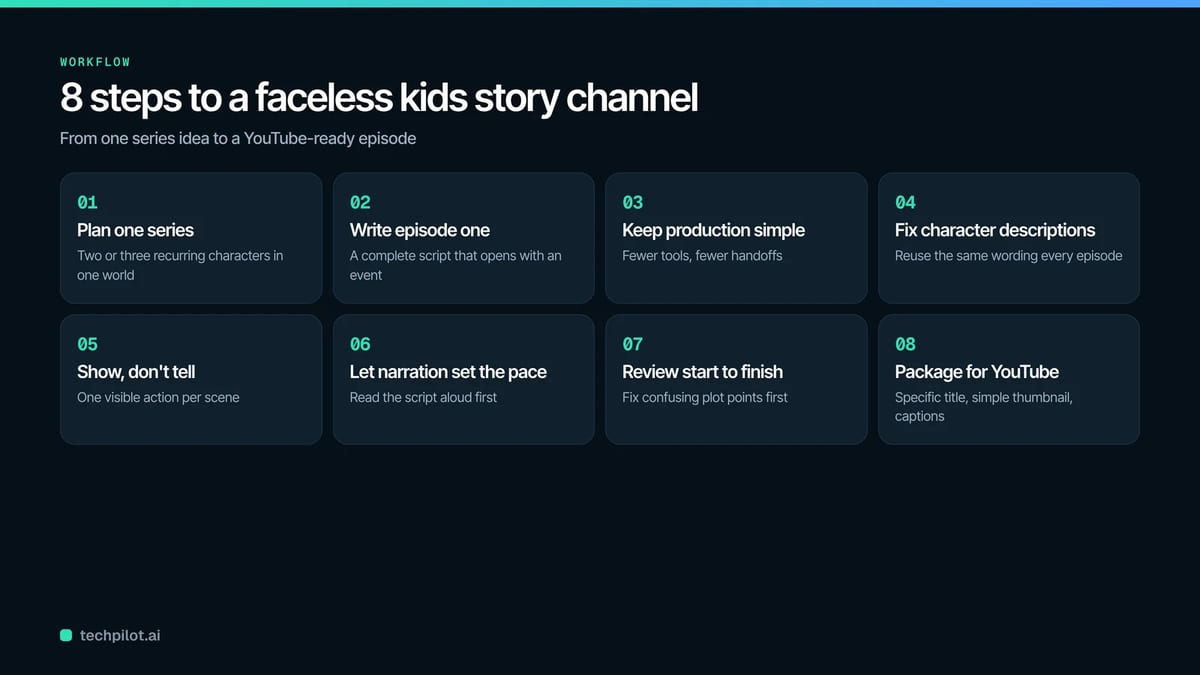
Here is the full workflow at a glance:
- Plan one story series
- Write the first episode as a complete script
- Keep production simple
- Give every character a fixed description
- Divide the story into scenes the viewer can see
- Let the narration set the pace
- Review each episode from beginning to end
- Package the video for YouTube
Step 1: Plan One Story Series for Your Kids Channel
A series gives viewers something familiar to return to. Choose two or three recurring characters and place them in a world that can support many plots.
For example, two little animals could solve small problems around a forest village. One episode may involve a missing library book. Another may follow them during a storm. The setting and characters stay familiar, while each story introduces a new situation.
Define the intended age range before writing. Children aged four to six usually need shorter sentences, direct actions, and simple conflicts. Older children can follow longer conversations, clues, and more complicated decisions.
Give each episode one clear purpose. It might explore patience, honesty, curiosity, or teamwork. The lesson should grow from what the character does.
Step 2: Write the First Episode as a Complete Script
The first episode will reveal how long scenes take, how much dialogue works, and which descriptions produce stable visuals.
Open with an event. Show the problem within the first 15 seconds so the viewer immediately has a reason to keep watching. You can then use AI to turn the script into a story video. Pollo AI can split the story into scenes, create the characters, add narration, and match music and sound effects to the action. Include the intended age group, runtime, art style, narrator, and pacing when submitting the script.
A useful instruction could be:
Create a four-minute 3D cartoon for children aged five to seven. Use warm colors, simple backgrounds, and gentle camera movement. Keep the characters consistent across every scene. Use a friendly narrator and light background music.
Step 3: Keep Production Simple with an AI Story Video Generator
Every extra tool adds another handoff. Images need to be imported, voices need to be timed, and separate clips need to be placed in order.
Pollo AI is strong at scene planning, character continuity, narration, music, and sound effects. It can therefore take a children’s story closer to a finished episode than many general content tools, including Kapwing AI. Kapwing AI is useful for editing and arranging media, while Pollo AI provides a more direct workflow for building a complete story from a script.
This matters when you want to publish regularly. A process with fewer manual steps leaves more time for improving the story and checking the finished video.
Step 4: Give Every Character a Fixed Description
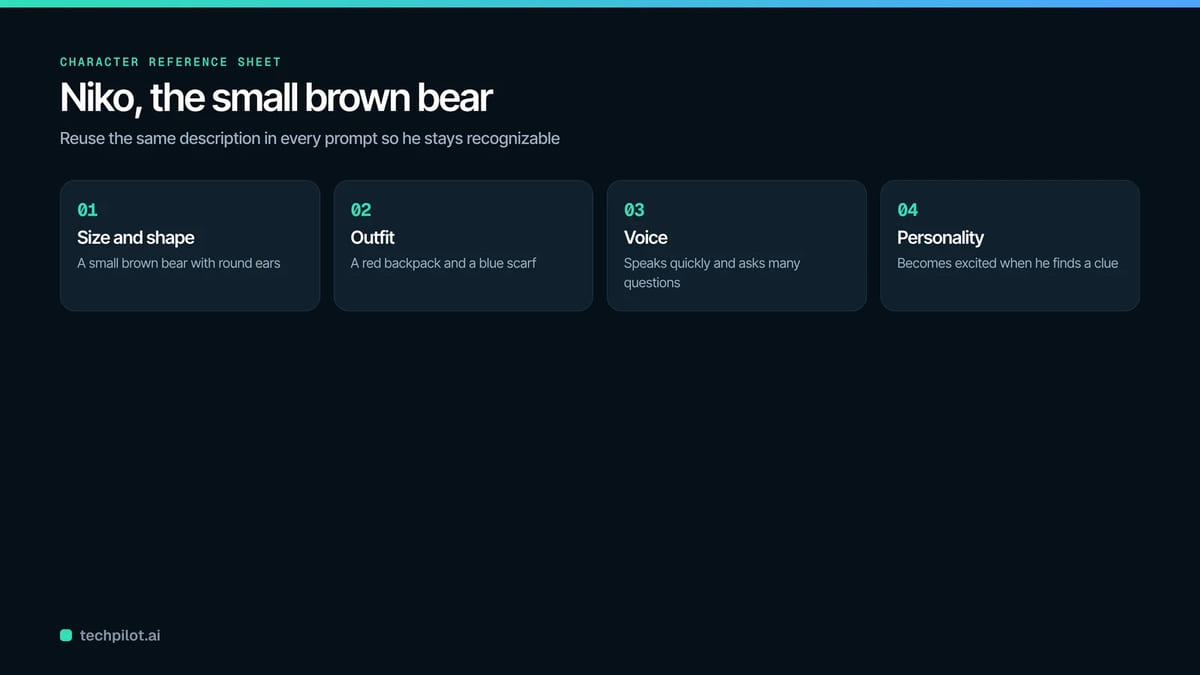
Write a short reference sheet for each recurring character. Include the character’s size, colors, clothes, face, voice, and personality.
A usable description might read:
Niko is a small brown bear with round ears, a red backpack, and a blue scarf. He speaks quickly, asks many questions, and becomes excited when he finds a clue.
Reuse the same wording in future episodes. Small changes in a prompt can produce a different face or outfit. Fixed descriptions help the characters remain recognizable across the channel.
Create a similar reference for recurring locations. If the characters often visit a treehouse, record its roof color, window shape, furniture, and surrounding trees. These details connect separate episodes visually.
Step 5: Divide the Story into Scenes the Viewer Can See
Written stories often describe thoughts and feelings. Video scenes need visible behavior.
“Lina was worried about her friend” gives the generator little direction. “Lina looks at the empty chair, picks up her coat, and runs toward the door” communicates the same feeling through action.
Keep each scene focused on one event. When a character enters a room, finds a map, reads a clue, and calls a friend, treat those actions as separate scenes. This gives children time to understand what happened and makes weak shots easier to replace.
Use dialogue when it changes the situation. Greetings, repeated reactions, and explanations of visible actions can be removed. The narrator can provide short transitions when the location or time changes.
Step 6: Let the Narration Set the Pace
Read the script aloud before generating the final voice. Spoken language exposes long sentences and awkward wording quickly.
Use a steady narrator across the series. Familiar voices help children recognize the channel even when the story begins in a new location. Leave a brief pause after questions, discoveries, and emotional choices.
Check the balance between speech, music, and effects. Sound effects work best when they support an important action, such as a knock, splash, or approaching footsteps.
Step 7: Review Each Episode from Beginning to End
Watch the first version without pausing. Mark every point where the plot becomes confusing or the pace slows. Fix those problems before spending time on minor visual details.
Check that characters keep the same appearance, important objects remain recognizable, and the narration matches what happens on screen. Pay close attention to hands, faces, written text, and background figures. Generated details can look harmless in one frame and distracting during playback.
Ask one practical question about every scene: does the viewer need this moment to follow the story? Remove scenes that repeat information or delay the next important action.
Step 8: Package Your Kids Story Video for YouTube
Use titles that describe an actual event, such as “Niko and the Footprints in the Snow.” A specific title gives parents and children a clearer idea of the story.
Build the thumbnail around one character, one emotion, and one important object. Large shapes and simple compositions remain readable on small screens. Keep thumbnail text brief when text is necessary.
Add accurate captions and choose the correct audience setting. Confirm that the voices, music, images, and character designs have suitable usage rights. Review YouTube’s current requirements for children’s content before publishing.
Once the first episode works, reuse its production template for the next story. Keep the same characters, narrator, visual style, and basic runtime. Change the problem, location, and emotional lesson. That balance gives the channel a recognizable identity while keeping each upload fresh.
FAQ
Can you run a kids YouTube channel without appearing on screen?
Yes. Each episode can be carried by animated characters, a narrator and a simple plot, and an AI story video generator can produce these elements from a script.
What should you include when you submit a script to an AI story video generator?
Include the intended age group, runtime, art style, narrator and pacing. A short instruction covering colors, backgrounds, camera movement, character consistency and music helps too.
How do you keep AI-generated characters consistent across episodes?
Write a fixed reference sheet for each recurring character, covering size, colors, clothes, face, voice and personality, and reuse the same wording in every episode. Do the same for recurring locations.
What should you check before publishing a kids story video?
Add accurate captions, choose the correct audience setting, confirm usage rights for voices, music, images and character designs, and review YouTube’s current requirements for children’s content.
Found this useful? Share it with someone comparing AI tools.