Home / Guides / Productivity
How to Translate a Picture: Phone & Desktop
 Eimantas Kazėnas Marketing & Tech
- Published
- 5 min read
On this page How to translate a picture on Android
Independent and reader-supported. Some links may earn us a commission; it never changes our rankings. Editorial policy
How to translate a picture: open Google Translate and tap Camera on a phone or use the Images tab on desktop. iPhone, DeepL and ChatGPT also work for free.
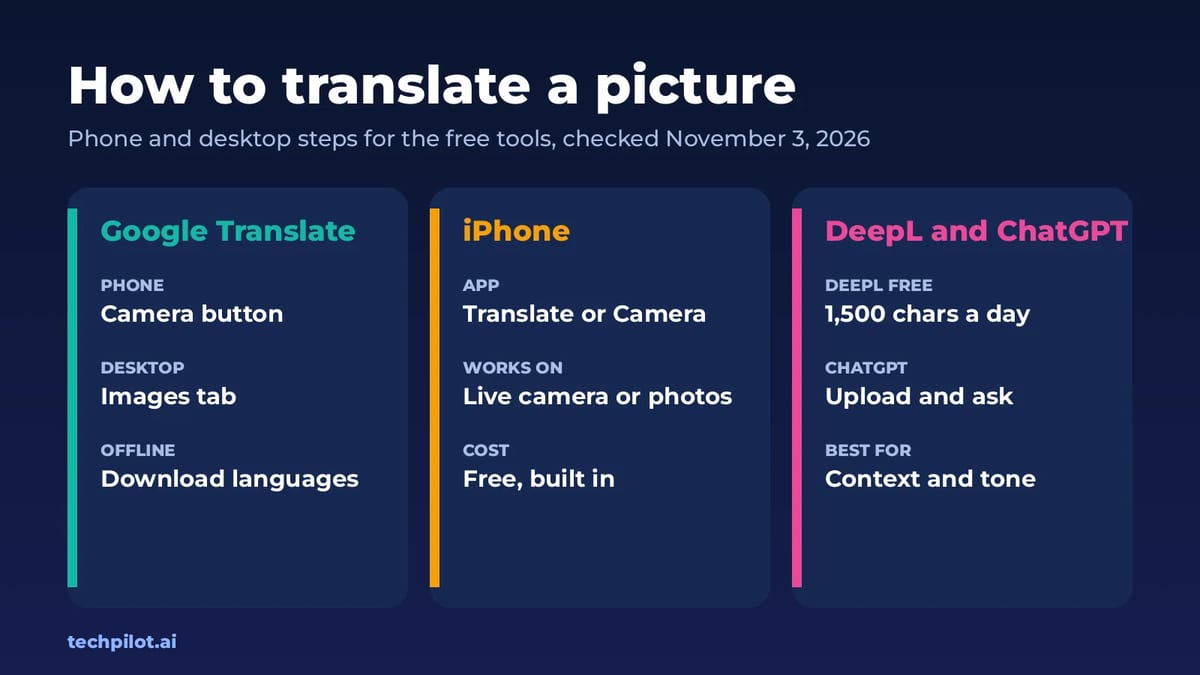
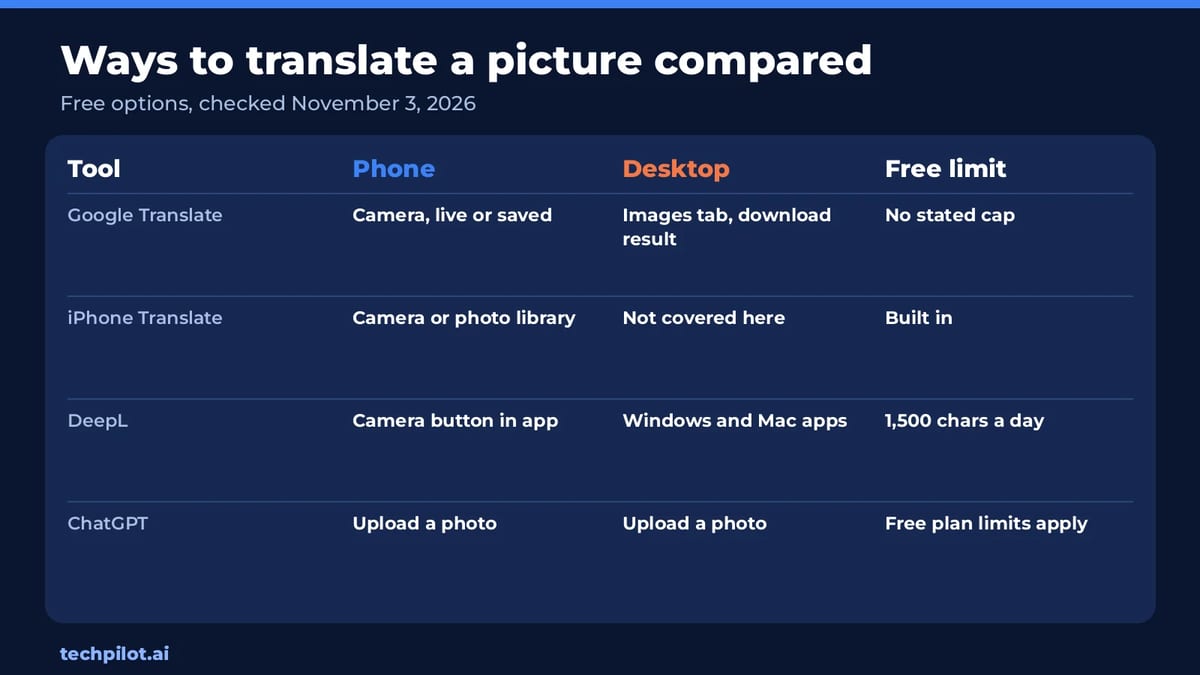
Quick answer: The fastest free way is Google Translate. On a phone, open the app, tap Camera and point it at the text or pick a saved photo. On a computer, go to Google Translate, choose the Images tab and upload the picture. iPhone users can also use Apple’s built-in Translate app. For menus with slang or documents where tone matters, DeepL or ChatGPT give more natural results. We checked each method against the official help pages on November 3, 2026.
How to translate a picture on Android
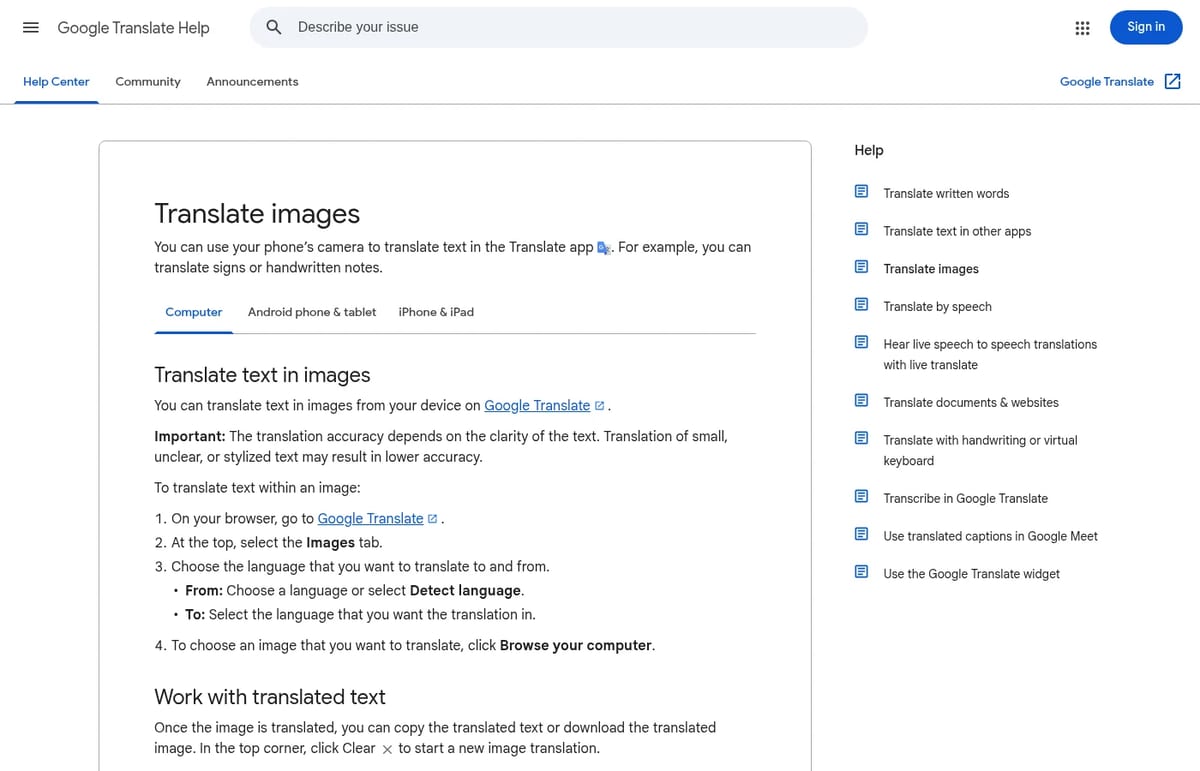
According to Google’s Translate help page, these are the steps:
- Open the Google Translate app.
- Pick the languages. For From, you can tap Detect language.
- Tap Camera.
- To translate live, point your camera at the text and tap the shutter button to freeze it. To translate a photo you already took, tap All images and choose it.
- Tap any word to select part of the text, then copy it, have it read aloud or send it to Translate Home.
Tip for travel: download your languages in the camera’s language picker before you go. Camera translation then works without an internet connection.
How to translate a picture on iPhone
You have two built-in options and don’t need to install anything:
- Translate app: open Translate, tap Camera and hold your iPhone over the text. It translates in real time. To use a saved picture, tap Camera, then the photo button, and pick an image from your library. You can share or save the translated image.
- Camera app with Live Text: point the Camera at text, tap the Live Text button when the yellow frame appears, select the text and tap Translate.
Both steps come from Apple’s iPhone User Guide. Live Text and translation aren’t available in every region or language. Google Translate on iPhone works the same way as on Android if you prefer it.
How to translate a picture on a computer
On Windows, Mac or a Chromebook, Google Translate in the browser is the simplest route:
- Go to translate.google.com and select the Images tab at the top.
- Choose the languages, or use Detect language.
- Click Browse your computer and pick the image.
- Turn Show original on to compare side by side, click Copy text, or click Download translation to save the translated image.
Translate a picture with DeepL
DeepL is a good pick when you care about natural phrasing, for example a letter or a product label. Per DeepL’s image translation page:
- Windows app: open the Images tab and drag in a picture, or use screen capture.
- Mac app: drag an image into the text box, or use the screen capture tool.
- Phone: tap the Camera button under the source text, then take a photo or pick one from your gallery.
The catch: free DeepL users can translate up to 1,500 characters a day from images. That covers a menu or a sign, but not a scanned multi-page document. Supported files are BMP, PNG, JPG, TIFF and GIF.
Translate a picture with ChatGPT
ChatGPT is the best option when you need context, not just words. Upload or paste the photo and ask something specific, such as “Translate this menu into English and explain any dishes I wouldn’t recognize” or “Translate this sign and tell me if it’s a warning.” It handles mixed languages and can keep a table’s layout in its answer. Free accounts have usage limits, and like any AI it can misread blurry text, so double-check anything important. Want other chatbots that can read images? See our best free AI chatbots guide or check whether Claude is free.
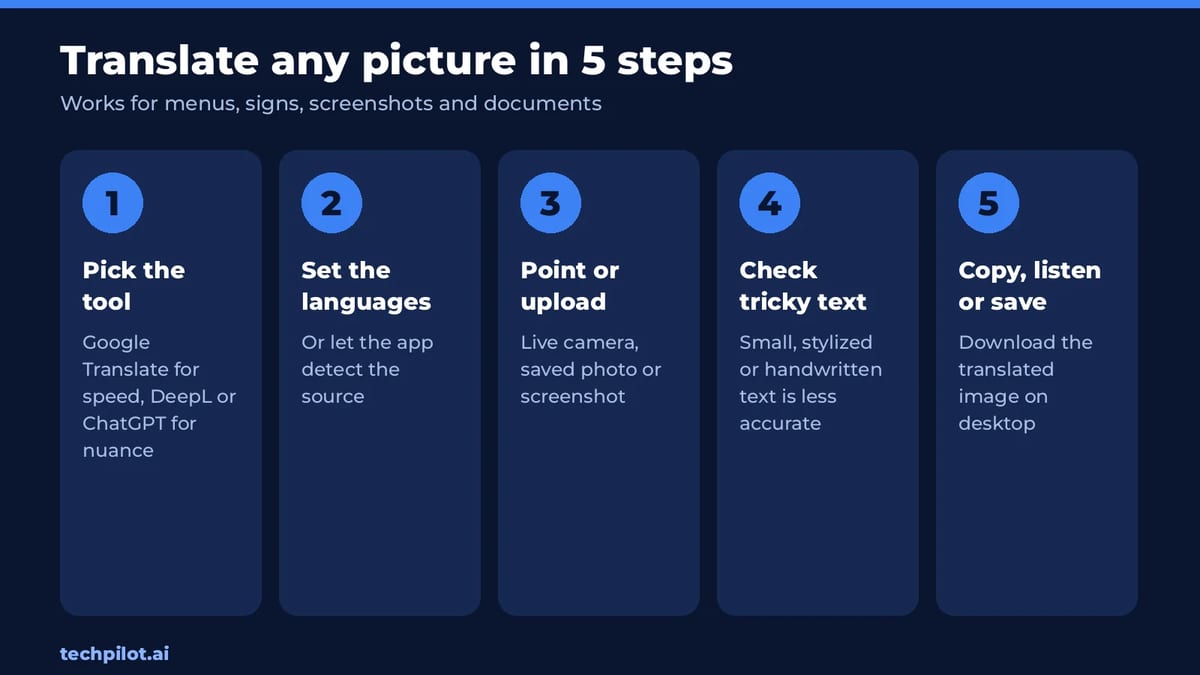
Which method should you use?
- Street signs and menus while traveling: Google Translate camera with offline languages downloaded.
- Screenshots on a laptop: Google Translate Images tab, or DeepL’s screen capture if you have the desktop app.
- Letters, labels and anything where tone matters: DeepL, within its daily free limit.
- Handwriting, mixed languages or “what does this mean?”: ChatGPT, then sanity-check the key lines.
Our take: no single tool wins everywhere. Google Translate is the fastest and has no published daily limit, so start there. Switch to DeepL or ChatGPT only when the translation reads awkwardly or you need an explanation. For more free apps that do this kind of job, browse our list of free AI apps.
Tips for a better picture translation
- Use good light and hold the phone steady. Google notes that small, unclear or stylized text is less accurate.
- Crop to the text you need so the app doesn’t mix in other words.
- Set the source language yourself if auto-detect gets it wrong.
- Expect weaker results on handwriting. DeepL warns it may not be accurate.
Frequently asked questions
How do I translate a picture for free?
Use Google Translate. On a phone, tap Camera and point at the text or pick a saved photo. On a computer, open the Images tab on translate.google.com and upload the picture.
Can I translate a picture on iPhone without an app?
Yes. Use the built-in Translate app’s Camera, or point the Camera app at text, tap the Live Text button and choose Translate. Availability depends on region and language.
Can Google Translate translate a picture offline?
Yes, on the phone app. Download the languages in the camera language picker first, and camera translations will work without an internet connection.
Is DeepL image translation free?
Yes, with a limit. Free DeepL users can translate up to 1,500 characters a day from images. DeepL Pro removes that cap.
Can ChatGPT translate a picture?
Yes. Upload the photo and ask ChatGPT to translate it. It can also explain context, like dishes on a menu, but check important text because it can misread blurry images.
Found this useful? Share it with someone comparing AI tools.