AI Infographic Generators in 2026: The One Test Most of Them Fail
A 7-tool AI infographic generator test: which tools kept all 18 timeline lines correct, which dropped or invented text, and what each free plan exports.
 Eimantas Kazėnas Marketing & Tech
 - Published
- 4 min read
On this page The test, in one paragraph
Independent and reader-supported. Some links may earn us a commission; it never changes our rankings. Editorial policy
Ask an AI tool for an infographic and you usually get something that looks finished in ten seconds. The question nobody asks until later is whether the words on it are right. Infographics are dense by design: a timeline with eighteen events, a process with nine steps, a comparison with thirty cells. That is exactly where image generators struggle, because every line is one more chance to drop a word, repeat an item or invent a date.
In October 2026 the team at Wonderslide ran a test that isolates this one problem. The setup was simple and worth copying if you evaluate tools yourself: one brief, two sizes, seven tools, first result only, no edits. The results are published as an AI infographic generator test with every line counted, and they change how I think about picking a tool for this job.
The test, in one paragraph
Every tool received the same English brief: a horizontal timeline for a fictional robotics company, with exactly 10 or exactly 18 events, each written word for word as given. Each event is a short line like “2010: First K-1 manipulator prototype built”. The tools were Wonderslide, Gamma, Napkin AI, ChatGPT, Gemini, Canva and Piktochart, all on free plans except Wonderslide, which runs the test and used its own paid account. A text recognizer read the images, and a person checked the 45 lines it could not confirm. Any missing, extra or wrong character counted as an error. So did a paraphrase, a wrong year, or an event drawn twice.
What happened at 10 events versus 18
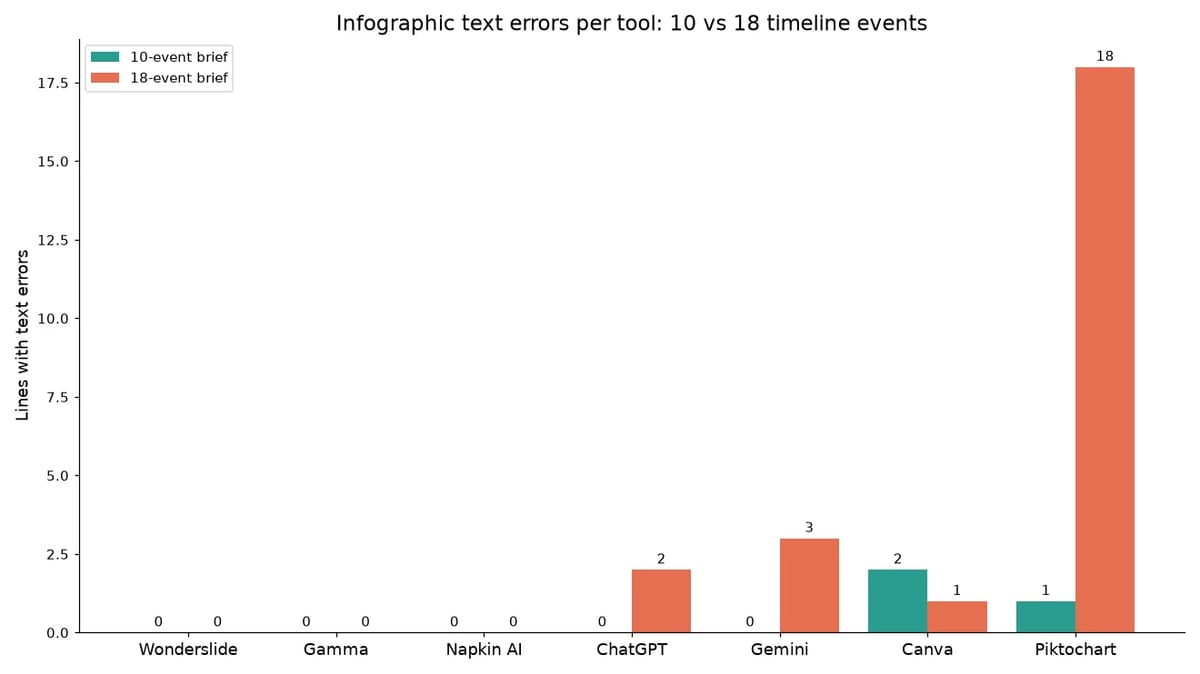
At 10 events the field looks fine. Five of the seven tools wrote every line correctly. Canva missed on two lines, Piktochart on one. If you only ever test a tool with a short brief, you will conclude that all of them work.
At 18 events the picture splits. Three tools still wrote all 18 lines correctly: Wonderslide, Gamma and Napkin AI. ChatGPT left out two events. Gemini drew two events twice and misspelled one. Canva got three of its 28 lines across both sizes wrong, including the memorable “First 1st production fine opdion line opened” instead of “First production line opened”. Piktochart’s 18-event image had zero readable lines and invented years such as 2038.
The pattern is the useful part. Image chatbots are good at short, loose briefs and slip when the brief gets long and literal. Tools that build the infographic from structured text rather than painting it as a single picture hold up better, because the text is placed, not drawn.
Correct is not the same as unchanged
Even the three tools that got every line right changed something. Wonderslide added five period labels to the 18-event timeline. Gamma split words across lines mid-word. Napkin AI added its own headline to each of the 10 events and three group headings at 18. None of these is an error under the test rules, but all of them are editorial decisions the tool made for you. If your infographic will be reviewed by a client or a compliance team, you want to know that before you send it.
The second thing to check is whether you can fix text in place. Gamma, Napkin and Canva let you click a line and retype it. ChatGPT, Gemini and Piktochart hand you a flat image, so a single typo means regenerating. Wonderslide sits in between: you ask for the change through its chat and it regenerates the slide.
Free plans decide what you can export
The test also recorded what each free plan actually gives you. Gamma and Napkin put their badge on free exports. Piktochart allows two PNG downloads per account. Canva exports to PNG, JPG, PDF, GIF, MP4 and PPTX without a watermark. Wonderslide exports PDF on the free tier and PPTX on paid access, from $4.99 for a single deck. Paid plans ranged from Gemini’s AI Plus at $4.99 a month to ChatGPT Plus at $20, with prices checked between October 7 and 14, 2026.
How to use this when choosing a tool
- Test with your real density. A ten-item brief tells you nothing about an eighteen-item one. Take the longest infographic you made last quarter and use that.
- Count lines, not vibes. Read every line back against your brief. The errors in this test were small and easy to miss on a glance: one dropped event, one repeated item, one wrong year.
- Decide whether you need to edit in place. If your reviewers send back typos, a flat PNG will cost you a regeneration per round.
- Check the export before you commit. A watermark or a two-download cap is fine for a mock-up and a problem for a client deliverable.
Where this fits in a wider workflow
An infographic rarely lives alone. It ends up on a slide, in a report or in a course module, next to text and charts that were made elsewhere. That is why the tools that treat the infographic as a structured slide rather than a picture tend to win over time: the same engine that keeps eighteen lines intact can also lay out the deck around them. Wonderslide is built that way, as an AI presentation maker first, with infographics as one slide type among others, which is why it was in the test at all.
One honest caveat the authors make themselves: this is one brief, one first result per tool, and free accounts with default settings. Your prompt and your plan may behave differently. But the failure mode it exposes, text that quietly degrades as density grows, is the one to look for in any tool you try
Found this useful? Share it with someone comparing AI tools.