Best AI Spotify Canvas Generator: 6 Tools That Turn a Single Into an 8-Second Loop
Compare the best AI Spotify Canvas generators, from Neural Frames to Kapwing, and learn which tool turns your single into an approved 3 to 8 second loop.
 Mihai (Mike) Bizz Business, entrepreneurship, tech & AI
 - Published
- 9 min read
On this page How the Best AI Spotify Canvas Generators Were Chosen
- How the Best AI Spotify Canvas Generators Were Chosen
- 1. Neural Frames: Best Overall for Original, Audio-Reactive Visuals
- 2. Kaiber: Best for Beat-Synced Batches of Short Videos
- 3. Rotor Videos: Best for Fast, Footage-Based Canvas Loops
- 4. Videobolt: Best for Template-Based Canvas Designs
- 5. Kapwing: Best for a Ready-Sized Canvas Template
- 6. VEED: Best for Simple Looping Inside a General Video Editor
- How to Get a Spotify Canvas Approved
- Choosing the Right Tool for Your Release
Independent and reader-supported. Some links may earn us a commission; it never changes our rankings. Editorial policy
Your single is mastered, the cover art is done and the release date is locked in Spotify for Artists. Then you remember the Canvas: the short vertical loop that plays behind your track in the Now Playing view. It is only a few seconds long, yet it is the first moving image many listeners will connect with the song.
Search for a “Spotify Canvas generator” and the results blur together. Some tools create new visuals from your music. Others crop a clip you already have. A few hand you a template and a color picker. All of them can work, but only if you know which kind of tool you are opening.
This guide sorts six options by what they actually do, so you can pick the one that fits the assets you already have and the look you want.
How the Best AI Spotify Canvas Generators Were Chosen
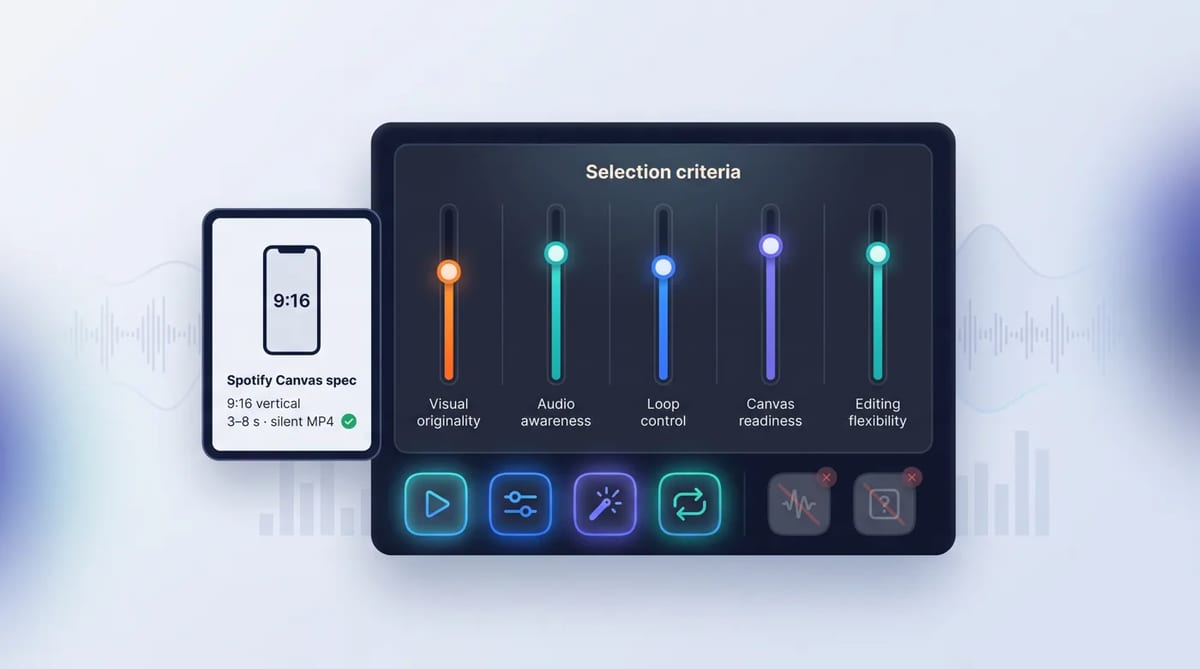
Every tool had to clear one hard rule first: the result must fit Spotify’s own Canvas guidelines. Spotify asks for a clip that is 3 to 8 seconds long, vertical in a 9:16 ratio, between 720 and 1080 pixels tall, and delivered as an MP4 or JPG file. A tool that cannot get you there without a second app lost points straight away.
After that, five qualities decided the ranking:
- Visual originality. Fresh, generated scenes ranked above recycled stock looks.
- Music awareness. Tools that react to the song itself, not only to overall volume, scored higher.
- Loop control. Spotify describes three loop types, continuous, hard cut and rebound, so easy loop handling mattered.
- Canvas readiness. A file that is already vertical and the right length saves real time.
- Editing flexibility. Quick trims, crops and color changes in the same window count for a lot when a release is close.
Each claim below comes from the tool’s own product pages and help documentation.
1. Neural Frames: Best Overall for Original, Audio-Reactive Visuals
What It Does
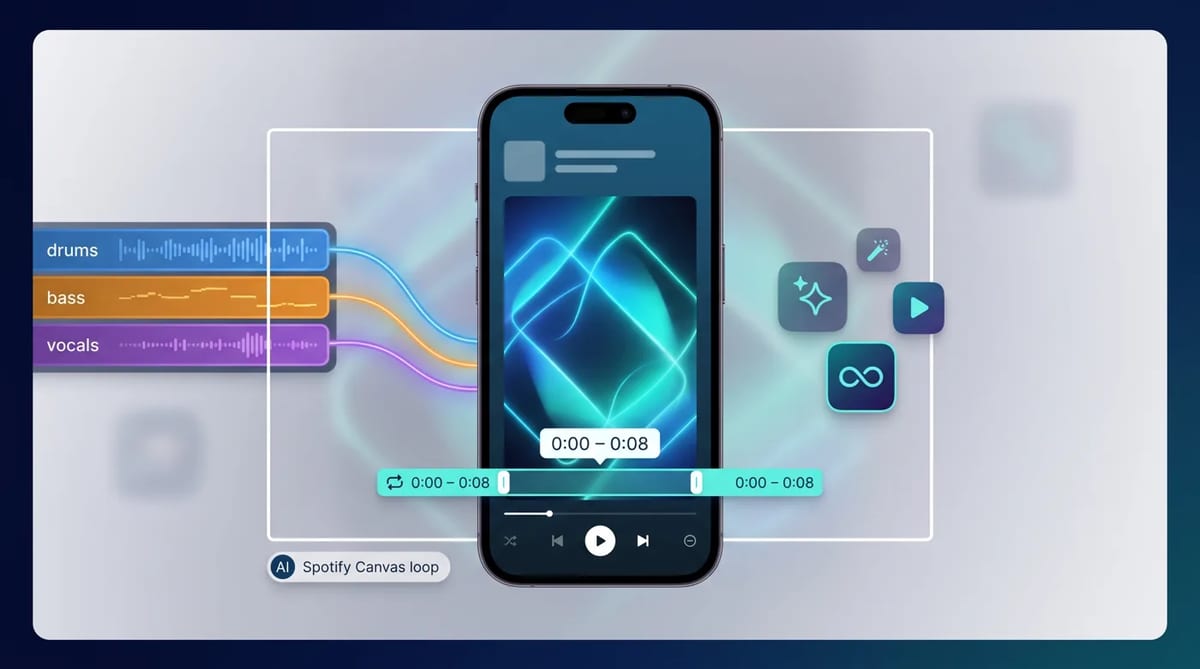
Neural Frames treats your song as the starting point. Its AI music visualizer turns an uploaded track into original, beat-reactive visuals, and it separates the audio into eight stems, so motion, color, camera movement and effects can follow the kick, snare, vocals, bass or melody rather than overall volume alone. You can describe a look, start with Autopilot or direct every scene yourself, then create a short loop or a full-length visual.
Neural Frames does not compose music. It works with the finished song you upload and builds a visual world around it.
Standout Feature
The standout is the hand-off from generation to Canvas. Once you have a visual you like, the Neural Frames Spotify Canvas Maker prepares it for Spotify in your browser. You add a video or an image in MP4, MOV, WebM, JPG, PNG or WebP format, up to 50 MiB, preview the vertical crop, trim to 3 to 8 seconds, and export.
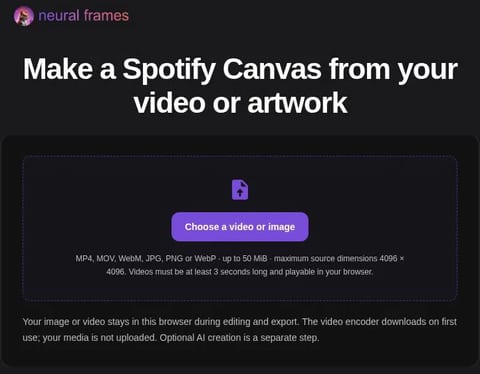
The export is a silent H.264 MP4 at 576 by 1024 pixels and 30 frames per second, between 3 and 8 seconds long. Your media stays in the browser during editing and export, and it is not uploaded to a server. For artists who want generated visuals that follow the stems, plus a clean finishing step for the loop, start at https://www.neuralframes.com/tools/spotify-canvas-maker
Honest Limitation
The Canvas Maker itself is a finisher, not a generator. It crops and trims an existing video or applies a simple zoom to a still image; creating new AI scenes is a separate Neural Frames workflow. It also does not publish to Spotify. You upload the exported file through Spotify for Artists and check the crop and loop transition before publishing.
Best For
Artists who want the song itself to steer the imagery, and who prefer one ecosystem for generating visuals and preparing the final 9:16 loop.
2. Kaiber: Best for Beat-Synced Batches of Short Videos
What It Does
Kaiber is an AI video platform for artists and creators, with three main products: Canvas, Beat Sync and an Editor. Beat Sync is the music-first tool. You upload images or clips, or use Auto-Clip to slice a long video into shots, add your track and trim it to the section you want. Then you pick an aspect ratio of 9:16, 16:9 or 1:1.
Standout Feature
Batch creation. Beat Sync generates several beat-synced videos at once from the same media and audio, with no prompting required, and the generation time is the same whether you make one video or ten. For a Canvas, that means you can choose the 9:16 ratio, trim the audio to your strongest section and compare several versions side by side. Kaiber’s Canvas workspace also runs AI video models such as Kling 3.0 when you want new footage instead of your own clips.
Honest Limitation
Beat Sync syncs the visuals you supply, so the look depends on the images and clips you upload. You still need to check that the final clip lands between 3 and 8 seconds and meets Spotify’s height rules before upload.
Best For
Musicians and content teams who need volume: Canvas loops, promo clips and social posts cut from the same media, all synced to the track.
3. Rotor Videos: Best for Fast, Footage-Based Canvas Loops
What It Does
Rotor Videos, now part of LyricFind, offers a dedicated Spotify Canvas creator. You choose from a clip library of more than 9 million clips, including real-life footage, professional animations and visualizers, then select the exact segments you want with its editing tools.
Standout Feature
Loop styles and effects. Rotor’s Canvas examples show loop treatments such as Fade Repeat, Hard Cut and Rebound, and its effects and filters let you push a simple clip further without professional editing software. Rotor says its Canvas creator can turn videos into smooth, continuous loops, which is the hardest part for many artists to get right by hand.
Honest Limitation
Rotor builds your Canvas from library footage or your own clips, not from new scenes generated from the song. If you pick widely used stock clips, your loop may look similar to other artists’ work, so choose carefully or upload your own footage.
Best For
Artists who need a polished Canvas quickly and are happy to build it from footage rather than generated visuals.
4. Videobolt: Best for Template-Based Canvas Designs
What It Does
Videobolt offers a large library of ready-made Spotify Canvas templates in styles such as glitch, neon, retro and 3D. You choose a template, swap in your cover art, adjust the text and match the colors to your release, with a live preview of every change.
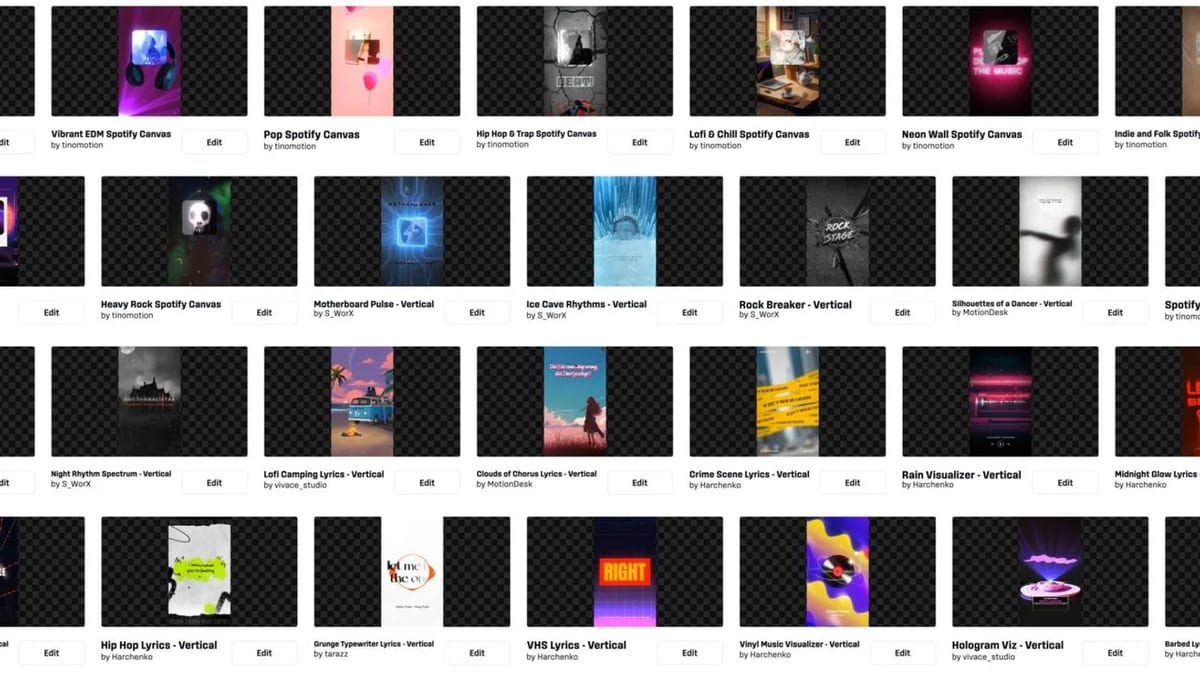
When the design is ready, you render it in Full HD or 4K, download it and upload it to Spotify for Artists.
Standout Feature
Brand consistency. Videobolt’s Brand Kit and Asset Library keep your fonts, colors and logos in one place, so you can save favorite settings and apply them across every release. The same platform also makes lyric videos, music visualizers and promo teasers from the same cover or audio.
Honest Limitation
Templates save time, but they are shared designs. If many artists pick the same popular layout, Canvases can start to look alike. Heavy text also works against Spotify’s own advice, which suggests leaving out the song and artist name because they already appear in the Now Playing view.
Best For
Labels and artists who release often and want a recognizable visual signature across a catalogue.
5. Kapwing: Best for a Ready-Sized Canvas Template
What It Does
Kapwing offers a 9:16 Spotify Canvas Maker template sized at 1080 by 1920 pixels and set to a 7-second length by default. You add your own video to the canvas and trim it to the length you want, staying inside Spotify’s 3 to 8 second range.
Standout Feature
A correctly sized starting point inside a full browser editor. Because the template already has the right dimensions and a safe default length, you skip the setup and go straight to editing. Kapwing’s wider toolkit includes AI tools such as a video generator and a B-roll generator if you need extra footage.
Honest Limitation
The Canvas template is a sized frame, not a music-aware generator. It does not analyze your song, so any motion that should land on the beat has to be timed by hand.
Best For
Artists who already have a clip or animated cover and want a fast, correctly sized template to trim and export.
6. VEED: Best for Simple Looping Inside a General Video Editor
What It Does
VEED is an all-in-one browser video editor with AI tools such as an AI video generator, text to video and image to video. Its loop video tool repeats a clip by adding the same video to the timeline as many times as you need, or by cutting out a short section and repeating it. You can export the result as an MP4 or as an infinitely looping GIF, and a separate video-to-boomerang tool creates forward-and-back loops.
Standout Feature
Everything in one tab. You can generate or upload footage, cut it, loop it and add text, shapes or audio without switching apps. For creators who also make Reels, Shorts and teasers, that flexibility is useful.
Honest Limitation
VEED’s loop tool is general purpose. It does not offer a dedicated Spotify Canvas template on its loop page, so you set the 9:16 frame and the 3 to 8 second length yourself, and it does not analyze the music for you.
Best For
Solo artists and social-first teams who already edit in VEED and want to produce a Canvas alongside their other short videos.
How to Get a Spotify Canvas Approved
Spotify’s guidelines are short, and following them avoids most problems. Before you upload, check that your Canvas is:
- Between 3 and 8 seconds long.
- Vertical, in a 9:16 ratio.
- Between 720 and 1080 pixels tall.
- An MP4 or JPG file.
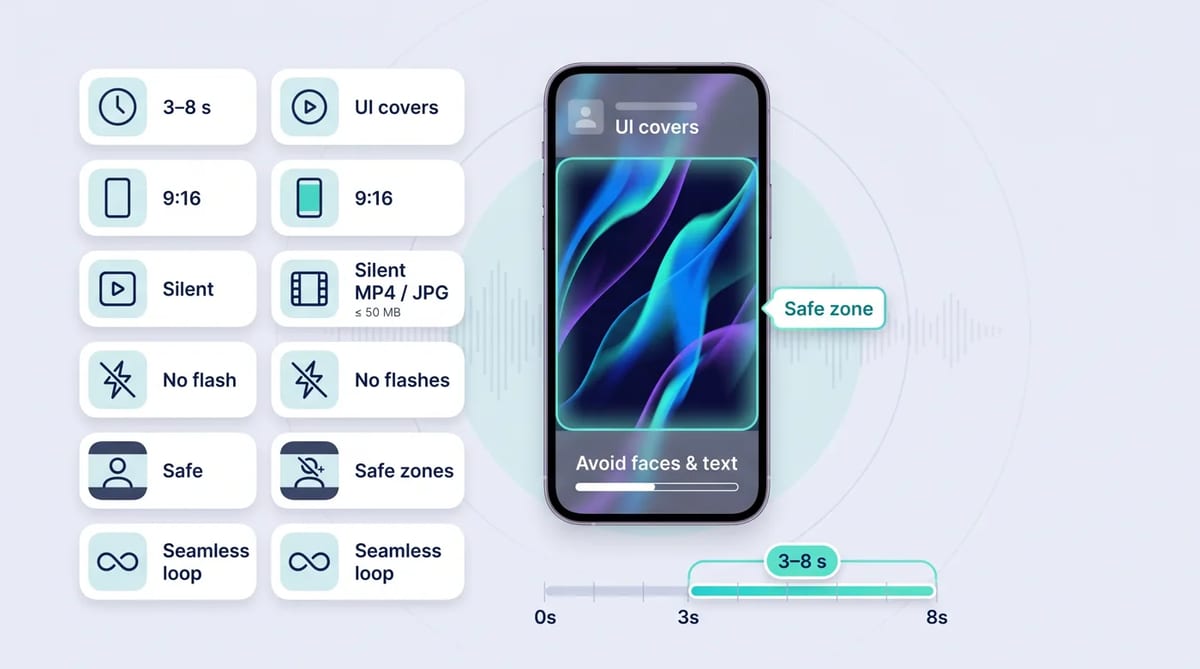
Spotify also recommends a few creative choices. Pick footage without talking, singing or rapping, because a 3 to 8 second clip will not sync with the lyrics. Avoid rapid cuts and intense flashing graphics. Remember that the edges may be cut off on some phones, and consider leaving out the song and artist name. Choose the loop type that suits your clip: a continuous loop, a hard cut with clear edit points, or a rebound that plays forward and then in reverse.
If you want to go further than an 8-second loop, TechPilot.ai’s guide on how to create amazing AI music videos walks through building a full AI music video in eight steps, which you can then trim into a Canvas.
Choosing the Right Tool for Your Release
Start with what you already have.
If you want brand-new visuals that move with every stem of your song, Neural Frames generates them and then prepares the loop in your browser.
If you need many beat-synced variations from the same media, Kaiber’s Beat Sync batch tool is built for volume.
When you want a quick, footage-based Canvas, Rotor Videos pairs a huge clip library with ready loop styles.
For a consistent look across a whole catalogue, Videobolt’s templates and Brand Kit keep every release on brand.
If you already have a clip and only need the right frame, Kapwing’s sized template gets you to export fast.
And if you already live in a general video editor, VEED lets you loop and export your Canvas next to the rest of your content.
Pick the tool that removes the most steps between your finished song and the loop your listeners will see.
Found this useful? Share it with someone comparing AI tools.