Home / Guides / Productivity
How to Use ChatGPT: A 2026 Beginner’s Guide
 Eimantas Kazėnas Marketing & Tech
- Published
- 6 min read
On this page Step 1: Pick where and how you use it
Independent and reader-supported. Some links may earn us a commission; it never changes our rankings. Editorial policy
How to use ChatGPT in 2026: choose Chat, Work or Codex, give it a clear brief with real context, then check what it hands back. Plus which plan you need.
Quick answer: open chatgpt.com or the desktop app, sign in with a free account, and type what you want the way you’d explain it to a smart colleague. The single habit that separates good results from bad ones is the brief: say what the result is for, give the context only you know, and say what shape you want it in. Then treat the first answer as a draft, not a verdict.
Step 1: Pick where and how you use it
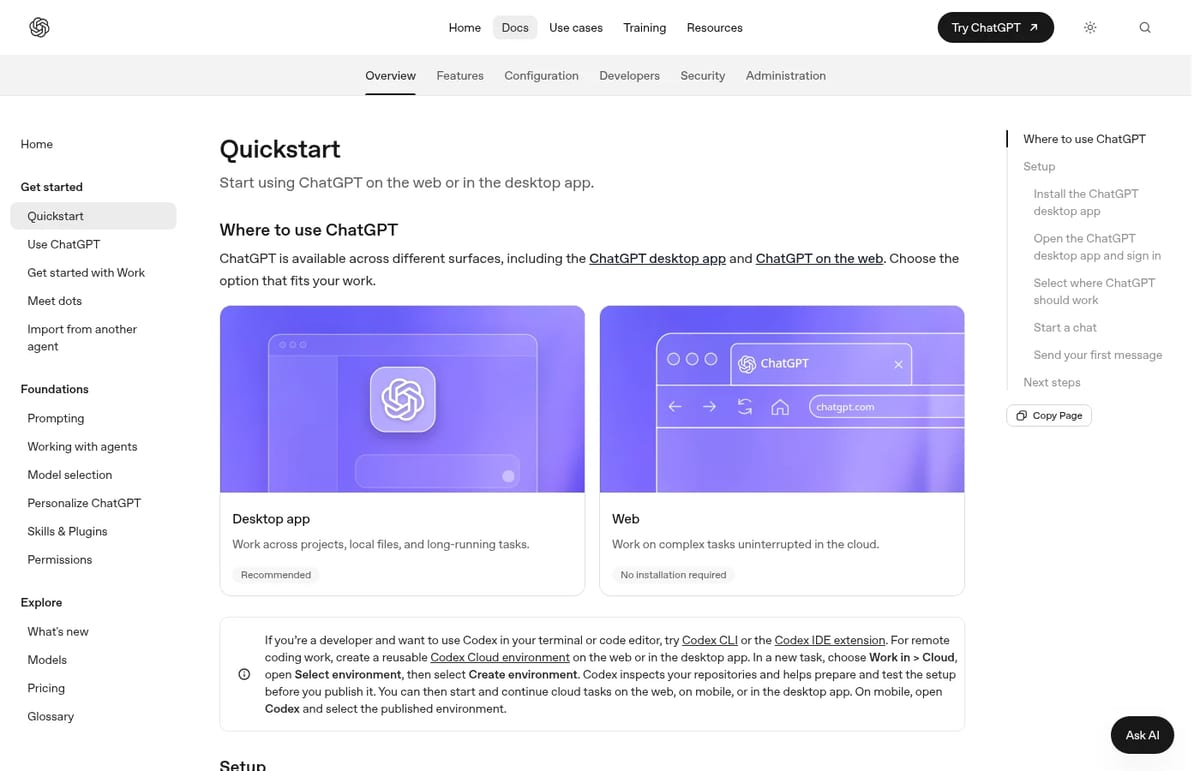
ChatGPT runs in a browser at chatgpt.com, in mobile apps and in a desktop app for macOS, Windows and Linux. The browser is fine for most people. The desktop app is worth installing if you want ChatGPT to work with files and folders on your computer.
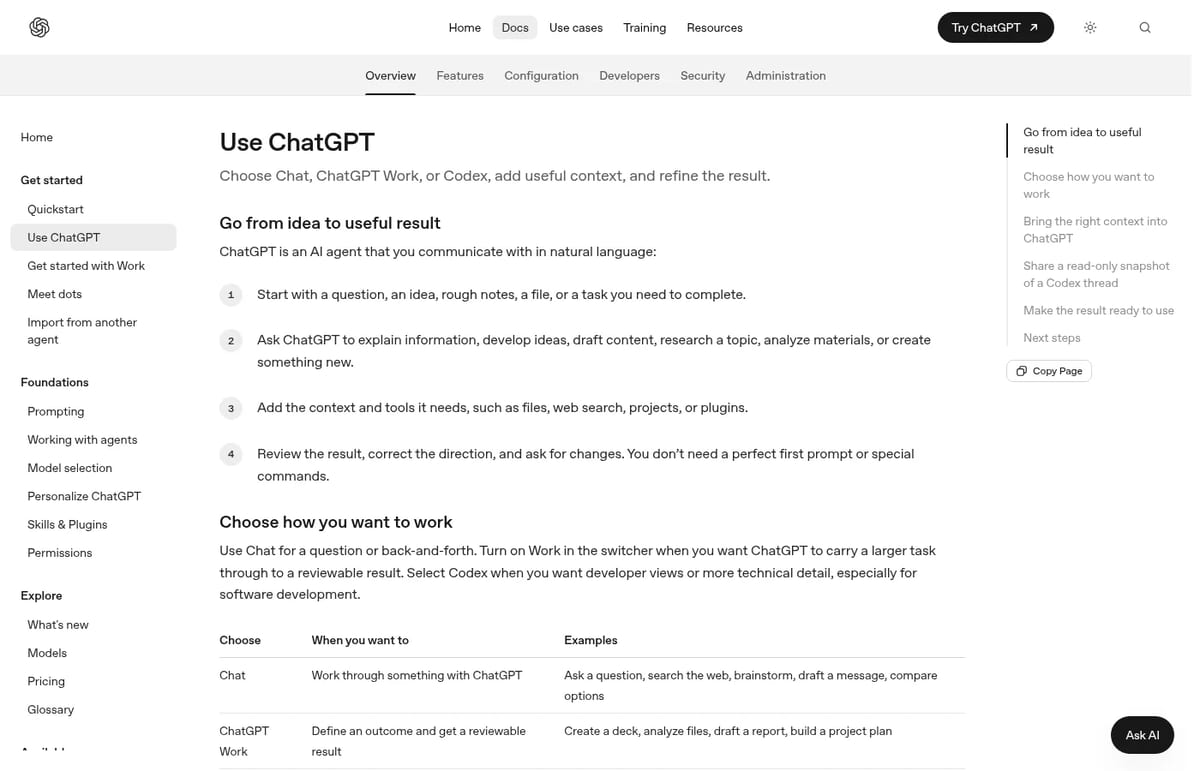
The bigger change in 2026 is that ChatGPT now has three ways of working, picked from a switcher at the top of a new chat. OpenAI’s own Use ChatGPT guide describes them like this:
- Chat: back-and-forth for questions, brainstorming, drafting, summarizing a file or comparing options.
- Work: you describe an outcome and ChatGPT plans the task, gathers context, uses tools and hands back something reviewable, such as a deck, a report, a spreadsheet or a project plan.
- Codex: the developer view, for debugging, running tests, reviewing pull requests and building features.
Our rule of thumb: start in Chat. Switch to Work only when you can describe the finished file you want. Work and Codex share the same usage limits, so long Work tasks on a lower plan eat into the allowance you might want for coding.
Step 2: Write a brief, not a search query
Most disappointing ChatGPT answers come from search-style prompts like “marketing ideas” or “fix my CV”. ChatGPT has no idea who you are, who the result is for or what good looks like to you. We use a four-part brief that works for almost anything:
- Goal: what the result is for. “A cover email for a junior data analyst role” beats “write an email”.
- Context: the facts only you know. Paste the job ad, your notes or the numbers, or attach the file.
- Constraints: length, tone, audience, budget, things to avoid.
- Format: a table, five bullets, a first draft, three options to choose from.
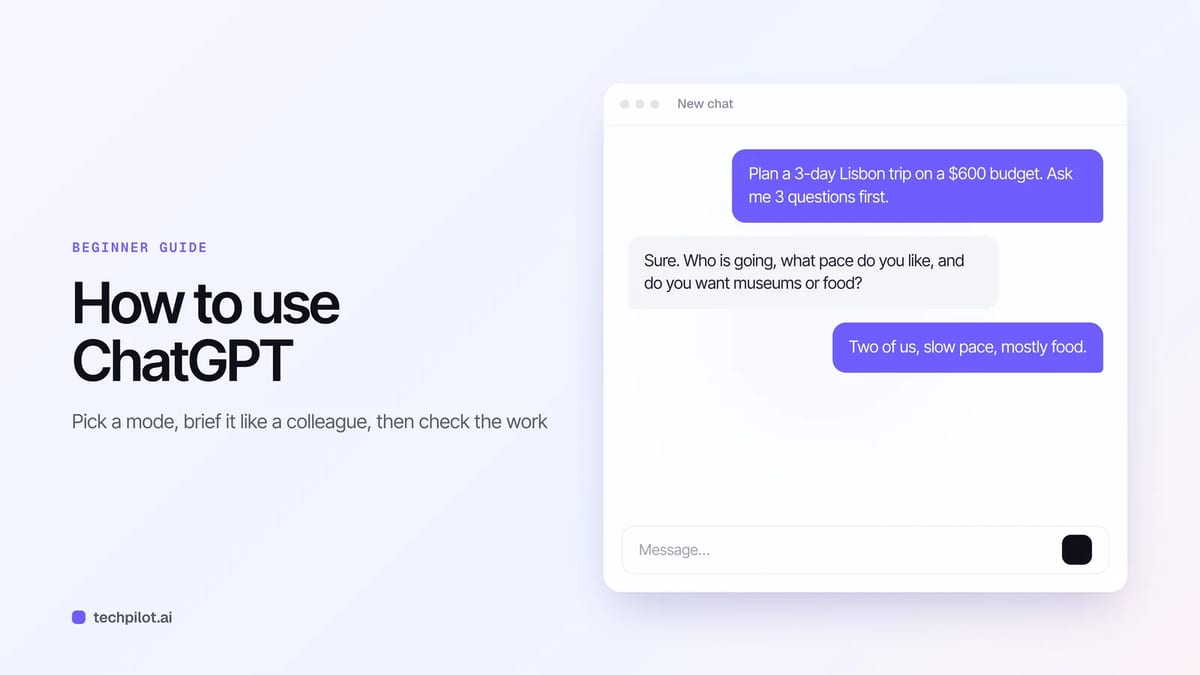
Here’s the difference in practice. A weak prompt: “Plan a trip to Lisbon.” A strong one: “Plan 3 days in Lisbon for two people in March on about $600 excluding flights. We like food markets and walking, not museums. Give me a day-by-day table with rough costs, and ask me 3 questions before you start.” The second prompt takes 20 seconds longer to write and saves several rounds of back-and-forth.
That last line, “ask me questions before you start”, is the most underused trick in ChatGPT. It turns a vague request into a short interview, and the answer that follows is usually far closer to what you wanted. For more templates, see our list of effective ChatGPT prompts.
Step 3: Steer with short follow-ups
You don’t need a perfect first prompt. ChatGPT keeps the whole conversation in view, so plain follow-ups work well:
- “Make this shorter.”
- “Give me three different approaches.”
- “What assumptions are you making?”
- “Rewrite it for someone with no technical background.”
If a chat drifts badly, start a new one and paste in a better brief. Long, tangled conversations tend to get worse, not better.
Step 4: Give it your material
ChatGPT is much more useful when it works from your material instead of its general knowledge. Three features matter most:
- Files: attach documents, PDFs, spreadsheets, slides or images and ask it to summarize, compare, find inconsistencies or pull out data.
- Projects: keep related chats, files and instructions together when you’ll come back to the same topic, such as a course, a client or a job search.
- Plugins: connect tools like Google Drive, Gmail, Slack, SharePoint, GitHub or Canva when the task depends on information outside the chat. Availability depends on your plan and workspace.
A word of caution before you upload: don’t paste passwords, other people’s personal data or anything your employer hasn’t cleared. Our guide to whether ChatGPT is safe covers the privacy settings worth changing first.
Step 5: Check the work before you use it
A polished answer can still be wrong. OpenAI’s own guidance is to verify important numbers, names, dates, quotes and claims, and to open any file ChatGPT creates and check every page or tab. We’d add one habit: ask it to show its working. Prompts like “Cite the source for each major claim”, “What information couldn’t you access?” and “What would change your recommendation?” surface weak spots quickly.
For legal, medical, financial or security decisions, use ChatGPT to prepare questions and understand options, then check with a qualified person.
Which ChatGPT plan do you need?
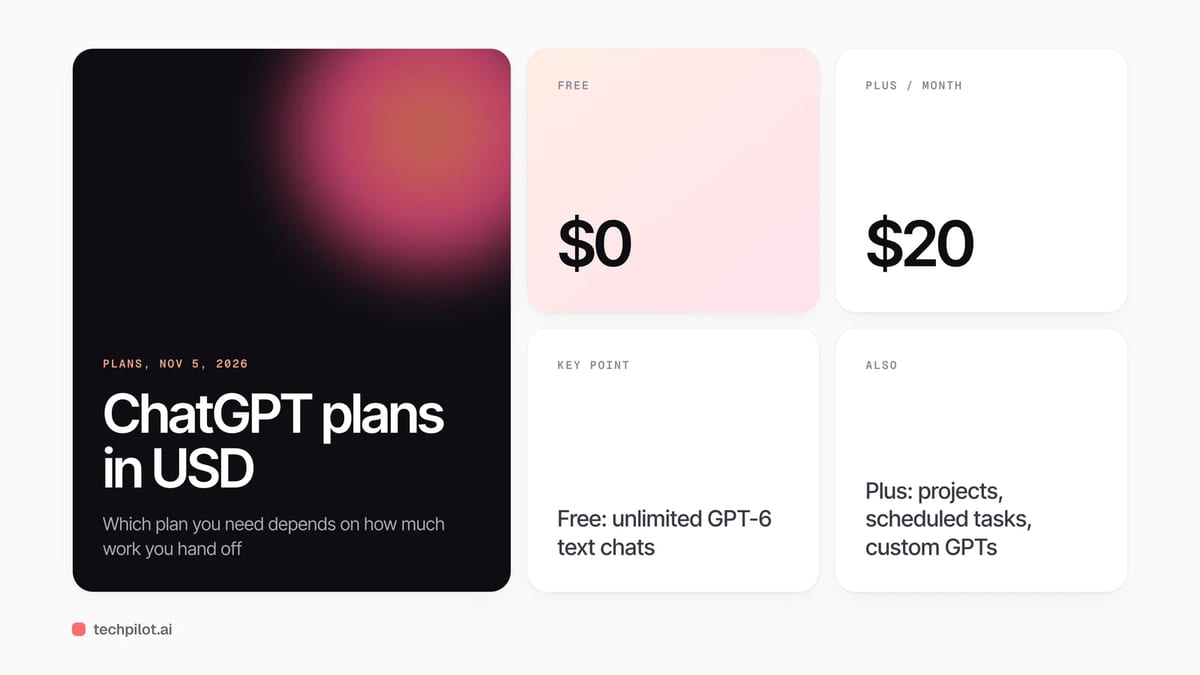
The free plan is enough to learn everything in this guide. It includes unlimited text chats with GPT-6, subject to abuse guardrails, plus limited uploads, image creation, voice chats, deep research and Codex. Here’s how the paid plans compare, using the USD prices from OpenAI’s help center on November 5, 2026:
| Plan | Price | Best for |
|---|---|---|
| Free | $0 | Learning, everyday questions and drafting |
| Go | Varies by country | More messages, uploads and images; may include ads |
| Plus | $20 a month | Advanced GPT-6 reasoning, projects, scheduled tasks, custom GPTs, more Work and Codex |
| Pro | $100, $200 or $500 a month | Heavy research and coding, longer Work and Codex sessions |
Plus is billed monthly, according to OpenAI’s Plus help page, and Pro is monthly only with three tiers. Our advice: stay on Free until you hit a limit you actually feel, such as uploads or deep research, then move to Plus. Pro only pays off if you run long Work or Codex tasks every day.
Five beginner mistakes to avoid
- Asking for “the best” anything with no context. You’ll get a generic list. Say who it’s for and what matters.
- Trusting numbers without checking. Prices, statistics and dates are where errors hide.
- Using one endless chat for everything. Start fresh chats per task, or use a project.
- Pasting sensitive data. Remove names, account numbers and anything confidential first.
- Giving up after one bad answer. Tell it what’s wrong and ask again. That’s how it’s meant to be used.
If you want to compare ChatGPT with other assistants before you settle in, our roundup of the best free AI chatbots covers the main alternatives.
Frequently asked questions
How do I start using ChatGPT?
Go to chatgpt.com or install the app, sign up for a free account and type a request in plain language. Give it a goal, context and the format you want, then refine with follow-ups.
Is ChatGPT free to use?
Yes. The free plan includes unlimited text chats with GPT-6, subject to abuse guardrails, plus limited uploads, image creation, voice and deep research. Paid plans start with Go and Plus.
What is the difference between Chat and Work in ChatGPT?
Chat is for back-and-forth questions and drafts. Work is for outcomes: you describe a finished result such as a report or deck, and ChatGPT plans and carries out the task for you to review.
How much does ChatGPT Plus cost?
ChatGPT Plus costs $20 a month, billed monthly. Pro comes in three monthly tiers at $100, $200 and $500.
How do I get better answers from ChatGPT?
Write a brief instead of a search query: state the goal, add context only you know, set constraints and ask for a format. Asking it to question you before it starts also helps.
Found this useful? Share it with someone comparing AI tools.
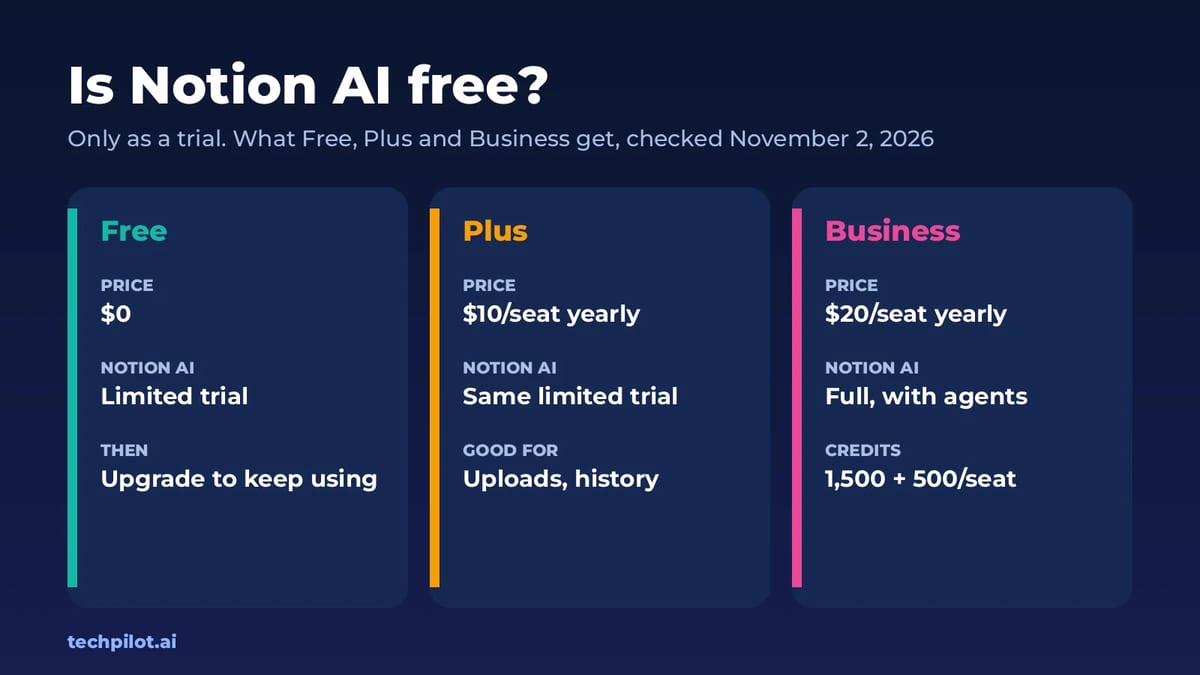
Is Notion AI Free? Free vs Paid Limits 2026
Is Notion AI free? Only as a trial. Free and Plus plans get a few trial AI responses, then full Notion AI needs Business, $20 a seat a month billed…
 Eimantas Kazėnas · 4 min read
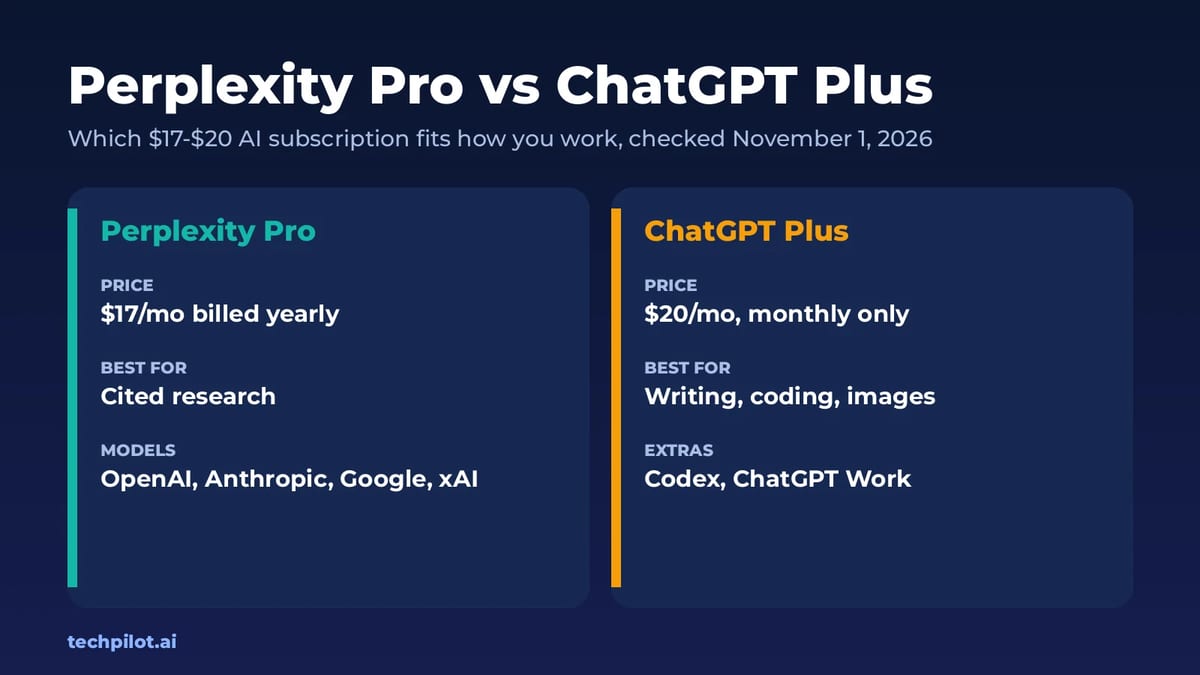
Perplexity Pro vs ChatGPT Plus: Which to Buy
Perplexity Pro vs ChatGPT Plus: pick Perplexity Pro ($17 a month yearly) for cited research across many models, and ChatGPT Plus ($20 a month) to…
Eimantas Kazėnas · 4 min read