Home / Guides / Productivity
How to Use Gemini: Beginner Guide for 2026
 Eimantas Kazėnas Marketing & Tech
- Published
- 4 min read
On this page Step 1: Open Gemini and sign in
Independent and reader-supported. Some links may earn us a commission; it never changes our rankings. Editorial policy
How to use Gemini: open gemini.google.com or the app, sign in with Google, type a prompt and add files if needed. Steps, best features and plans explained.
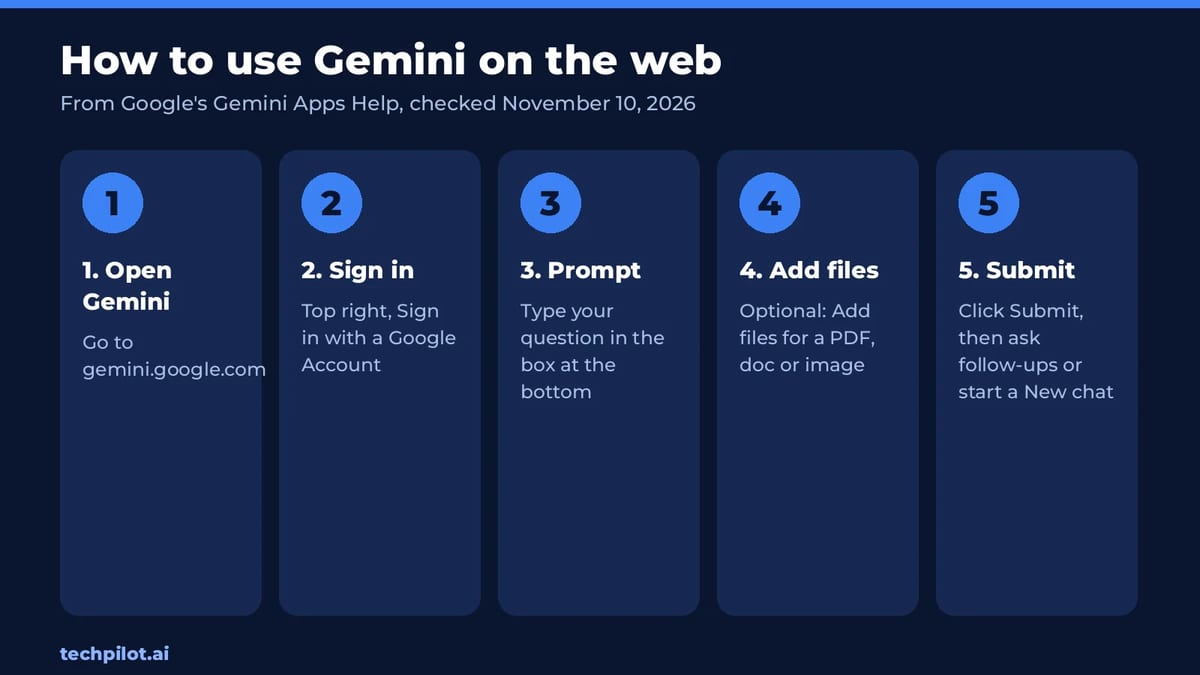
Quick answer: go to gemini.google.com on a computer, or open the Gemini app on Android or iPhone, and sign in with a Google Account. Type your question in the box at the bottom, click Add files if you want Gemini to read a PDF, document or image, then press Submit. Keep asking follow-ups in the same chat, and start a New chat when you switch topics. The free plan covers most everyday tasks.
Step 1: Open Gemini and sign in
On a computer, go to gemini.google.com and select Sign in at the top right. On Android, open the Gemini app (install it from Google Play if it is not there); on iPhone, download the Gemini app from the App Store. Google lets you try some web features signed out, but you need to be signed in to switch models, save your chats and use the Android app.
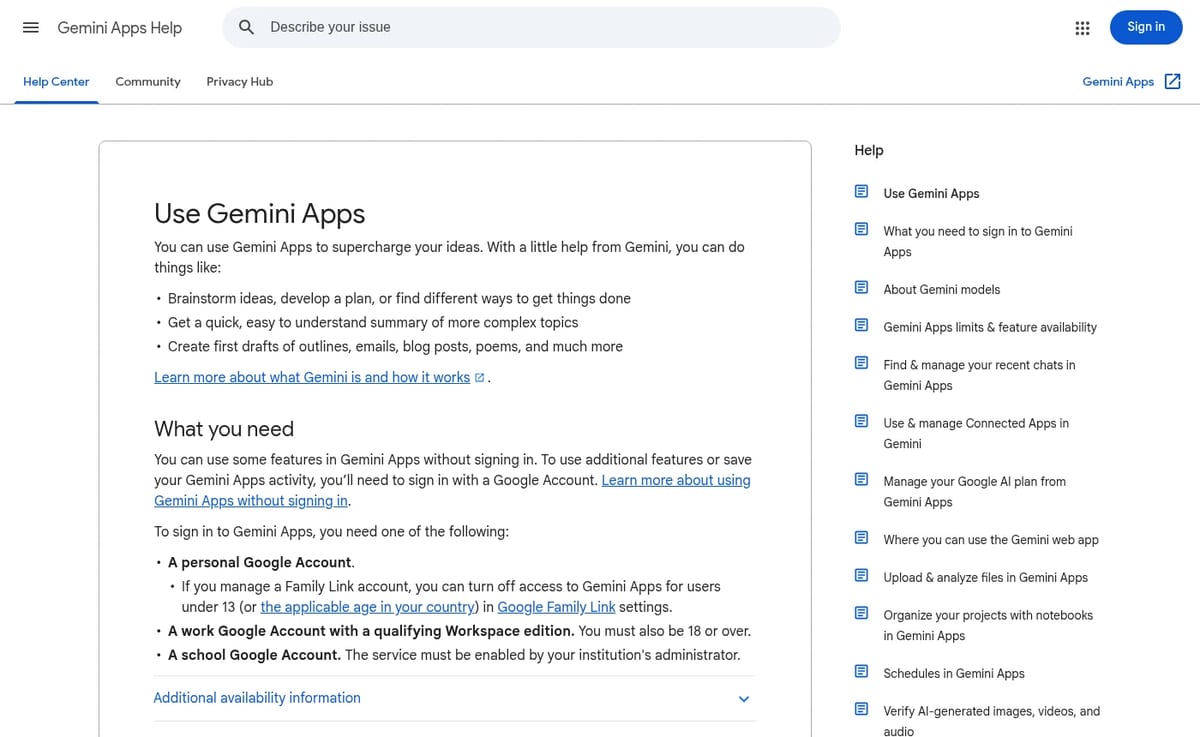
You can use a personal Google Account, a school account if your school has turned Gemini on, or a work account on a qualifying Workspace plan (18 or older).
Step 2: Write your first prompt
Type what you want in the box at the bottom and press Submit. The single biggest upgrade most beginners can make is to give context: say who it is for, how long it should be, and what format you want. Compare these two prompts:
- Weak: “Write about mocktails.”
- Better: “Outline a 600-word blog post on summer mocktail recipes for parents, with five recipes and a shopping list.”
Then refine. Ask Gemini to make it shorter, change the tone or turn it into a table. Follow-up prompts in the same chat keep the earlier context, which is faster than starting over.
Step 3: Add files and images
Click Add files next to the prompt box to upload a PDF, document, spreadsheet or photo, then ask about it: “Summarize this contract in plain English” or “What is wrong with this error screenshot?” Gemini can also hand results back as files. Ask for a Google Doc, Sheet, PDF, DOCX, XLSX or CSV and you can download it or save it to Drive.
Step 4: Pick the right model and tool
Gemini picks a model automatically, but when you are signed in you can choose one from the model menu. On the free plan you get Flash-Lite; paid plans add Flash, the Pro model and Gemini 4 Argon, Google’s newest model, which is only on Google AI Pro and Ultra. Read our guide to Gemini 4 Argon access for what it changes.
The tools worth learning first:
- Deep Research: give it a question and it browses many sources and writes a cited report. Best for comparisons and background reading.
- Canvas: a side-by-side editor for longer drafts and code you want to tweak line by line.
- Gemini Live: talk to Gemini out loud on your phone, useful for brainstorming while walking.
- Gems: save a custom assistant with standing instructions, such as “always answer as a Python tutor”.
- Image creation and editing: describe an image or upload one and ask for changes.
- Temporary chat: a chat that does not appear in your history, for one-off private questions.
Gemini plans and prices
| Plan | US price | What it adds |
|---|---|---|
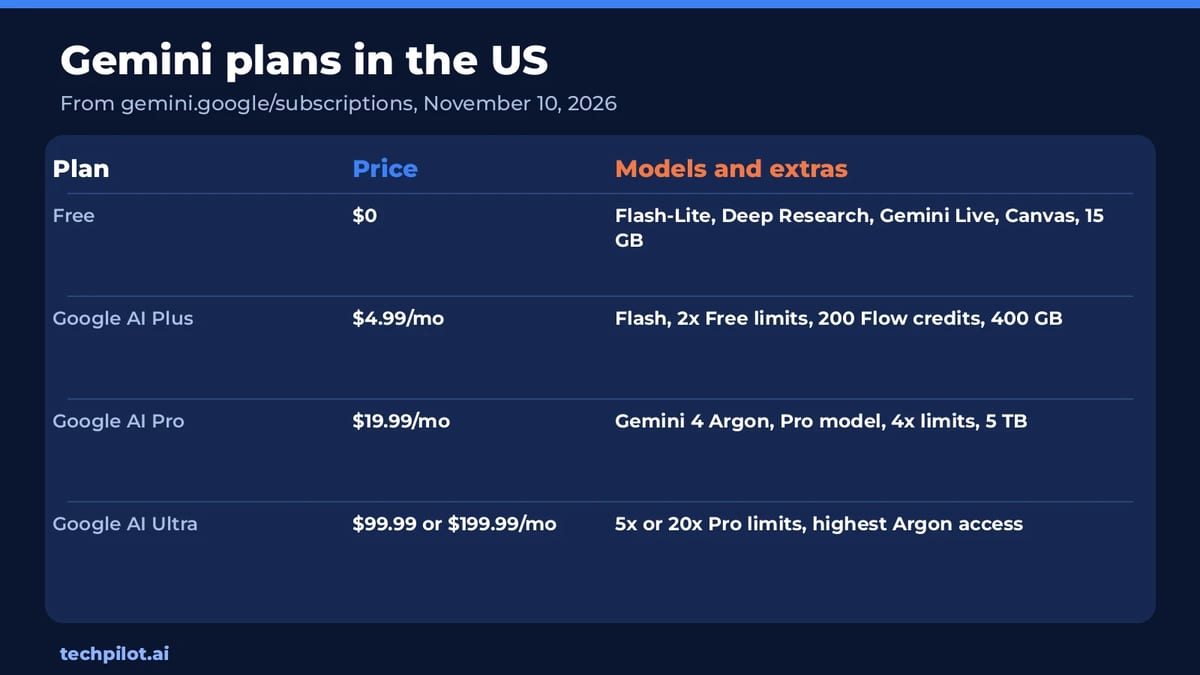
| Free | $0 | Flash-Lite model, Deep Research, Gemini Live, Canvas, Gems, 15 GB storage |
| Google AI Plus | $4.99 / month | Flash model, 2x Free usage limits, video generation, 200 Flow credits, 400 GB |
| Google AI Pro | $19.99 / month | Gemini 4 Argon, Pro model, 4x Free limits, 1,000 Flow credits, 5 TB |
| Google AI Ultra | $99.99 or $199.99 / month | 5x or 20x AI Pro limits, highest Argon access, YouTube Premium |
Prices from Google’s subscriptions page on November 10, 2026; they vary by country. In Vietnam, for example, AI Plus is ₫132,000 and AI Pro ₫489,000 a month.
Our take: when Gemini is the right pick
Gemini makes most sense if you already live in Google’s apps. It can work inside Gmail, Docs and Drive on paid plans, AI Pro bundles 5 TB of storage that many people would pay for anyway, and Deep Research is one of the best free research tools in any chatbot. If you mostly write or code, it is worth comparing against ChatGPT and Claude; our ChatGPT guide and Claude vs ChatGPT comparison cover those. Like any chatbot, Gemini can make mistakes, so check facts before you rely on them.
Frequently asked questions
Is Gemini free to use?
Yes. Gemini’s free plan includes the Flash-Lite model, Deep Research, Gemini Live, Canvas and Gems with a Google Account. Paid plans start at $4.99 a month in the US.
Do I need a Google account to use Gemini?
You can try some Gemini web features without signing in, but you need a Google Account to save chats, switch models and use the Android app.
How do I upload a file to Gemini?
Click Add files next to the prompt box, choose a PDF, document, spreadsheet or image, then type what you want Gemini to do with it and press Submit.
How much is Gemini Pro?
Google AI Pro costs $19.99 a month in the US and adds Gemini 4 Argon, the Pro model, higher limits and 5 TB of storage.
Can I use Gemini on my phone?
Yes. Use the Gemini app on Android or iPhone, or open gemini.google.com in your phone’s browser. Gemini Live lets you talk to it by voice.
Found this useful? Share it with someone comparing AI tools.

How to Delete ChatGPT Account (2026 Guide)
How to delete ChatGPT account in 2026: go to Settings, then Account, select Delete and type DELETE. Cancel App Store or Google Play plans before you…
 Eimantas Kazėnas · 4 min read
Grok vs ChatGPT: Which AI to Use in 2026
Grok vs ChatGPT in 2026: Grok wins on live X news and bundles Cursor and X perks from $8, while ChatGPT is the better all-rounder for research and…
Eimantas Kazėnas · 5 min read