Home / Guides / Productivity
How to Change Gemini Voice on Android & iOS
 Eimantas Kazėnas Marketing & Tech
- Published
- 4 min read
On this page Change Gemini’s voice on Android
Independent and reader-supported. Some links may earn us a commission; it never changes our rankings. Editorial policy
How to change Gemini voice: open the Gemini app, tap Menu, your profile picture, Settings and Gemini’s Voice, tap a voice to hear it, then tap Confirm.
Quick answer: the voice setting lives in the Gemini mobile app on Android and iPhone, and one choice applies everywhere Gemini talks back, including Gemini Live and the Listen button under a reply. If you cannot see the option, the usual cause is your display language, an account without Gemini access or an old app version. The steps below follow Google’s Gemini Live help page, checked on November 17, 2026.
Change Gemini’s voice on Android
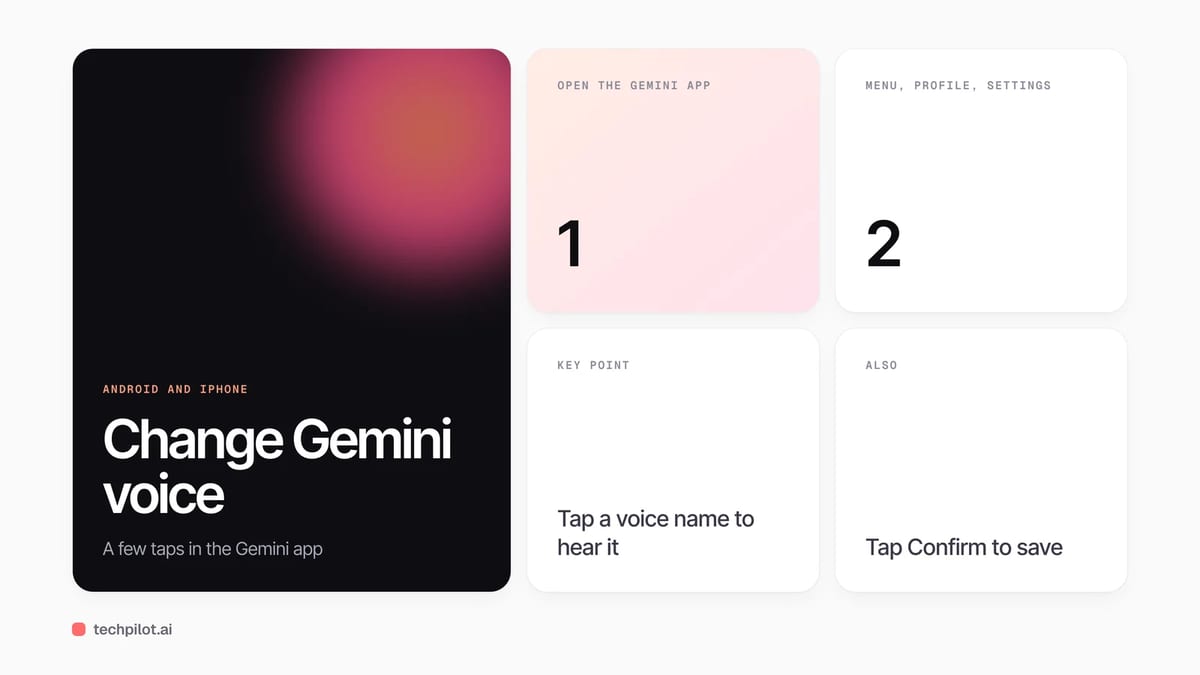
- Open the Gemini app on your Android phone or tablet.
- At the left, tap Menu, then your profile picture or initial.
- Tap Settings, then Gemini’s Voice.
- Tap a voice name to hear a sample. Try a few before you decide.
- Tap Confirm.
The new voice is used straight away in Live chats and when Gemini reads a reply aloud. There is no separate voice setting for Live, so you only change it once.
Change Gemini’s voice on iPhone and iPad
The steps are the same in the Gemini app for iOS: tap Menu, your profile picture or initial, Settings, Gemini’s Voice, choose a voice and tap Confirm. You need to be signed in to Gemini Apps for the option to appear.
Can you change Gemini’s voice on the web?
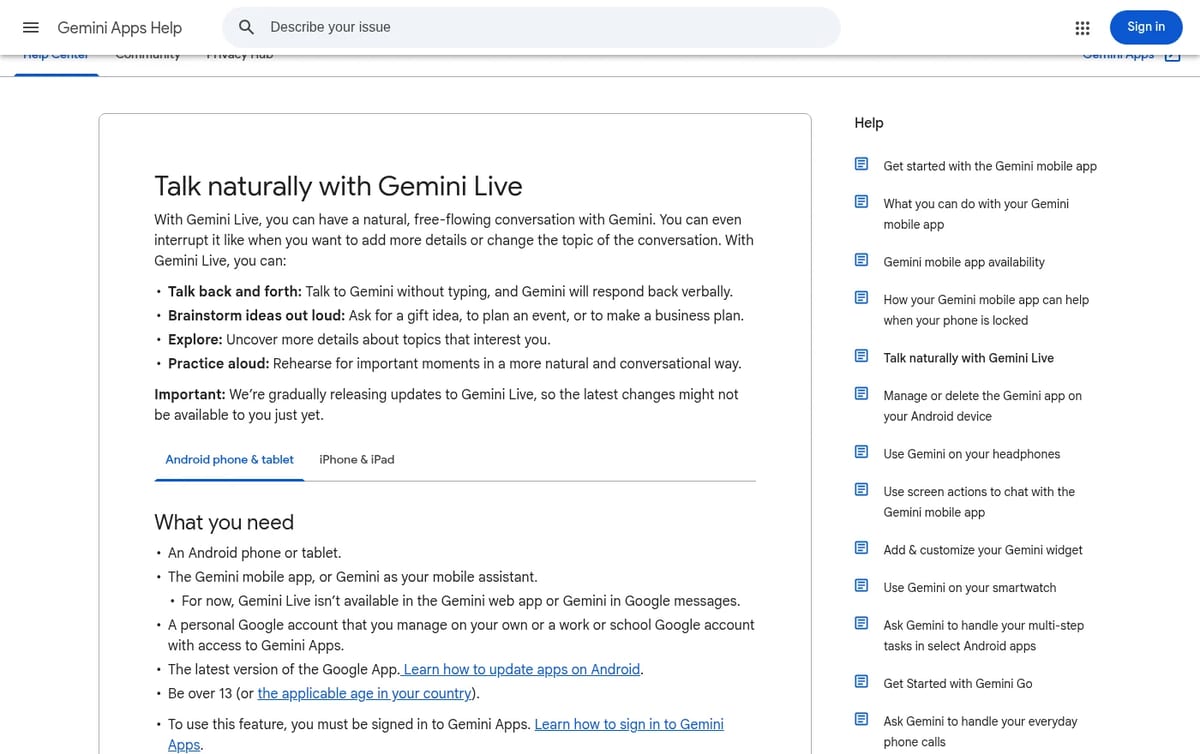
Not for Live. Google’s help page says Gemini Live is not available in the Gemini web app, and the voice menu is documented only for the mobile apps. If you use Gemini mostly on a laptop, change the voice once on your phone; it is the voice you will hear whenever Gemini speaks to you on mobile.
Gemini voice option missing? Check these
| Problem | Likely cause | What to do |
|---|---|---|
| No “Gemini’s Voice” in Settings | Voice choice is not offered in every language | Switch the display language: Menu, profile, Settings, Languages |
| Settings look different | Old app or Google app version | Update the Gemini app and, on Android, the Google app |
| Live will not start | Work or school account without Gemini access | Ask your admin, or sign in with a personal Google account |
| App will not install | Device below requirements | Android needs version 9 or later and at least 2 GB of RAM; Android Go is not supported |
Google also notes that it rolls out Gemini Live updates gradually, so a menu you see in a screenshot may reach your phone a little later.
Three related settings worth changing
- Interrupt Live responses: by default you can talk over Gemini to cut it off. If background noise keeps stopping it mid-sentence, turn this off in Settings; you can still interrupt by tapping the screen.
- Captions: start a Live chat and tap the captions button at the top right. Size and style are under Settings, Caption preferences.
- Live notifications: on Android, turn on Live with Gemini notifications in your phone’s Settings, Notifications, App notifications, Google, so Live can keep talking in the background or on the lock screen.
How to pick the right voice
Our tip: choose the voice in the situation you will use it in. A voice that sounds pleasant in a quiet room can be hard to follow through earbuds on a busy street, so test two or three in a short Live chat before you confirm. If you use Gemini to practise a presentation or language, a slower, lower voice is usually easier to follow for long sessions.
New to the app? Start with our guide on how to use Gemini. If you want a different voice for your own videos or podcasts, see the best free AI voice generators, and for study help browse our free AI tools for students.
Frequently asked questions
How do I change Gemini’s voice?
Open the Gemini app, tap Menu, your profile picture or initial, Settings, then Gemini’s Voice. Tap a voice to hear it and tap Confirm.
Does the voice change apply to Gemini Live?
Yes. The voice setting applies to all Gemini Apps features, including Gemini Live and the Listen button that reads a reply aloud.
Why can’t I change Gemini’s voice?
The option isn’t available in some languages. Try switching the display language in Settings, Languages, and update the Gemini app.
Can I change Gemini’s voice on the web?
Gemini Live isn’t available in the Gemini web app, and the voice setting is documented for the Android and iPhone apps.
Can I stop Gemini from being interrupted?
Yes. Turn off Interrupt Live responses in the Gemini app’s Settings. You can still interrupt Gemini by tapping the screen.
Found this useful? Share it with someone comparing AI tools.
How to Use Gemini: Beginner Guide for 2026
How to use Gemini: open gemini.google.com or the app, sign in with Google, type a prompt and add files if needed. Steps, best features and plans…
 Eimantas Kazėnas · 4 min read

12 AI Tools for Maintaining Voice and Audio Consistency in Film
Voice and audio consistency in a real production isn’t just about cloning one voice and reusing it. It’s about seamless integration, consistency and…
 Alexi Carmichael · 10 min read