How to Prepare PDF Pages for AI Image Tools
How to turn PDF pages into clean references for AI image tools: what to crop, render vs extract, resolution, PNG vs JPG, plus cleanup and privacy checks.
 Mihai (Mike) Bizz Business, entrepreneurship, tech & AI
 - Published
- 5 min read

On this page Decide What the AI Needs to See
- Decide What the AI Needs to See
- Render the Page Instead of Extracting Random Elements
- Resolution Matters, but More Is Not Always Better
- PNG or JPEG? Choose Based on Content
- Give the Page a Quick Cleanup
- Convert Only What You Need
- Check Color, Transparency, and Privacy Before Uploading
- Perform a One-Minute Final Check
Independent and reader-supported. Some links may earn us a commission; it never changes our rankings. Editorial policy
Can a PDF look razor-sharp and still be a bad image reference for an AI image tool? Absolutely.
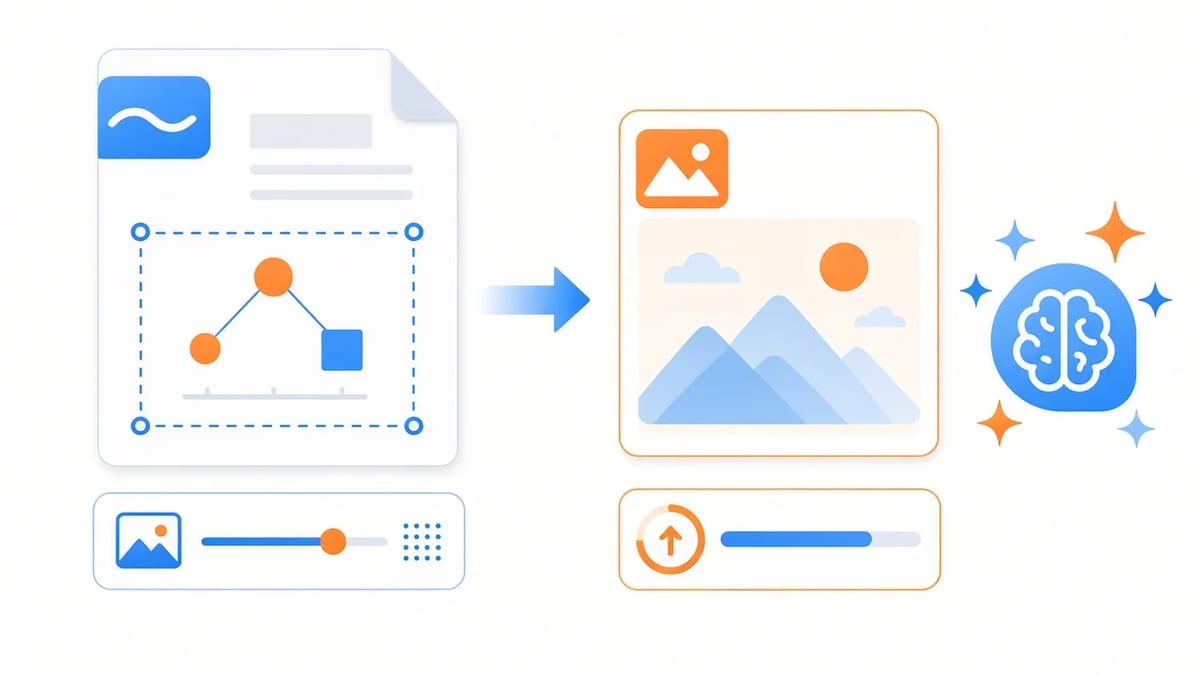
A PDF may look like an image, but it’s actually not. What you see on screen is the final rendering of a much more complicated file. A single page can contain text, vector shapes, photographs, transparency, and several layers of other content. And an AI image tool may not interpret these elements in the same way your PDF reader does.
That’s why simply uploading a PDF page, or converting it at random settings, can produce a poor result. If you want AI to recreate, analyze, edit, or use a PDF page as a visual reference, converting it to an image is only the first step. You also need to make sure the resulting image actually contains the information you care about.
Decide What the AI Needs to See
If your PDF has 30 pages, don’t turn all 30 into images just because you can. Pick the pages that matter to the task because fewer files are easier to inspect, upload, and explain to an AI system.
Start with the job you want the image to do. Do you want an AI tool to recreate an infographic, use a product sheet as a composition reference, restyle an illustration, or understand the layout of a presentation page? These tasks can require very different crops.
A full page makes sense when the overall composition matters. A tightly cropped diagram may be better when you’re asking the AI to work with details that would otherwise occupy a tiny part of the frame.
There is one caveat: don’t crop so aggressively that you remove context the model needs. A full-page version plus a close-up can be useful when both the overall layout and small details matter.
Render the Page Instead of Extracting Random Elements
If a PDF contains a photograph surrounded by text, lines, and graphic elements, extracting the photograph gives you the original embedded image. Rendering the PDF page gives you a picture of the whole page, including the photograph and everything around it.
For an AI image workflow, rendering is usually the better option when the page itself is the reference. It preserves the visual relationships that extraction throws away.
In other words, it saves the relationship between the headline, images, shapes, charts, and other elements. Which is important if you’re asking an AI tool to recreate a poster, presentation slide, infographic, or other designed page.
Resolution Matters, but More Is Not Always Better
A tiny export will obviously cause trouble. Fine text will turn into mush, thin lines will vanish, and small icons are likely to become indistinguishable.
However, exporting at an absurd resolution isn’t a clever workaround. The resulting file may be huge, the AI platform may resize it anyway, and you gain nothing if the relevant content was already clear at a more sensible size.
For many pages, 150–300 PPI is a reasonable working range. Use the higher end when small text, technical drawings or fine graphic details matter.
More importantly, inspect the actual pixel dimensions and the smallest important object on the page. Resolution is useful only insofar as it preserves information you need.
PNG or JPEG? Choose Based on Content
The usual advice is “PNG for graphics, JPG for photos.” That’s broadly right, but the contents of the page should make the decision for you.
A page full of small text, diagrams, logos, and straight lines benefits from PNG because its lossless compression doesn’t introduce the same JPEG artifacts around sharp edges. A photographic page can usually work perfectly well as JPG, particularly when a smaller file is useful.
Give the Page a Quick Cleanup
PDFs often contain things that made sense in the original document but have no business being part of an AI reference. A little manual cleanup beforehand can save you a great deal of trouble.
Check for comments, annotations, crop marks, watermarks, outdated information, and decorative elements that have nothing to do with the task. Remove what isn’t relevant, but don’t over-clean the page. If the spacing, hierarchy, or relationship between elements is part of what you want the AI to reproduce, keep it.
Convert Only What You Need
If your AI tool accepts JPG or PNG rather than PDF, converting the relevant pages gives you a much more straightforward workflow.
If you need to extract JPG from PDF, Canva’s PDF-to-JPG converter converts each page into a separate JPG and lets you preview the resulting images before downloading them. It currently accepts PDFs up to 300 MB and 500 pages. The preview step is useful for this particular job. You can catch a shifted element, missing content, or an awkward crop before the image reaches the AI tool.
In other words, check the conversion. Don’t assume it worked just because a file appeared in your downloads folder.
Check Color, Transparency, and Privacy Before Uploading
A PDF may contain transparency effects, unusual color settings or layered artwork that changes when rendered. For ordinary AI image work, a clean RGB export is generally easier to deal with than a complicated color setup.
If exact brand colors matter, though, keep the original color values or brand guidelines alongside the reference. An AI image generator can use the visual appearance as guidance, but that doesn’t make it a reliable color-management system.
Also check for privacy concerns. A PDF can contain client names, signatures, account details, internal screenshots, or other sensitive information that you would never deliberately publish. Once the page becomes a JPG, none of that disappears. So check the image before sending it to an external AI service, and understand that service’s policies for uploaded content.
Perform a One-Minute Final Check
Before you upload the image, open it at its actual size. Can you read the smallest text that matters? Are thin lines still visible? Did the conversion alter the colors? Did a crop remove something that gives the page context?
If the answer to any of those questions is “yes, that’s a problem,” fix the source image first. Then upload it with a prompt that explains what the AI should preserve and what it should change. A reference image can show the model what something looks like, but your instructions still need to explain what role that image plays.
That’s really the point of preparing a PDF page properly. You aren’t trying to create the prettiest JPG possible. You simply want to remove ambiguity before the AI gets a chance to misunderstand your source.
Found this useful? Share it with someone comparing AI tools.