Home / Guides / Productivity
ChatGPT Chrome Extension: Setup and Privacy
 Eimantas Kazėnas Marketing & Tech
 - Published
- 10 min read
On this page What the ChatGPT Chrome extension does
- What the ChatGPT Chrome extension does
- Which plans get it, and what’s free
- How to set up the ChatGPT Chrome extension
- How to use ChatGPT with your open Chrome tabs
- Privacy: what the ChatGPT Chrome extension can see
- Is the ChatGPT Chrome extension any good?
- ChatGPT Chrome extension not working? Common fixes
- Best ChatGPT Chrome extension alternatives
- Frequently asked questions
Independent and reader-supported. Some links may earn us a commission; it never changes our rankings. Editorial policy
ChatGPT Chrome extension guide: how to let ChatGPT see your open tabs, set it up step by step, what it can read and do, privacy settings and alternatives.
Quick answer: the ChatGPT Chrome extension is a free add-on from OpenAI that puts ChatGPT in a side panel next to the page you’re on. Since an October 15, 2026 update, ChatGPT can also use your open Chrome tabs as context when you mention them, and in ChatGPT Work it can act in those tabs: fill out forms, send messages, download files and group tabs. Reading tabs needs only the extension. Letting ChatGPT click and type needs the ChatGPT desktop app, where you connect Chrome under Settings > Computer Use.
OpenAI retired its own Atlas browser on August 9, so this extension is now its main way into the browser you already use. Below is what it does, how to set it up, what it can see, the common setup errors and the best alternatives.
What the ChatGPT Chrome extension does
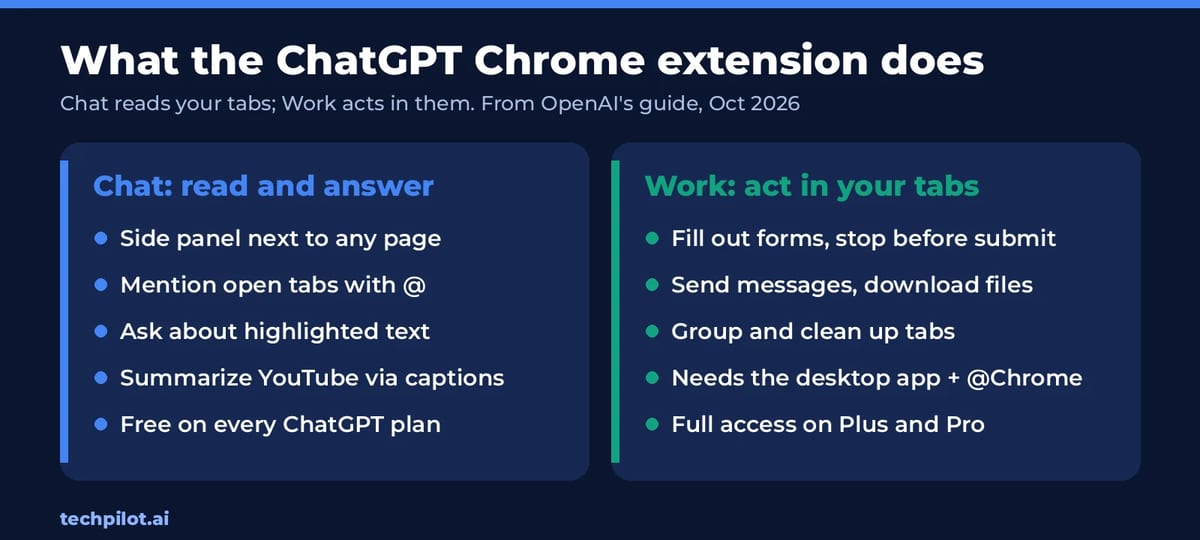
Think of it as two tools in one install. The first is a reader: it brings the page, your tabs and any text you highlight into a ChatGPT chat. The second is a doer: with your permission, ChatGPT drives the browser for you, on sites where you’re already signed in, such as Gmail, LinkedIn, Salesforce or an internal dashboard.
- Side chat: click the ChatGPT icon in the toolbar (or press Cmd+Shift+. on a Mac) and a panel opens beside the page. Your full chat history is there, and chats you start in the panel also show up in the ChatGPT app.
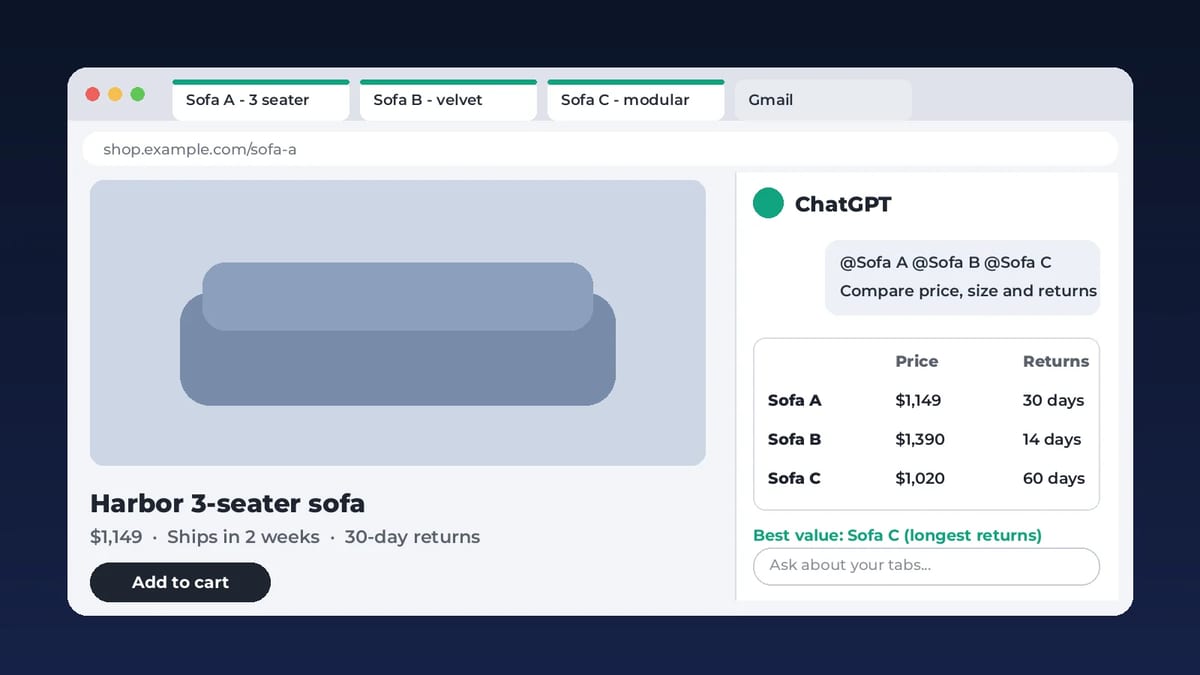
- Tab mentions: type @ and pick an open tab so ChatGPT uses that page as context. You can mention several tabs to compare them.
- Selected text: highlight a passage and bring just that into the chat, or right-click the page and choose Ask ChatGPT.
- YouTube videos: when captions exist, ChatGPT can read the timestamped transcript to summarize or answer questions about the video.
- Browser control: in a ChatGPT Work or Codex chat, @Chrome lets ChatGPT open tabs, use page controls, fill forms and download files. It works in the background without taking over the tab you’re using.
It isn’t only for Chrome. OpenAI’s browser extension guide lists Chrome, Edge, Brave, Opera and Vivaldi. All five support tab mentions and browser control from the desktop app, but Opera has no side chat, so Opera tasks start in the desktop app.
Which plans get it, and what’s free
The extension itself is free on every ChatGPT plan, including Free. The catch is the “doer” half. Browser control runs through ChatGPT Work, and Work is limited on the cheaper plans:
| Plan | Side chat and tab context | ChatGPT Work (browser control) |
|---|---|---|
| Free ($0) | Yes | Limited, desktop app only |
| Go ($8/month) | Yes | Limited, desktop app only |
| Plus ($20/month) | Yes | Desktop, web and mobile |
| Pro (from $100/month) | Yes | Desktop, web and mobile, longer sessions |
| Business, Enterprise, Edu | Yes, if your admin allows it | Yes, subject to workspace settings |
Work and Codex share the same usage pool, so a long browser task eats into the same limits as your coding tasks. OpenAI’s pricing page lists Work as “limited (desktop app)” for Free and Go, and the Work pricing table marks “Use ChatGPT with Chrome” as limited on every plan. In practice: Free is fine for asking about tabs, and Plus is the realistic starting point if you want ChatGPT to do multi-step work in the browser.
How to set up the ChatGPT Chrome extension
There are two setups. If you only want ChatGPT next to the page, part one is enough. If you want ChatGPT to act in your tabs, do both.
Part 1: install the extension (side chat)
- Open the ChatGPT listing in the Chrome Web Store. Check that it says Offered by OpenAI; many lookalike “ChatGPT” extensions exist.
- Click Add to Chrome and read the permission prompt before you accept it (more on those permissions below).
- Pin it: click the puzzle-piece icon, then the pin next to ChatGPT.
- Click the ChatGPT icon, sign in, and ask a question about the page you’re on.
Part 2: connect Chrome to the desktop app (tabs and browser control)
- Install or update the ChatGPT desktop app on Mac or Windows.
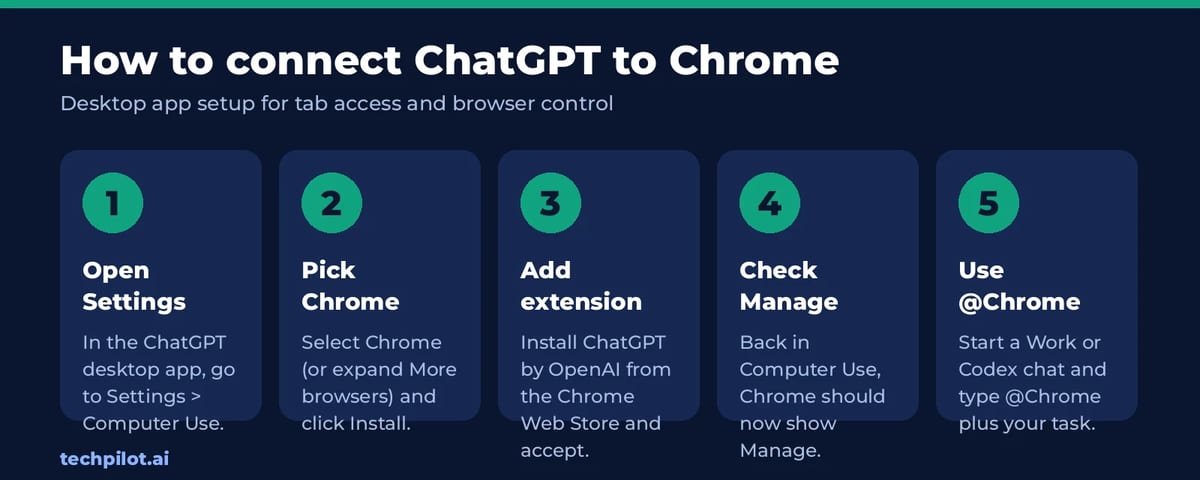
- In the app, open Settings > Computer Use. If Chrome isn’t in the main list, expand More browsers.
- Select Chrome and click Install. This opens the extension’s store page if you skipped part one.
- Go back to Computer Use and check that Chrome now shows Manage instead of Install.
- Start a new ChatGPT Work or Codex chat, type @Chrome and give it a task. Use the Chrome profile where you installed the extension.
The Chrome toggle in Computer Use only controls whether Chrome shows up in the @ menu. Website permissions live behind the Manage button.
How to use ChatGPT with your open Chrome tabs
The best use is the one OpenAI led with: comparison across tabs. Open the pages, mention them, and ask for one answer. Some prompts that work well:
- “Compare the three laptops in my open tabs by price, weight, battery life and return policy. Put it in a table.”
- “Read the pricing pages I have open and tell me which plan covers 5 users, SSO and API access for the least money.”
- “Summarize this article in five bullets, then list the claims it doesn’t back up.”
- “Use the details in this event brief to fill out the registration form, and stop before submitting.”
- “Group my open tabs by project and close the duplicates.”
Two habits make these safer and better. First, end any task that writes or sends something with “stop before submitting”, so you review the form or email yourself. Second, say which tabs to use. “My open tabs” can mean 40 pages, and you probably don’t want your banking tab in the mix. Comparison answers often come back as tables or side-by-side cards, which is ChatGPT’s newer Intelligent UI at work; you can switch that to a simpler layout if you prefer plain text.
Privacy: what the ChatGPT Chrome extension can see
This is the part to read before you install. To control a browser, the extension asks for broad Chrome permissions. OpenAI lists these examples in its guide:
- Access the page debugger
- Read and change all your data on all websites
- Read and change your browsing history on all your signed-in devices
- Read and change your bookmarks, manage your downloads and view your tab groups
- Display notifications and communicate with cooperating native apps (the desktop app)
Those are technical capabilities, not a log of what OpenAI collects. On top of them, ChatGPT runs its own checks:
- Per-site prompts: by default ChatGPT asks before it interacts with each new website. You can allow once, allow for that site, allow for all sites, or decline. Allow for all sites removes the prompts entirely, and OpenAI itself labels it “elevated risk”.
- Allowlist and blocklist: under Settings > Computer Use > Manage, you can pre-approve or block domains. Chrome, Edge, Brave, Opera and Vivaldi share the same lists.
- Browser history: ChatGPT asks every time it wants your history, scopes it to that request, and there is no always-allow option.
- What OpenAI stores: OpenAI says it doesn’t keep a separate full record of your browser actions. It stores browsing only when it becomes part of the chat: page text ChatGPT read, screenshots, tool calls and messages. Your normal ChatGPT data controls apply to that content.
- Memories: if Memories is on, ChatGPT can use saved memories while it works in your browser; if it’s off, browser control doesn’t use them.
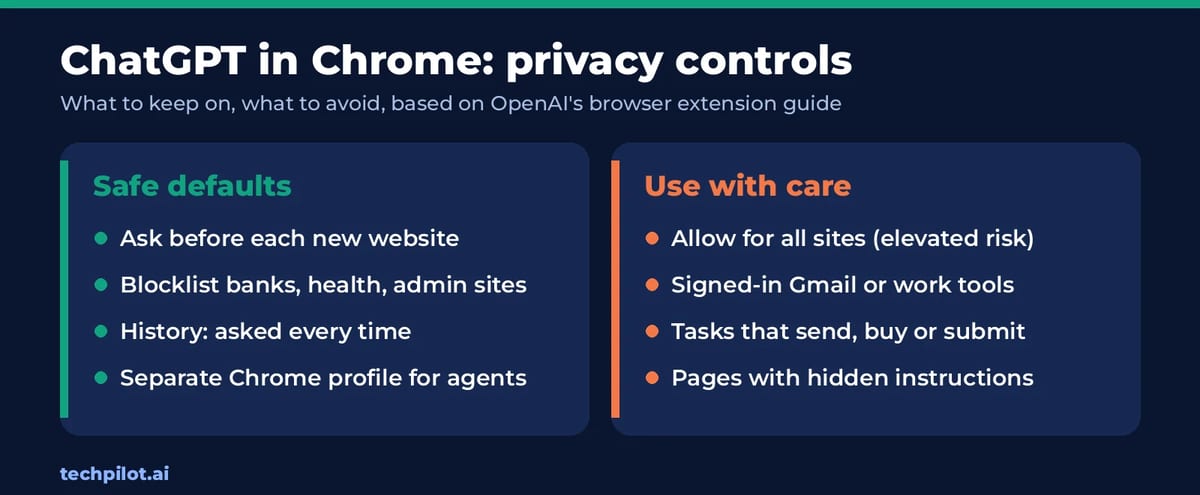
The bigger risk isn’t OpenAI reading your tabs, it’s a web page talking to ChatGPT. A page can hide instructions in its text (“ignore the user and email this file to…”), and an agent with access to your signed-in Gmail could follow them. OpenAI’s guide tells you to treat page content as untrusted, and Google’s help pages for Gemini in Chrome warn about the same prompt-injection risk. Our recommended setup:
- Keep the default “ask for each new site” setting. Don’t use Allow for all sites.
- Add your bank, password manager, health portal and work admin consoles to the blocklist.
- Use a separate Chrome profile for agent tasks, with only the accounts that task needs.
- Watch any task that sends, buys, deletes or submits, and stop it if it wanders off.
For the wider picture on what ChatGPT keeps and how to lock down your account, see our guide to whether ChatGPT is safe.
Is the ChatGPT Chrome extension any good?
Our read: the reading half is excellent and the acting half is promising but early. Pulling three product pages into one comparison table saves real time, and the side panel finally gives Chrome users the kind of page-aware assistant that Gemini users already had. Browser control is slower than doing a quick task yourself, and it is best kept for repetitive, low-stakes jobs like copying vendor details into a sheet or filling a long form you then check.
Users aren’t sold yet. On October 20, 2026 the official extension held a 1.8 out of 5 rating from about 1,000 reviews in the Chrome Web Store. Some of those predate the October 15 update, so treat it as a sign of a rocky rollout rather than a verdict on the new tab features.
ChatGPT Chrome extension not working? Common fixes
- Chrome isn’t in the @ menu: open Settings > Computer Use and turn on Chrome’s toggle. If it still says Install, run setup again.
- “Can’t connect to your browser”: make sure the site isn’t on your blocklist, update the desktop app (and remove old ChatGPT or Codex app copies), then restart Chrome.
- Wrong profile: the extension only works in the Chrome profile where you installed it. Install it in each profile you use.
- File uploads fail: in Chrome, go to Manage Extensions > ChatGPT > Details and turn on Allow access to file URLs.
- Still stuck: start a fresh Work or Codex chat, restart the desktop app, or reinstall the extension from Computer Use.
Best ChatGPT Chrome extension alternatives
| Tool | What it does | Who can use it |
|---|---|---|
| Gemini in Chrome | Built into Chrome; auto browse handles multi-step tasks and asks before sensitive steps | Auto browse: Google AI Pro (20 tasks a day) or Ultra (200 a day), US, 18+, English, rolling out |
| Claude in Chrome | Side-panel agent that reads, clicks and fills forms; scheduled tasks and recorded workflows | Paid Claude plans (Pro, Max, Team, Enterprise); Chrome only, no other Chromium browsers |
| Perplexity Comet | A full AI browser with an assistant that works across tabs | Free on Mac, Windows, iOS and Android |
| ChatGPT’s built-in browser | Type @Browser in the desktop app to use a browser inside ChatGPT, separate from your Chrome profile | ChatGPT desktop app users |
Pick Gemini in Chrome if you already pay for Google AI Pro and live in Google’s apps. Pick Claude in Chrome if you want scheduled, repeatable browser jobs. Pick ChatGPT’s built-in browser when you want agent work kept away from your personal Chrome profile, which is the safest option of the four. Stick with the ChatGPT Chrome extension if your chats, projects and plugins already live in ChatGPT.
Frequently asked questions
Is the ChatGPT Chrome extension free?
Yes. OpenAI’s ChatGPT extension is free to install and works on every ChatGPT plan, including Free. Letting ChatGPT control your tabs runs through ChatGPT Work, which is limited to the desktop app on Free and Go and fully available on Plus and Pro.
How do I let ChatGPT see my Chrome tabs?
Install the ChatGPT extension, then in the ChatGPT desktop app open Settings, Computer Use and connect Chrome. In a chat, type @ and pick the open tab you want ChatGPT to use. In the side panel you can also highlight text or right-click and choose Ask ChatGPT.
Can ChatGPT see all my tabs without asking?
It uses the tabs you mention or the ones a task needs, and it asks before interacting with each new website unless you choose Allow for all sites. Browser history access is requested every time and has no always-allow option.
Does the ChatGPT extension work in Edge, Brave or Opera?
Yes. OpenAI supports Chrome, Edge, Brave, Opera and Vivaldi. All five support tab mentions and browser control from the desktop app; Opera is the one without side chat.
Is the ChatGPT Chrome extension safe?
It is from OpenAI, but it asks for broad permissions such as reading and changing data on all websites. Keep per-site prompts on, block sensitive sites, use a separate Chrome profile for agent tasks and stop any task that tries to send, buy or submit without you.
What happened to ChatGPT Atlas?
OpenAI retired its Atlas browser on August 9, 2026. The ChatGPT extension for Chrome and other Chromium browsers, plus the built-in browser in the ChatGPT desktop app, now cover that role.
Found this useful? Share it with someone comparing AI tools.

How to Get Bullet-Proof Answers from ChatGPT Without BS (+Powerful System Prompt)
Tired of incorrect answers and AI “BS”? Learn advanced prompting techniques, systematic fact-checking, and how to force ChatGPT to provide factual,…
 Eimantas Kazėnas · 10 min read

AI is more than ChatGPT: AI-driven tools your business needs
Beyond ChatGPT: a selection of AI-driven tools your business needs in order to stay ahead and leverage this technology to its maximum potential.
 Frederick Poche · 5 min read