Home / Guides / Productivity
How to Remove Gemini From Android (2026)
 Eimantas Kazėnas Marketing & Tech
- Published
- 4 min read
On this page Before you start: what removing Gemini means
- Before you start: what removing Gemini means
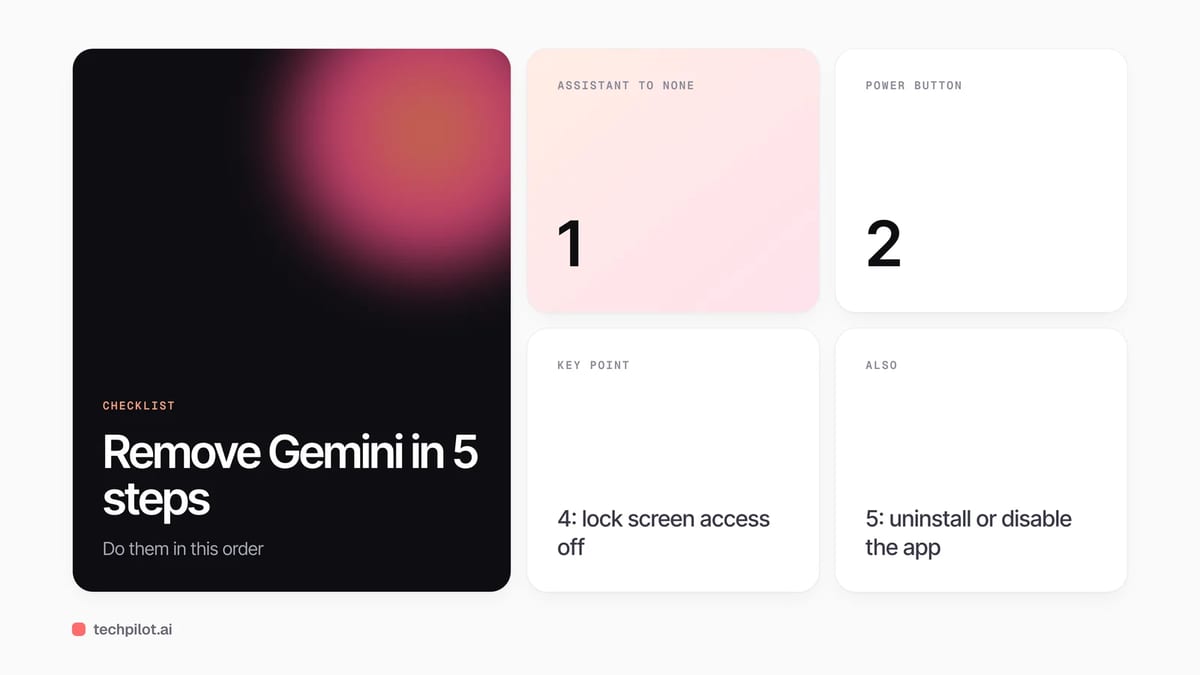
- Step 1: Remove Gemini as your default assistant
- Step 2: Take Gemini off the power button
- Step 3: Turn off “Hey Google”
- Step 4: Stop Gemini on the lock screen
- Step 5: Delete or disable the Gemini app
- Can you go back to Google Assistant?
- Gemini in other Google apps
- Frequently asked questions
Independent and reader-supported. Some links may earn us a commission; it never changes our rankings. Editorial policy
How to remove Gemini from Android: set your assistant to None, change the power button, turn off Hey Google, then delete the app if your phone allows it.
Quick answer: Deleting the Gemini app on its own does not stop Gemini from popping up, because the app and the assistant are separate settings. To really remove it, change your default digital assistant to None, take Gemini off the power button, turn off “Hey Google” and the lock screen option, and only then uninstall the app. One thing has changed in 2026: Google’s Gemini help page now says you can no longer switch back to Google Assistant on phones and tablets.
Before you start: what removing Gemini means
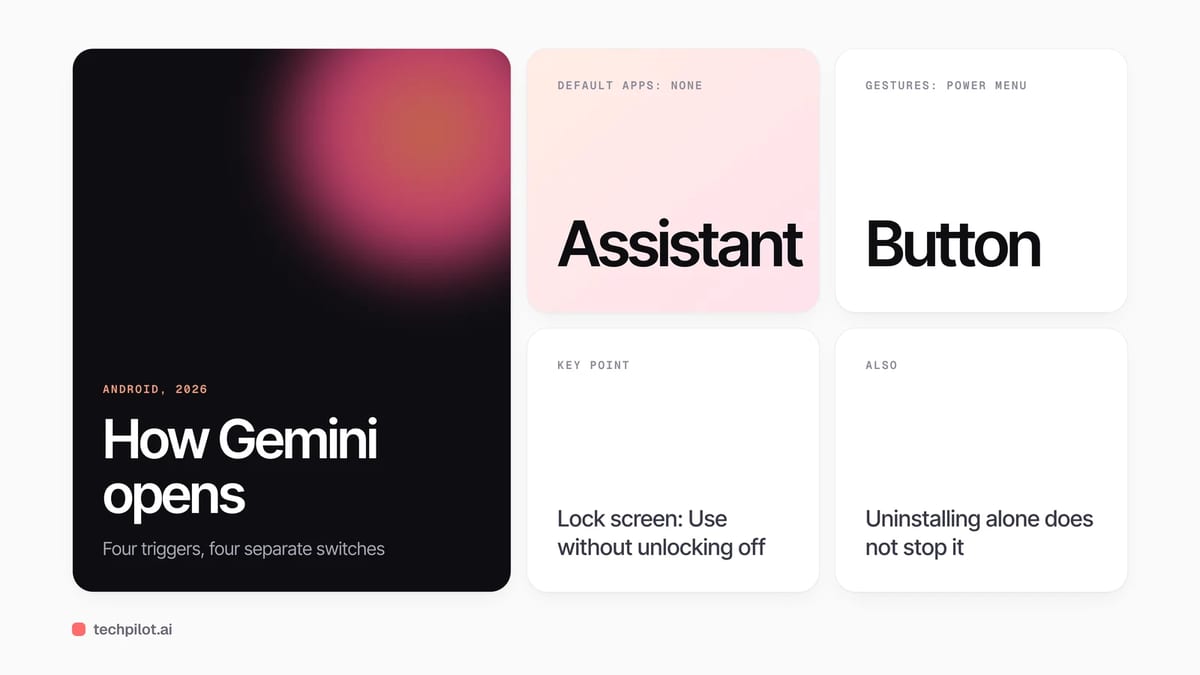
Gemini reaches you on Android in four ways: as your default digital assistant, through the power or side button, by voice with “Hey Google”, and on the lock screen. Each has its own switch. That is why so many people uninstall the app and still see Gemini the next time they hold the power button.
Menu names vary by phone maker. If a path below doesn’t match your phone, use the search box at the top of the Settings app, which is also what Google recommends.
Step 1: Remove Gemini as your default assistant
- Open Settings on your phone or tablet.
- Tap Apps, then Default apps, then Digital assistant app.
- Tap Default digital assistant app.
- Choose None, or another assistant app you have installed.
Watch the label: the option called “Google” means Gemini on most phones today, because Google uses that name for both Gemini and the old Assistant. Pick None, not Google. Can’t find it? Search Settings for “digital assistant app”.
Step 2: Take Gemini off the power button
- Open Settings.
- Tap System, then Gestures, then Press & hold power button.
- Choose the power menu or another action instead of the digital assistant.
On Samsung Galaxy and other phones the button may be called the side button. Search Settings for “power”, “side button” or “gesture” to find it.
Step 3: Turn off “Hey Google”
- Open the Gemini app.
- Tap Menu, then your profile picture or initial, then Settings.
- Tap Talk to Gemini hands-free and turn off Hey Google.
Step 4: Stop Gemini on the lock screen
- In the Gemini app, go to Menu, your profile picture, then Settings.
- Tap Gemini on lock screen.
- Turn off Use Gemini without unlocking.
Do steps 3 and 4 before you delete the app, since both settings live inside it.
Step 5: Delete or disable the Gemini app
Now you can remove the app like any other: press and hold the Gemini icon and tap Uninstall, or open Google Play, go to your profile, then Manage apps & device, and uninstall Gemini there. On some phones Gemini comes built in, so you will only see Disable under Settings, then Apps, then Gemini. Disabling hides it and stops it running, which is as close to removal as those phones allow.
Can you go back to Google Assistant?
Not on most phones. Google’s help page now states plainly that you can no longer switch from Gemini to Google Assistant on phones and tablets. If you liked Assistant mostly for timers, alarms and smart home control, your options are to keep Gemini with fewer triggers, or set the default assistant to None and use the Clock and Home apps directly.
Gemini in other Google apps
Removing Gemini from Android doesn’t touch Gemini inside other Google products. Google lists separate controls for Gemini chats in Google Messages, Gemini in Chrome, and smart features in Gmail, Docs and other Workspace apps. Your saved Gemini chats are handled separately too, under Gemini Apps Activity, where you can turn saving off or delete past chats.
If you decide to keep Gemini after all, our guide on how to use Gemini covers the basics, and you can change Gemini’s voice if that is what bothers you. Looking for a replacement? See our list of the best free AI chatbots.
Frequently asked questions
Can I completely remove Gemini from my Android phone?
On most phones, yes. Set the default digital assistant to None, change the power button action, turn off Hey Google and lock screen access, then uninstall or disable the Gemini app.
Does uninstalling Gemini remove it as my assistant?
No. Google says deleting the Gemini app doesn’t automatically remove Gemini as your default digital assistant, so change that setting in Default apps too.
Can I switch back to Google Assistant?
Not on most devices. Google’s Gemini help page says you can no longer switch from Gemini to Google Assistant on phones and tablets.
How do I stop Gemini when I hold the power button?
Open Settings, then System, Gestures and Press & hold power button, and choose the power menu instead of the digital assistant. On some phones it’s called the side button.
Why can’t I uninstall Gemini?
On some phones Gemini is built in as a system app, so you can only disable it. Disabling stops it from running and hides it from your apps.
Found this useful? Share it with someone comparing AI tools.
Is Meta AI Free? What Costs Money in 2026
Is Meta AI free? Yes, chatting with Meta AI costs nothing, but heavy image and video use hits limits. Meta One starts at $7.99, Muse plans at $20 a…
 Eimantas Kazėnas · 4 min read
How to Use Grok AI: Free and Paid in 2026
How to use Grok AI: open grok.com, the Grok app or the Grok icon in X, then type or talk. Here are the main features, the 2026 plans and privacy…
Eimantas Kazėnas · 4 min read