Home / Guides / Productivity
How to Turn Off Gemini in Gmail (2026)
 Eimantas Kazėnas Marketing & Tech
- Published
- 5 min read
On this page The three switches, and which one controls Gemini
- The three switches, and which one controls Gemini
- How to turn off Gemini in Gmail on a computer
- How to turn off Gemini in the Gmail app on Android
- How to turn off Gemini in the Gmail app on iPhone or iPad
- What you give up when you turn it off
- Why you might not see Gemini in Gmail at all
- Does turning it off stop Google using your emails?
- Our recommendation
- Frequently asked questions
Independent and reader-supported. Some links may earn us a commission; it never changes our rankings. Editorial policy
How to turn off Gemini in Gmail: switch off Smart features in Google Workspace in Settings. It takes a minute on a computer or phone. Here’s what you lose.
Quick answer: In Gmail on a computer, click Settings, then See all settings. On the General tab, scroll to Google Workspace smart features, click Manage Workspace smart feature settings, turn off Smart features in Google Workspace and click Save. That is the setting Google ties to Gemini in Gmail, and the change applies on every device where you are signed in. You do not need to touch the separate Gmail, Chat and Meet setting unless you also want Smart Compose and inbox tabs gone. Steps below follow Google’s smart features help page as of November 29, 2026.
The three switches, and which one controls Gemini
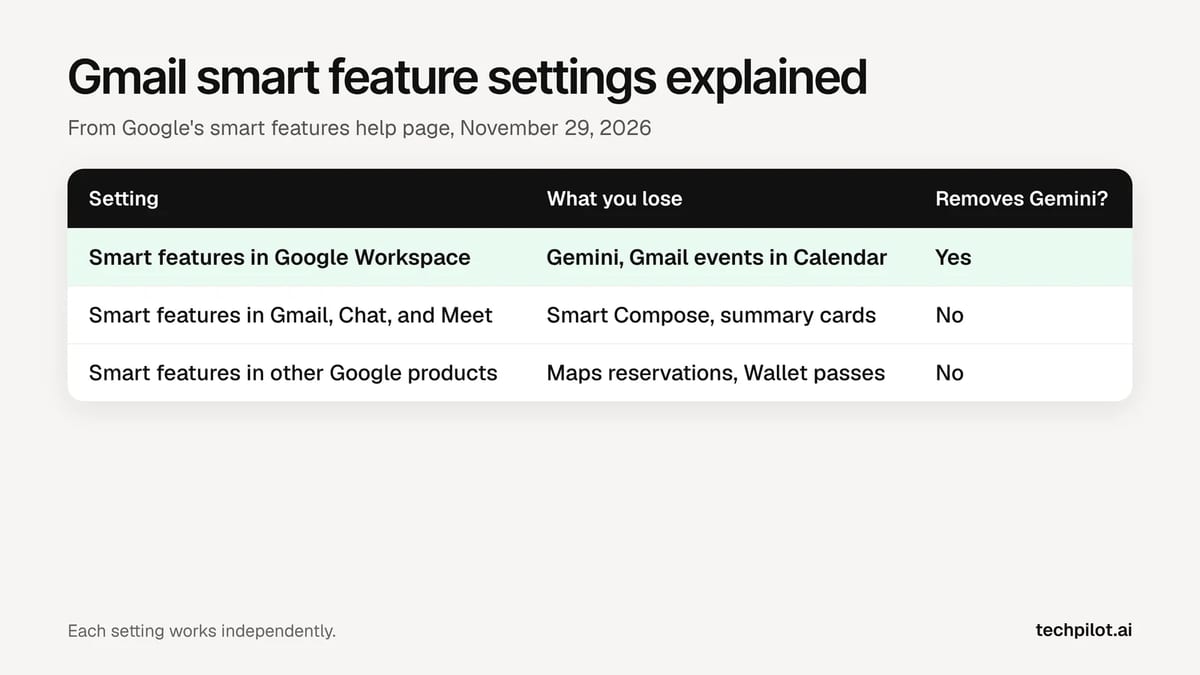
Google split Gmail’s old single smart features control into separate settings that work independently. Knowing which is which saves you from turning off more than you need:
| Setting | What Google says it controls | Examples you lose | Turn off to remove Gemini? |
|---|---|---|---|
| Smart features in Google Workspace | Use of your Workspace data for smart features across Workspace apps | Google Workspace with Gemini, events from Gmail added to Calendar | Yes, this is the one |
| Smart features in Gmail, Chat, and Meet | Smart features inside Gmail, Chat and Meet | Smart Compose, summary cards | No, optional |
| Smart features in other Google products | Use of your Workspace data in other Google products | Restaurant reservations in Maps, tickets and passes in Wallet | Optional, for extra privacy |
How to turn off Gemini in Gmail on a computer
- Open Gmail in a web browser.
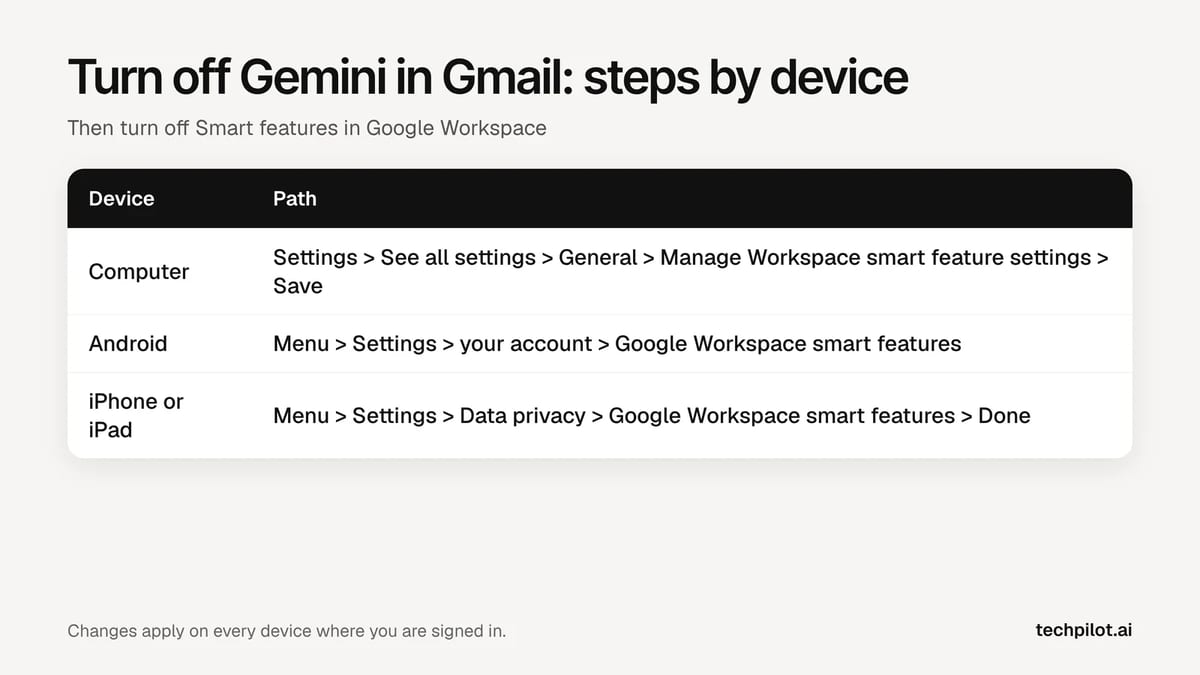
- At the top right, click Settings, then See all settings.
- On the General tab, scroll to Google Workspace smart features.
- Click Manage Workspace smart feature settings.
- Turn off Smart features in Google Workspace. Turn off Smart features in other Google products too if you want to stop Maps and Wallet from using your email data.
- At the bottom right, click Save.
How to turn off Gemini in the Gmail app on Android
- Open the Gmail app and tap Menu at the top left, then Settings.
- Select the account you want to change.
- Under General, tap Google Workspace smart features.
- Uncheck Smart features in Google Workspace, and Smart features in other Google products if you want.
How to turn off Gemini in the Gmail app on iPhone or iPad
- Open the Gmail app and tap Menu at the top left, then Settings.
- Under General, tap Data privacy.
- Tap Google Workspace smart features.
- Turn off Smart features in Google Workspace, and Smart features in other Google products if you want.
- At the top right, tap Done.
Google notes that changes apply across all devices and apps where you are signed in, but also that some changes made on a computer may not show in the mobile app right away. If the app does not offer the new settings, update it first.
What you give up when you turn it off
Switching off Smart features in Google Workspace removes more than the Gemini assistant. Google lists automatically added Calendar events, such as flights from Gmail, among the experiences tied to this setting, and the same switch appears in Calendar, Chat, Drive, Meet and Voice, because it covers Workspace data across all of them. If you rely on flight and hotel bookings showing up in Calendar, you will need to add them yourself.
Your inbox itself keeps working. Smart Compose, summary cards and the rest of Gmail’s built-in personalization sit under the separate Gmail, Chat and Meet setting, which you can leave on. Only uncheck that one if you want a plain inbox with no smart features at all.
Why you might not see Gemini in Gmail at all
The full Gemini in Gmail assistant, the panel that summarizes threads, drafts emails and organizes your inbox, needs an eligible Google Workspace or Google AI plan, according to Google’s Gemini in Gmail help page. On a free personal account you may only see some of these features. Also, if you live in the European Economic Area, Japan, Switzerland or the UK, Google says smart feature settings are off by default, so there may be nothing to turn off.
On a work or school account, your Google Workspace administrator decides which smart features and Gemini tools your organization gets. If Gemini keeps appearing on a work or school account after you change your own settings, ask your admin.
Does turning it off stop Google using your emails?
Partly. Google says that turning off a smart feature setting stops your Workspace content and activity from being used to provide those features, and from being used to improve them, from that point on. It also says that what was already learned during improvement may persist after you turn the setting off.
Our recommendation
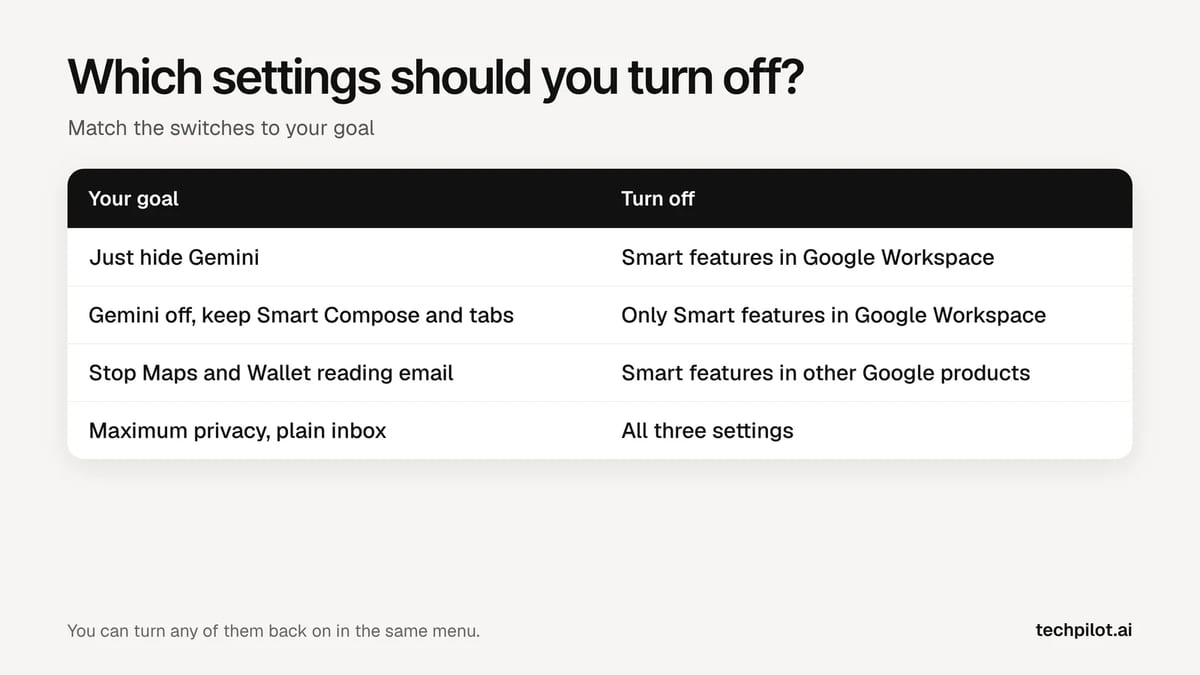
If Gemini simply gets in your way, turn off only Smart features in Google Workspace and keep the rest: you lose Gemini and automatic Calendar events, but your inbox works as before. If your goal is privacy, turn off all three settings and accept a plainer Gmail. You can switch any of them back on later in the same menu.
Gemini lives in more places than Gmail. To stop it taking over your phone’s assistant button, follow our guide on how to remove Gemini from Android. If you decide to keep it, our guide on how to use Gemini shows where it actually saves time, and our ChatGPT vs Gemini comparison helps if you are deciding which assistant to pay for.
Frequently asked questions
Can you completely turn off Gemini in Gmail?
You can turn off Smart features in Google Workspace, which Google ties to Gemini in Gmail. On work or school accounts, your admin controls which Gemini features are available.
Will turning off Gemini delete my emails?
No. Turning off smart features does not delete any email. It stops Google using your Workspace data for those features from then on.
Does turning off Gemini in Gmail turn off Smart Compose?
No. Smart Compose is controlled by the separate Smart features in Gmail, Chat, and Meet setting. It stays on unless you uncheck that box too.
Do I need to change the setting on every device?
No. Google says smart feature changes apply across all devices and apps where you are signed in, though the mobile app may need an update to show them.
Why is Gemini already off in my Gmail?
Google turns smart feature settings off by default for users in the European Economic Area, Japan, Switzerland and the UK. The full Gemini assistant also needs an eligible plan.
Found this useful? Share it with someone comparing AI tools.
How to Change ChatGPT Password (2026)
How to change ChatGPT password: go to Settings, Account, or use Forgot password? at login. Google, Apple and Microsoft sign-ins have no ChatGPT…
 Eimantas Kazėnas · 5 min read
Claude vs Grok AI Comparison 2026
Claude vs Grok AI comparison 2026: Claude Pro costs $20 for writing, code and long documents; Grok Premium at $30 bundles live X search, video and…
Eimantas Kazėnas · 5 min read