Home / Guides / Web development & Coding
How to Use Claude Code in VS Code (2026)
 Eimantas Kazėnas Marketing & Tech
- Published
- 5 min read

On this page Step 1: Install the extension
Independent and reader-supported. Some links may earn us a commission; it never changes our rankings. Editorial policy
How to use Claude Code in VS Code: install the official extension, sign in with a paid Claude plan or Console account, then open it from the Spark icon.
Quick answer: the Claude Code extension, published by Anthropic on the Visual Studio Marketplace with more than 30 million installs, gives Claude Code a chat panel inside VS Code. It sees the file you have open and the text you select, proposes edits as side-by-side diffs, and can run terminal commands with your permission. You need VS Code 1.94.0 or later and a paid Claude plan (Pro, Max, Ultra, Team or Enterprise) or a Claude Console account; the free Claude plan does not include Claude Code. Steps below follow Anthropic’s VS Code documentation as of November 15, 2026.
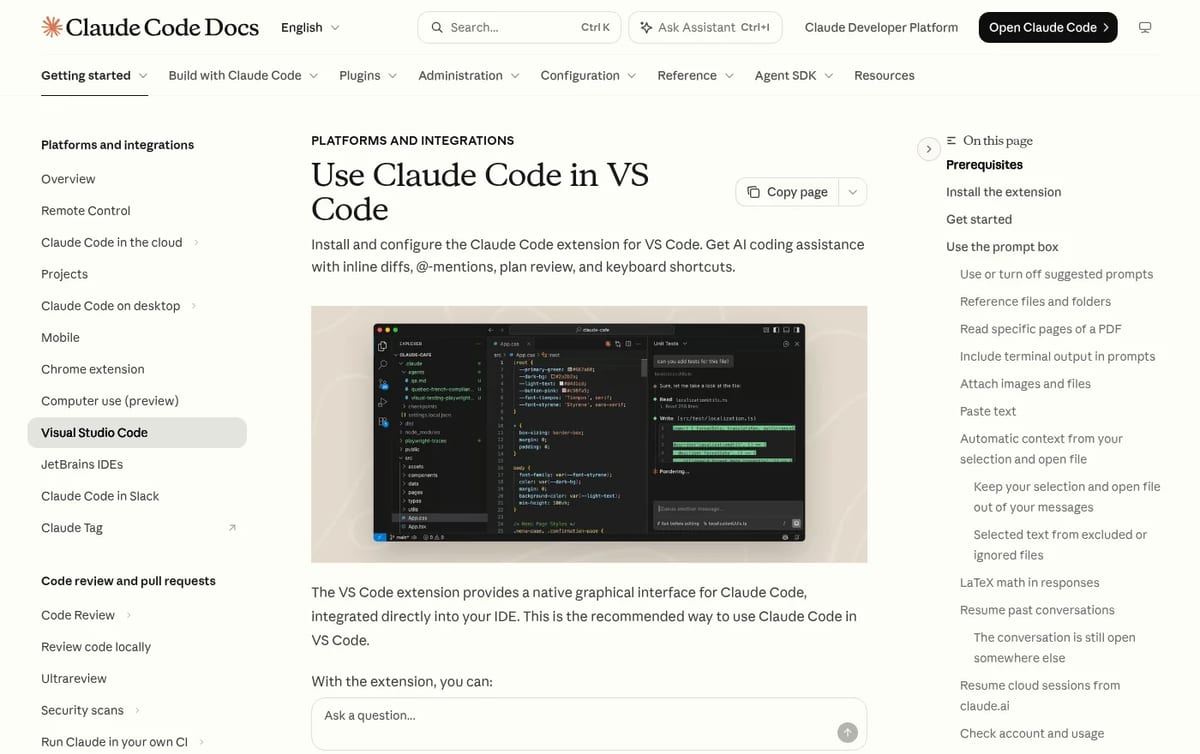
Step 1: Install the extension
- Open VS Code and press Ctrl+Shift+X (Windows and Linux) or Cmd+Shift+X (Mac) to open Extensions.
- Search for “Claude Code” and check that the publisher is Anthropic.
- Click Install. If nothing appears afterwards, run “Developer: Reload Window” from the Command Palette.
The extension bundles its own copy of Claude Code, so you do not need the terminal version to use the panel. It also installs in VS Code forks such as Cursor. If you have never used Claude Code at all, our guide on how to set up Claude Code covers plans and your first CLAUDE.md file.
Step 2: Open the Claude Code panel
Look for the Spark icon. The quickest route is the Spark icon in the editor toolbar at the top right, which only shows when a file is open. You can also use the Spark icon in the Activity Bar (it opens your list of sessions), the “✻ Claude Code” item in the status bar at the bottom right, or the Command Palette: type “Claude Code” and pick “Open in New Tab”. Drag the panel to the right-hand secondary sidebar if you want to see code and chat side by side.
Step 3: Sign in
The first time the panel opens, click Sign in and approve access in your browser. No API key is needed for a Claude subscription. If you set ANTHROPIC_API_KEY in your shell but still see the sign-in screen, VS Code probably did not inherit your environment: launch it from a terminal with code . or just sign in with your Claude account.
Step 4: Send your first prompt
Claude automatically sees your selected text and open file. Select a function and ask “why does this return null for empty input?”, or press Alt+K (Option+K on Mac) to insert an @-mention with exact line numbers, such as @app.ts#5-10. You can also attach files and images, paste terminal output, and reference folders.
Step 5: Pick a permission mode before Claude edits anything
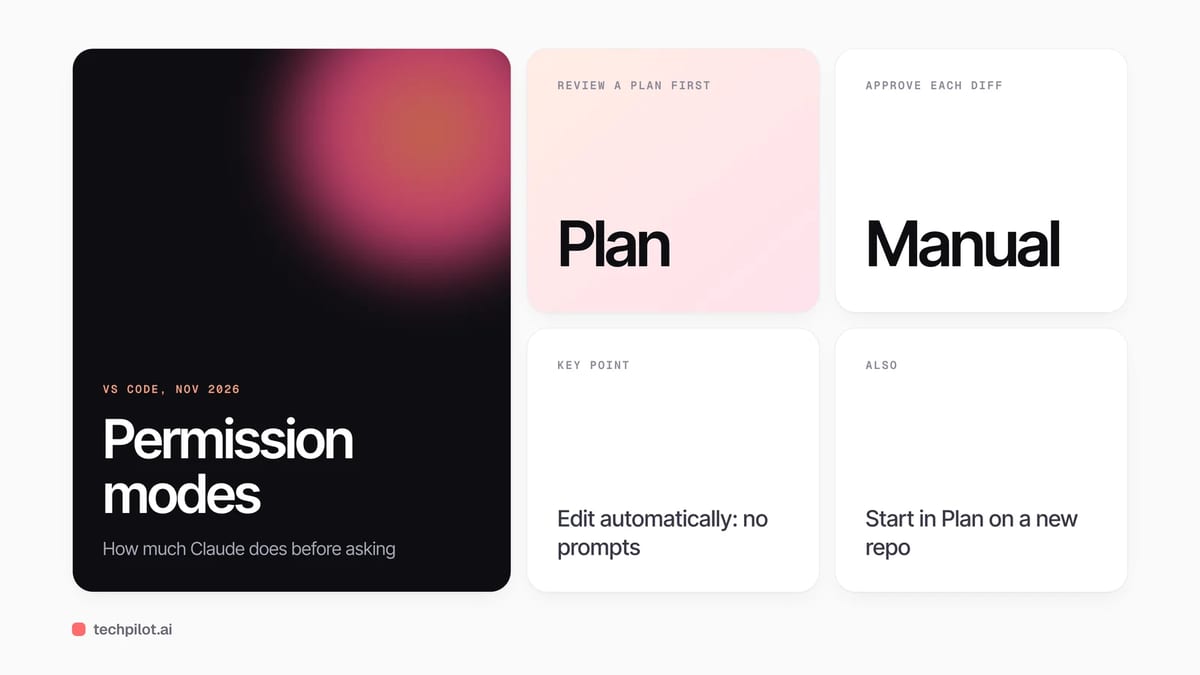
The mode shown at the bottom of the prompt box decides how much Claude does without asking. On recent versions (v2.1.283 and later), Auto is the starting mode, which means a classifier reviews most actions instead of you.
| Mode | What Claude does | Use it when |
|---|---|---|
| Plan | Writes a plan as a Markdown document you can comment on, then waits | New codebase or a risky refactor |
| Manual | Asks before file edits and most shell commands, showing each diff | You want to review every change |
| Auto | A classifier approves most actions | Routine work in a repo you know |
| Edit automatically | Edits files without asking | Throwaway branches and quick fixes |
Our take: switch to Plan or Manual the first time you use it on a project. Auto is fast, but reviewing two or three diffs teaches you how Claude reads your codebase, and that is when you spot a wrong assumption cheaply. Type /plan followed by a task, such as /plan fix the login bug, to start in plan mode.
Undo with checkpoints
The extension tracks Claude’s edits as checkpoints. Hover over any message and you can rewind the code to that point, fork the conversation from there, or do both. That makes it safe to let Claude try an approach and roll back, though git commits are still the better safety net for anything you keep.
Extension or terminal?
Both run the same Claude Code. The extension is the graphical option with inline diffs, tabs for several conversations and checkpoints. Some commands and skills are only in the command-line version, and the extension does not add claude to your PATH, so install the standalone CLI if you also want to run it in VS Code’s integrated terminal. If you prefer the terminal look inside VS Code, turn on the “Claude Code: Use Terminal” setting.
Useful shortcuts
| Action | Windows and Linux | Mac |
|---|---|---|
| Switch focus between editor and Claude | Ctrl+Esc | Cmd+Esc |
| New conversation in a tab | Ctrl+Shift+Esc | Cmd+Shift+Esc |
| Insert @-mention of selection | Alt+K | Option+K |
| Open Extensions | Ctrl+Shift+X | Cmd+Shift+X |
Common problems
- No Spark icon in the toolbar: open a file first, or use the Activity Bar or status bar entry.
- Cmd+Esc does nothing on a Mac: on macOS Tahoe and later the Game Overlay shortcut takes it. Turn it off in System Settings under Keyboard, Keyboard Shortcuts, Game Controllers, or rebind “Claude Code: Focus input”.
- Claude asks you to log in again: reload the window with Developer: Reload Window.
- Old features missing: the extension version matches the Claude Code version it bundles, so update it in Extensions. Our guide on how to update Claude Code covers the CLI too.
If you are still choosing a coding assistant, compare free options in our guide to the best free AI for coding.
Frequently asked questions
Is the Claude Code VS Code extension free?
The extension is free to install, but you need a paid Claude plan (Pro, Max, Ultra, Team or Enterprise) or a Claude Console account to use it.
How do I open Claude Code in VS Code?
Click the Spark icon in the editor toolbar, the Activity Bar or the status bar, or open the Command Palette and choose Claude Code: Open in New Tab.
Do I need an API key for Claude Code in VS Code?
No. You sign in with a paid Claude subscription or a Claude Console account in your browser. Third-party providers such as Amazon Bedrock have their own setup.
What VS Code version does Claude Code need?
VS Code 1.94.0 or later.
Can I use the Claude Code terminal in VS Code too?
Yes, but install the standalone CLI first. The extension bundles its own copy and does not add claude to your PATH.
Found this useful? Share it with someone comparing AI tools.
Alternatives to Next.js: 5 Best for 2026
Alternatives to Next.js in 2026: React Router, Astro, SvelteKit, Nuxt and TanStack Start, matched to what you build and to how much framework you…
 Eimantas Kazėnas · 4 min read
Alternatives to Postman: 4 Best for 2026
Alternatives to Postman in 2026: Bruno, Hoppscotch, Insomnia and Thunder Client cover API testing for free, and their team plans cost far less per…
Eimantas Kazėnas · 4 min read