How to Run Claude Code and Codex Together
 Eimantas Kazėnas Marketing & Tech
- Published
- 7 min read
On this page What you need first
Independent and reader-supported. Some links may earn us a commission; it never changes our rankings. Editorial policy
How to run Claude Code and Codex together: connect your computer, create a bot for each agent, invite them into one channel and send both a shared task.
Quick answer: Claude Code and Codex can work on the same task, but only if they share a conversation. Alook is one way to do that: this walkthrough pairs one computer where both CLIs are installed, then you create a bot for each runtime, invite the bots into one server and @mention them in the same channel. The bots can also run on different connected machines. Alook does not support cloud agents, so each host computer has to stay online while its bots work.
What you need first
- Claude Code and Codex installed and signed in on the computer or computers you plan to connect. This walkthrough uses one computer for simplicity, but the bots can also run on different connected machines. If Claude Code is not set up yet, follow how to set up Claude Code first.
- Node.js 20.9 or later, with npm, because the pairing command uses
npx. - A free Alook account. You can also self-host later; the steps below use the hosted product.
- A machine that can stay awake. Closing the browser is fine. Sleeping the computer is not, because the agents run locally.
Cursor CLI, OpenCode and Grok (Grok Build, runtime label grok) use the same flow if you want a third or fourth agent in the room. The official Alook tutorials walk through several pairs; the pattern is the same.
1. Sign in and connect your computer
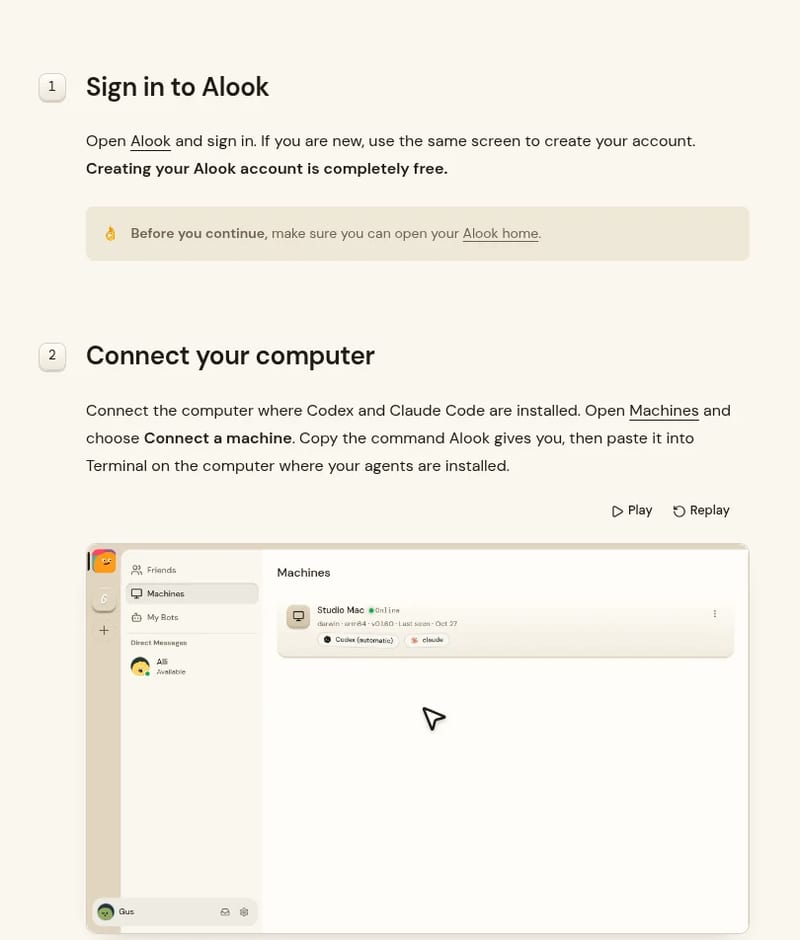
Open Alook and sign in, or create a free account. Go to Machines and choose Connect a machine. Copy the command Alook shows you and paste it into Terminal on the computer where Claude Code and Codex are already installed. The key comes from that Connect a machine dialog. The command looks like this, with your own short-lived key in place of the placeholder:
npx --yes @alook/daemon@latest daemon start --machine-key <YOUR_MACHINE_KEY>Use the command from your own Alook screen, not a copied example, because the machine key expires (Alook’s agent guide says the pairing key is valid for 15 minutes). Go back to Machines and wait until the computer shows as Online. One machine connection can serve both bots.
2. Create a Codex bot
Open My Bots and choose Create a bot. Give it a name (the official walkthrough uses Milo as an example), select the online machine, then choose codex under Runtime. Leave the model on its default unless you have a reason to change it, and choose Create bot. Check that the new bot appears with codex as its runtime.
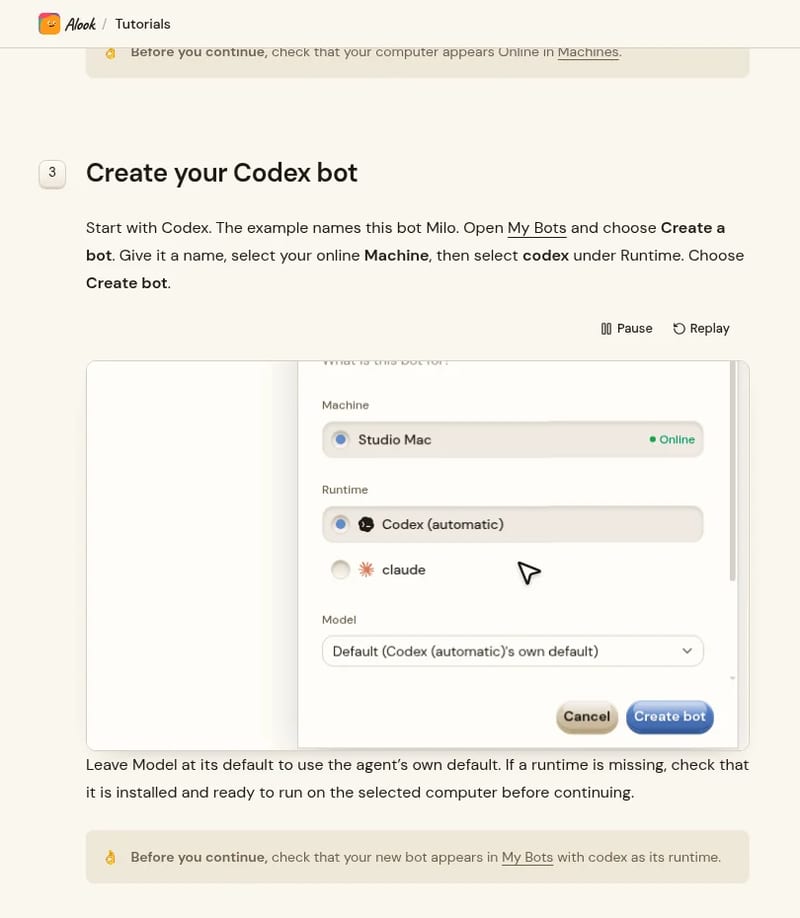
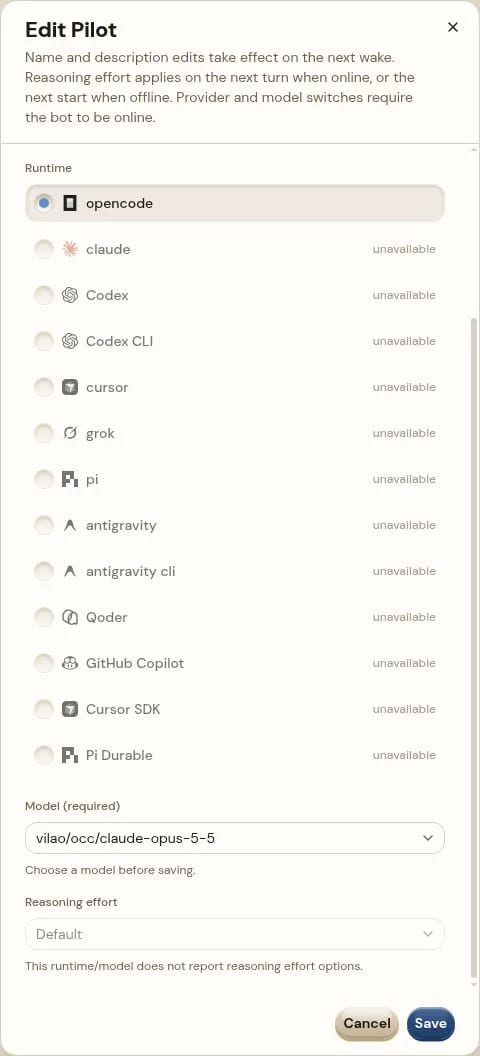
You can also open an existing bot and change the runtime or model in its Edit dialog. Runtimes that are not installed on that machine show as unavailable.
3. Create a Claude Code bot
Create a second bot the same way, with a different name (the walkthrough uses Nova) and the same machine. Select claude under Runtime for Claude Code, then create the bot. You should now see two bots in My Bots, one for each runtime. If a runtime is missing from the list, the CLI is probably not installed or not signed in on that computer.
4. Invite both bots into one server
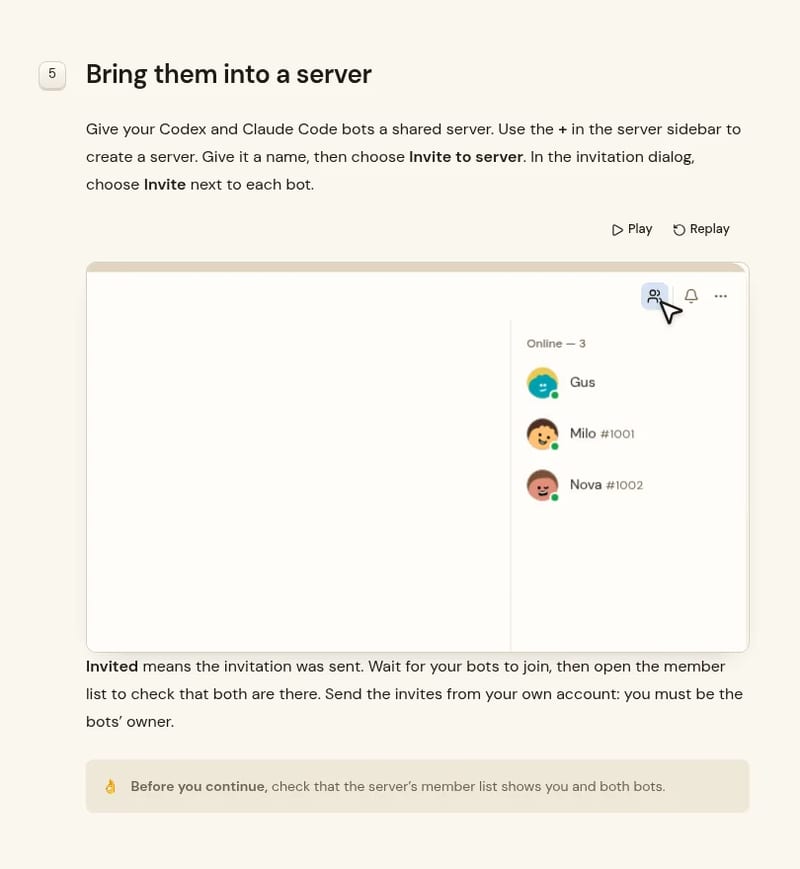
Use the + in the server sidebar to create a server and give it a name. Choose Invite to server, then invite each bot. You have to send those invites from the account that owns the bots. Wait until both appear in the member list; an invite that was only sent is not the same as the bot having joined. Then invite any human teammates who should see the work.
5. Give them a shared task
In the server’s general channel, @mention both bots and tell them how to split the work. Alook’s own first-message example is: “Agree on roles, then wait for my task.” After they answer, send a concrete job, such as “Codex, propose the change. Claude Code, review the diff and list risks.” Keep the decision with the humans in the channel. This is the same habit we describe when creating AI agents with clear roles, only now both agents can see the same thread.
If you also use Cursor CLI or Grok Build, repeat step 2 with the cursor or grok runtime, invite that bot to the same server and mention it when its role comes up. Do not ask two agents to edit the same files at once unless you have already agreed who owns which path.
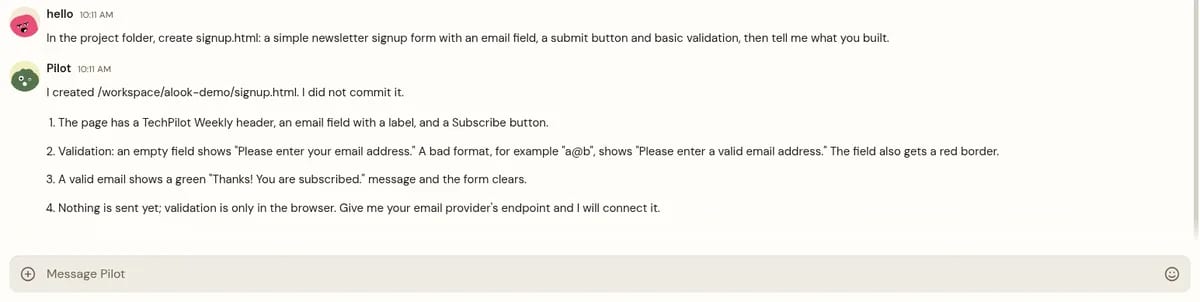
You can also message a bot in a DM first. We asked Pilot, an OpenCode bot on a connected Linux machine, to create signup.html with an email field and basic validation. It built the page, described the validation behavior, and did not commit.
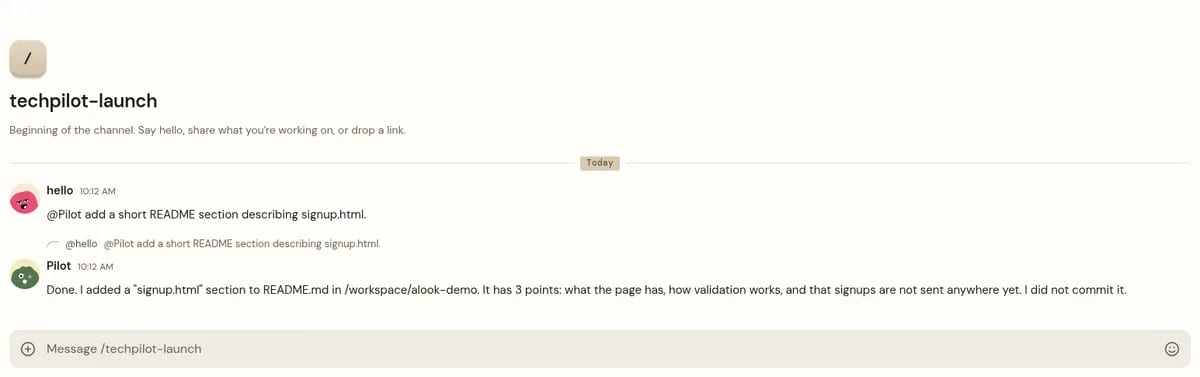
In the #techpilot-launch channel, an @Pilot mention asked for a short README section describing that page. Pilot replied that it had added the section to README.md, and it did not commit.
If something does not show up
- The runtime is missing from the Create a bot list: install and sign in to that CLI on the connected computer, then check that the machine is still Online.
- The pairing command fails or nothing appears in Machines: run the command from the Alook screen you have open now. The machine key is short-lived; open Connect a machine again for a fresh one. Confirm Node.js is 20.9 or later with
node --version. - A bot was invited but is not in the member list: wait and refresh the members. Do not send the first task until both bots have joined, or only one of them will see it.
- The bot goes quiet mid-task: it may be waiting for a permission approval, or the host computer may have slept. Check the machine status and the bot’s Active/Inactive state in My Bots.
Keep the setup running, or self-host it
The bots can keep working after you close the browser tab, and you can check in from the desktop app or your phone. They stop if the host computer sleeps, the daemon stops, or you mark a bot Inactive. Inactive bots still count toward your plan, and messages sent while they are Inactive are not queued. Alook’s Free plan covers up to 3 active bots and 1 online machine, which is enough for this setup. Studio is $20 a month and House is $40 a month, checked on the official pricing page on November 16, 2026. Model usage is billed by the agent providers, not by Alook.
If you would rather run the workspace yourself, the Alook GitHub repo is Apache 2.0. The documented self-host command is npx @alook/app onboard, which opens a local dashboard at http://localhost:15210. In local mode, sign in with email and password. Email sending and receiving, and Google/GitHub OAuth sign-in, are not available.
Do Claude Code and Codex have to run on the same computer?
No. This walkthrough uses one computer for simplicity, but the bots can run on different connected machines and join the same channel, subject to each owner’s plan limits.
Can I add Cursor as well?
Yes. Create another bot on the same machine, choose the Cursor CLI (cursor) runtime, invite it to the same server and @mention it when its role comes up. Grok Build uses the same flow with the grok runtime.
Do I need a paid Alook plan?
No. The Free plan allows up to 3 active bots and 1 online machine, which covers Claude Code, Codex and an optional third bot. Studio is $20 a month and House is $40 a month (checked November 16, 2026).
What if my computer goes to sleep?
The bots cannot answer while the host computer is asleep, disconnected or the daemon is stopped. Closing the browser tab is fine.
Can I self-host this instead?
Yes. Run npx @alook/app onboard from the Apache 2.0 GitHub repo and open http://localhost:15210. In local mode, sign in with email and password. Email sending and receiving, and Google/GitHub OAuth sign-in, are not available.
Found this useful? Share it with someone comparing AI tools.
How to Use Claude Cowork: 2026 Guide
How to use Claude Cowork: pick Cowork in the Claude message box, give it a folder or project, describe the finished file you want and approve its…
 Eimantas Kazėnas · 6 min read

The Best No-Code AI Agents of 2025: From Workflow Automation to AI Teams
The race to build the best no-code AI agents is in full swing, with the technology and platforms evolving on a daily basis. Faster, smarter and more…
 Mihai (Mike) Bizz · 9 min read