How to Use Claude Cowork: 2026 Guide
 Eimantas Kazėnas Marketing & Tech
- Published
- 6 min read
On this page Before you start: plan and app
- Before you start: plan and app
- How to use Claude Cowork, step by step
- When to use Cowork instead of chat
- Choose how much Claude can do on its own
- Five habits that make Cowork output better
- Run tasks from your phone
- What changed on November 12, 2026
- Privacy and limits worth knowing
- Frequently asked questions
Independent and reader-supported. Some links may earn us a commission; it never changes our rankings. Editorial policy
How to use Claude Cowork: pick Cowork in the Claude message box, give it a folder or project, describe the finished file you want and approve its plan.
Quick answer: Claude Cowork is the mode where Claude stops answering questions and starts finishing tasks. It reads files and connected apps, works through many steps on Anthropic’s servers and hands back real documents, spreadsheets or slides. It needs a paid plan (Pro, Max, Ultra, Team or Enterprise). Since November 12, 2026, Anthropic has also been rolling out a version where chat and Cowork live in one conversation, so the exact buttons depend on which version your account shows.
Before you start: plan and app
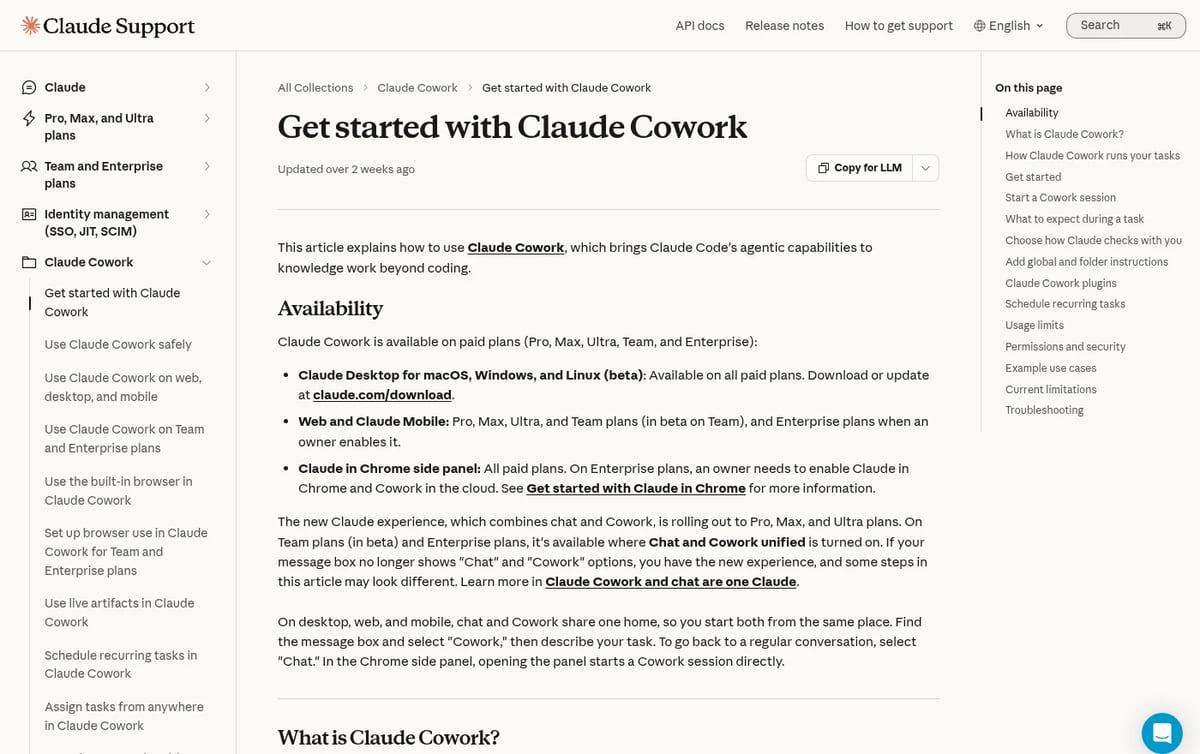
- Plan: Cowork is not on the Free plan. According to Anthropic’s Cowork help article, it is available on Pro, Max, Ultra, Team and Enterprise.
- Where it runs: Claude Desktop for macOS and Windows (Linux in beta), the web app and the mobile apps. Team web and mobile access is still in beta.
- Desktop app for local work: sessions run in the cloud, but if a task needs files on your computer, your browser or computer use, the desktop app must be open and connected.
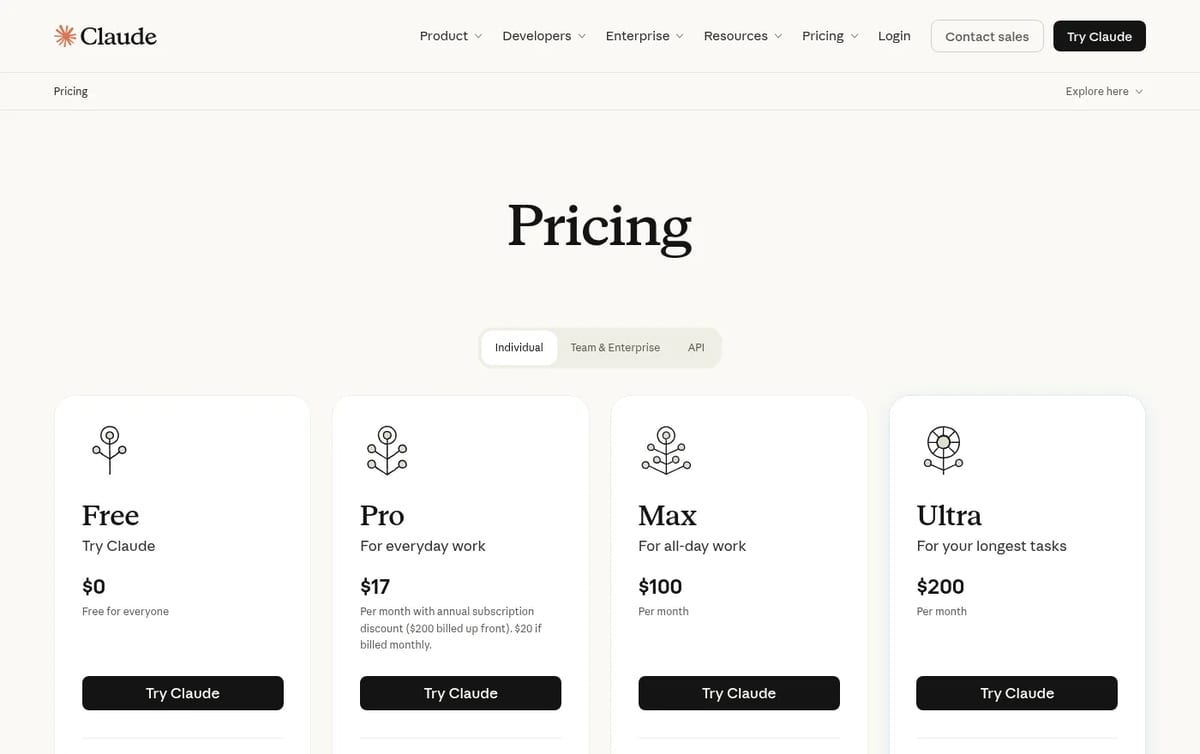
| Plan | Price | Cowork |
|---|---|---|
| Free | $0 | No |
| Pro | $20 a month, or $17 a month billed yearly ($200 up front) | Yes |
| Max | $100 a month, 5x Pro usage | Yes |
| Ultra | $200 a month, 10x Pro weekly usage | Yes |
Prices from claude.com/pricing, checked November 13, 2026. Multi-step Cowork tasks usually use more of your limit than a quick chat, so heavy users reach the Pro cap sooner.
How to use Claude Cowork, step by step
- Open Claude on the web, in Claude Desktop or in the mobile app.
- Select “Cowork” in the message box. If you no longer see separate “Chat” and “Cowork” options, you have the new combined experience: skip this step, because any conversation can take on a Cowork task.
- Run /setup-cowork the first time. Type it and press enter. Claude asks for your role, installs a matching plugin and connects the tools it uses, such as Slack, Google Workspace or Microsoft 365.
- Give it a place to work. Choose “Work in a folder” to pick a local folder Claude can read from and save to, or create a Project that keeps its own files, instructions and memory across sessions.
- Describe the result, not the steps. For example: “Turn the research in this folder into a one-page brief” or “Update the forecast model with the figures from these PDFs.”
- Review the plan, then let it run. Claude shows progress at each step. You can step in to correct it, or close your laptop: cloud sessions keep going.
- Open the output. Finished files appear in the session, where you can preview, download or keep editing them with Claude.
When to use Cowork instead of chat
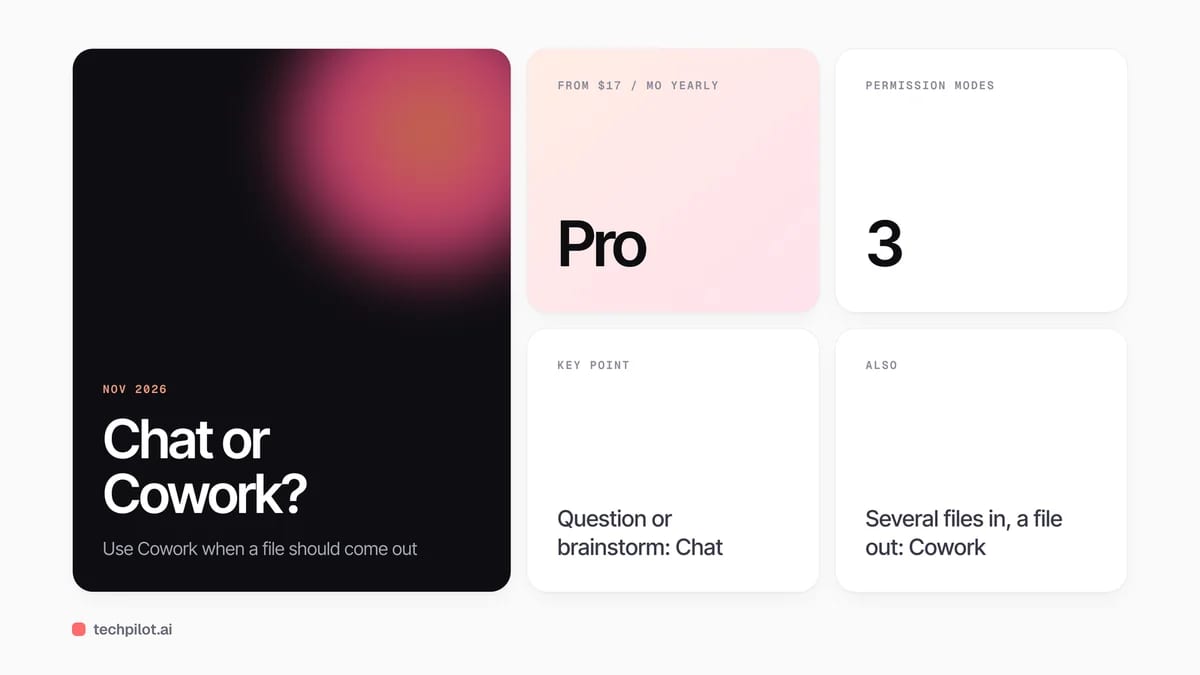
Our rule of thumb: if a file should come out at the end, use Cowork. A question, an explanation or a brainstorm fits chat. Several inputs (a folder, a few PDFs, a Slack channel) plus a deliverable (a deck, a spreadsheet, a memo) is a Cowork job. Anthropic’s own best practices guide draws the same line: chat is for answers, Cowork is for delegating work.
Choose how much Claude can do on its own
Cowork has three permission modes, which you can change from the mode selector in the chat box:
| Mode | Tools set to “Needs approval” | Good for |
|---|---|---|
| Manual | Claude asks you every time | First tasks, anything touching email or shared drives |
| Auto | Claude decides whether to ask | Routine work you have already checked once |
| Skip | Approved automatically | Trusted, repeat tasks in a sandbox folder |
Tools you mark “Blocked” stay blocked in every mode, and Claude always asks before it permanently deletes files. In the new combined experience the choice is simplified to Auto (default on Pro, Max, Ultra and Team) and Manual (default on Enterprise).
Five habits that make Cowork output better
- Ask it to ask you first. Start with “Before you begin, repeat my request back and ask me any clarifying questions.” It catches wrong assumptions before Claude spends your usage.
- Scope the folder. Point Cowork at one project folder, not your whole drive. Less noise, faster and safer runs.
- Name the format. “A spreadsheet with a tab per region” beats “an analysis”.
- Use projects for repeat work. Instructions and memory carry over, so the second weekly report needs far less briefing.
- Schedule the boring ones. Scheduled tasks run in the cloud on a cadence you choose, with no device online.
Run tasks from your phone
With Dispatch you keep one ongoing thread with Claude on your phone, and it does the work on your desktop using your local files and connectors. Your computer has to be awake with Claude Desktop open, and you need Pro, Max or Ultra. You get a push notification when the task is done or when Claude needs your go-ahead.
What changed on November 12, 2026
Anthropic started merging chat and Cowork into a single conversation for Pro, Max and Ultra users. You ask for anything and Claude decides whether a quick answer or a multi-step task fits. Existing Cowork tasks, projects, connectors and files carry over, but once your account switches you cannot go back to separate modes, as explained in Anthropic’s announcement. Practically, the steps above still apply; you just skip choosing a mode.
Privacy and limits worth knowing
- Memory is shared with chat in cloud sessions. To run one task without memory, turn “Memory” off in the “+” menu before your first message; it cannot be changed later.
- Deleting a task removes it from your history immediately and from Anthropic’s storage within 30 days.
- Internet access makes Cowork riskier than chat: only connect the apps a task needs, and be careful with files that contain instructions from other people.
If you also write code, the same agent engine powers Claude Code, so see our guides on how to set up Claude Code and how to update Claude Code. Still on the free plan? Read is Claude AI free to see what you get before you pay, or compare Claude vs ChatGPT.
Frequently asked questions
Is Claude Cowork free?
No. Claude Cowork needs a paid plan: Pro, Max, Ultra, Team or Enterprise. Pro costs $20 a month, or $17 a month billed yearly.
How do I start a Claude Cowork session?
Open Claude on web, desktop or mobile, select Cowork in the message box, describe the task and review Claude’s plan. With the new combined experience, any chat can take a Cowork task.
Does Claude Cowork work when my computer is off?
Yes for cloud tasks: sessions keep running if you close your laptop. Tasks that use local files, your browser or computer use need Claude Desktop open.
What is /setup-cowork?
It is a guided setup you type in your first Cowork session. Claude asks your role, installs a matching plugin and connects tools like Slack, Google Workspace or Microsoft 365.
Can Claude Cowork delete my files?
Only with permission. Claude asks for explicit approval before permanently deleting any files, and you can block tools entirely.
Found this useful? Share it with someone comparing AI tools.

Best Minecraft Server Hosting for AI Agents in 2026: 5 Providers Compared
Running LLM-powered bots in Minecraft? We compare five server hosts for AI agent experiments by CPU power, access, backups, and price.
 Mihai (Mike) Bizz · 5 min read

Best AI Model in 2026: Top LLMs Ranked
Find the best AI model for your job in 2026. We rank GPT-6, Claude Opus 5.5, Gemini 4 Argon, Grok 4.7 and open models on coding, agents, price, free…
 Eimantas Kazėnas · 16 min read