Home / Guides / Graphics & Design
AI Expand Image Free: What Actually Works
 Eimantas Kazėnas Marketing & Tech
- Published
- 5 min read
On this page Which AI image expanders are actually free
Independent and reader-supported. Some links may earn us a commission; it never changes our rankings. Editorial policy
AI expand image free options: Fotor gives 3 free expansions and Picsart a few tries, while Clipdrop and Canva now charge. See what is truly free and how.
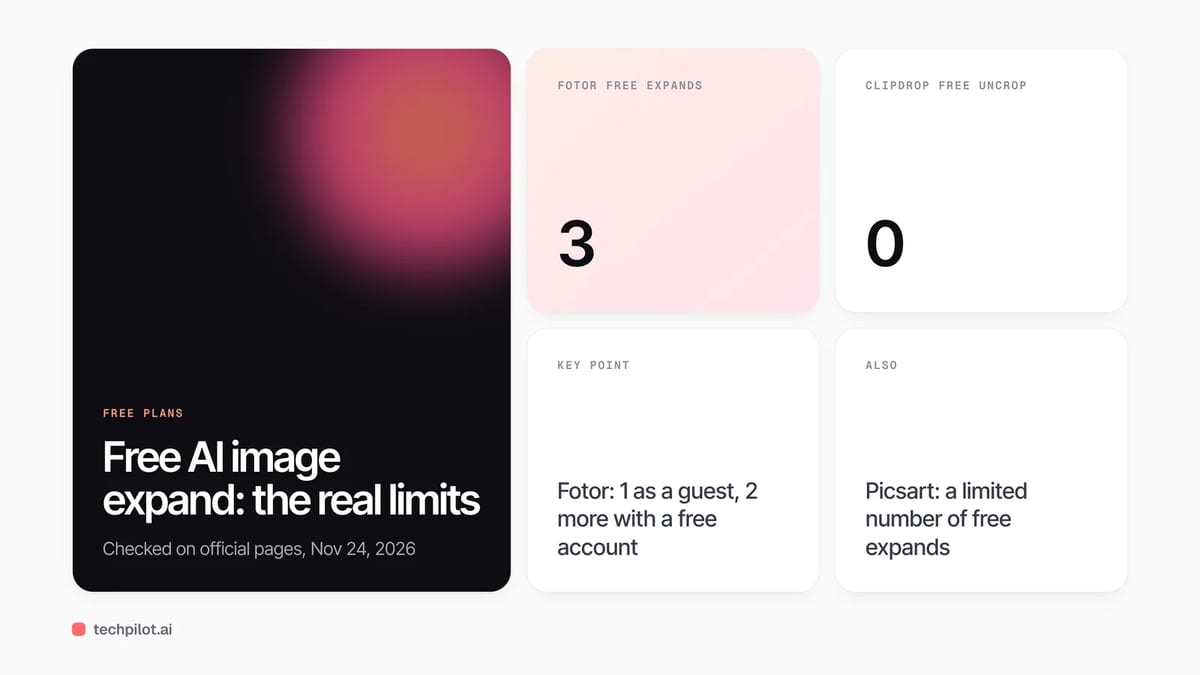
Quick answer: most “free” AI image expanders are free trials. We checked the official pages on November 24, 2026. Fotor gives you 3 free expansions, Picsart a limited number of free tries, and Clipdrop’s Uncrop and Canva’s Magic Expand now need a paid plan. For unlimited free outpainting, use a free chatbot’s image editor for quick jobs or a local tool on your own computer.
Which AI image expanders are actually free
| Tool | Free expands | Paid option | Watch out for |
|---|---|---|---|
| Fotor AI Image Extender | 1 as a guest, 2 more with a free account | Pro plans with a 7-day trial; Pro and Pro+ include 200 and 500 generations | Free tries run out fast; credits after that |
| Picsart AI Expand | A limited number of free expands | Subscription for more expansions | Picsart does not publish the free count |
| Clipdrop Uncrop | None; Uncrop is not on the free plan | Pro €15/month, 1,000 Uncrop runs per 24 hours | Many older guides still call it free |
| Canva Magic Expand | None on Canva Free | Canva Pro, Business, Education or Nonprofits | Faces, hands and transparent images expand poorly |
| Free chatbot image editing | Within the chatbot’s daily image limits | Paid chatbot plans raise the limits | May redraw the whole picture, not only the edges |
| Local tools (Krita AI Diffusion, Fooocus) | Unlimited | None; free and open source | Needs a decent GPU and some setup |
The limits come from Fotor’s extender FAQ, Picsart’s AI Expand page and Clipdrop’s pricing; Canva’s plan list is from its Magic Expand help article.
The free options, one by one
Fotor: best quick free result
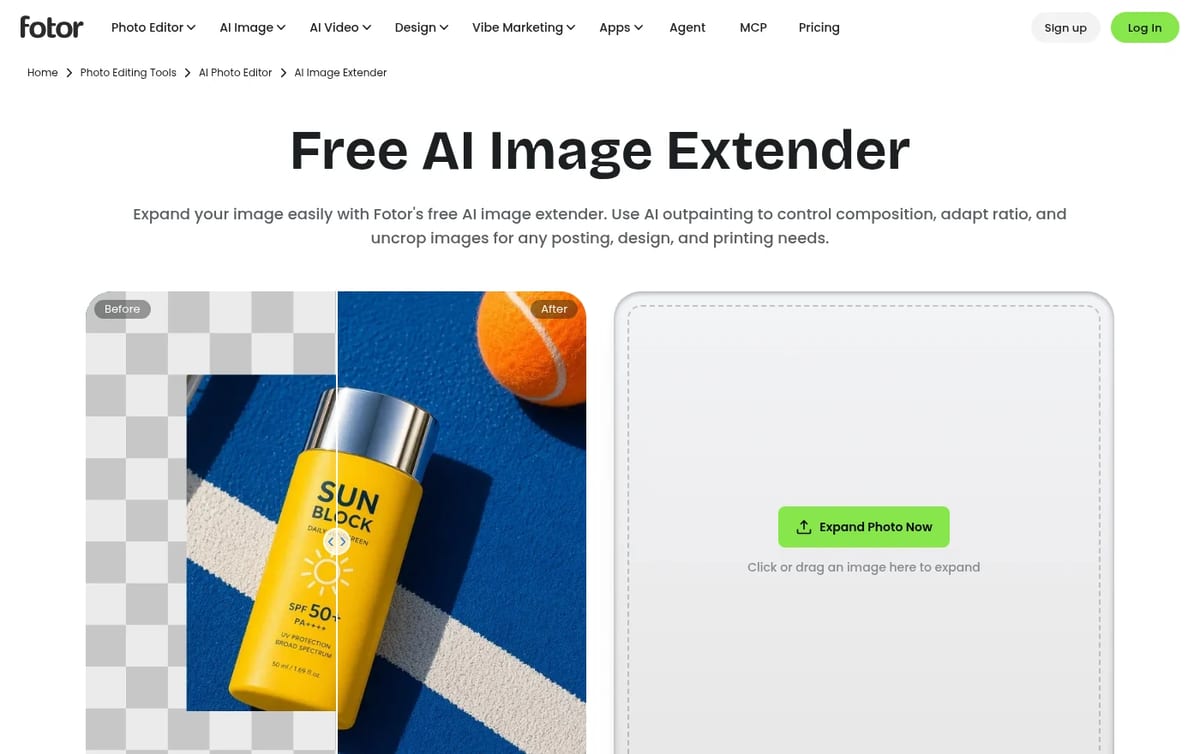
Fotor’s AI Image Extender works in the browser with no sign-up for the first image. Upload a photo, pick a target ratio such as 16:9, 9:16 or 1:1, and Fotor fills the new area to match the lighting and texture. Its FAQ says guests get 1 free expansion and a free account adds 2 more, and exports have no watermark. After that you need a Pro trial or credits, so save the free tries for images that matter.
Picsart: a few free tries
Picsart’s AI Expand is “free-to-try”. Its FAQ says you get a limited number of free expands and need a subscription for more, without stating the number. It handles the usual social formats, and it is worth trying if you already use Picsart for editing.
Clipdrop Uncrop: no longer free
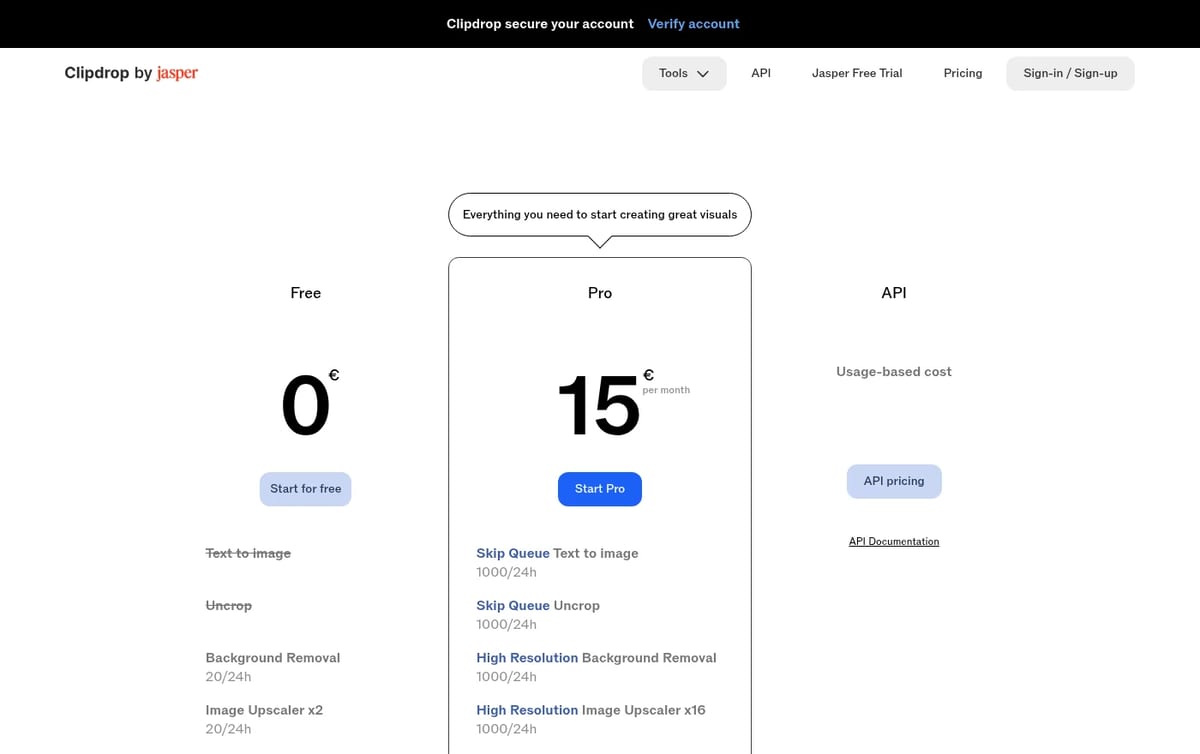
Clipdrop, now part of Jasper, was the classic free uncrop tool, and plenty of articles still recommend it that way. On its current pricing page, Uncrop is struck through on the Free plan. Pro costs €15 a month and allows 1,000 Uncrop runs per 24 hours without a queue. Free users still get background removal, cleanup and 2x upscaling with daily limits, which we cover in our Clipdrop review.
Canva Magic Expand: Pro only
Canva’s help center lists Magic Expand for Canva Pro, Business, Education and Nonprofits accounts, so it is not available on Canva Free. If you have a school or nonprofit account it is a good option, since you can expand an image inside the design you are already making. See what else the paid plan adds in our Canva AI tools review.
Free chatbots: fine for quick, loose edits
Chatbots with image editing on their free tiers, such as ChatGPT and Gemini, can extend a picture if you upload it and ask, for example, “extend this photo to 16:9, continue the beach on both sides, keep the people unchanged”. This costs nothing within the daily limits. The catch is that a chatbot usually generates a new image rather than adding pixels around the original, so faces, text and small details can change. Compare the result with the original before using it.
Local tools: the only truly unlimited free option
If you have a recent graphics card, open-source tools run outpainting on your own computer with no credits. Krita with the AI Diffusion plugin lets you enlarge the canvas and fill the new area with a prompt, and Fooocus has a built-in outpaint mode for left, right, top and bottom. Setup takes an hour or so, but after that every expansion is free and private.
How to get a clean result with any tool
- Start from the largest file you have. Expanding a small image and then enlarging it gives soft edges. If you need a bigger file afterwards, use a free AI upscaler.
- Expand in steps. Adding 25 to 50 percent per side at a time keeps the fill consistent; doubling the canvas in one go often produces repeated patterns.
- Describe the missing area. If the tool takes a prompt, name what should appear, such as “more sand and sea, same evening light”.
- Check the seams and details. Look for warped hands, duplicated objects and lines that do not continue across the original edge.
- Disclose when it matters. For news, real estate or product photos, an expanded background can mislead buyers, so label or avoid it.
Which one should you use?
For one or two images, use Fotor’s free tries. For a quick social post where small changes do not matter, use a free chatbot. If you expand images every week, either pay for one tool you already use, such as Canva Pro, or set up a local tool once. For more free editing options, see our list of free Photoshop alternatives.
Frequently asked questions
Can I expand an image with AI for free?
Yes, with limits. Fotor gives 3 free expansions and Picsart a few free tries. Free chatbots and local tools like Krita AI Diffusion can expand images at no cost.
Is Clipdrop Uncrop still free?
No. On Clipdrop’s pricing page on November 24, 2026, Uncrop was not included on the free plan. Pro costs €15 a month.
Is Canva Magic Expand free?
No. Canva lists Magic Expand for Pro, Business, Education and Nonprofits accounts, not Canva Free.
What is AI outpainting?
Outpainting is when AI adds new pixels beyond an image’s original edges, matching its content, light and style, so you can change the ratio without cropping.
Why does my expanded image look wrong?
Large expansions, faces, hands and text are hard for AI. Expand in smaller steps, describe the missing area, and start from the highest-resolution file you have.
Found this useful? Share it with someone comparing AI tools.
5 Best AI Image Tools for Fashion and Brand Photography in 2026
The 5 best AI image tools for fashion and brand photography in 2026, compared on realism, model consistency, commercial rights, and pricing for…
 Mihai (Mike) Bizz · 13 min read
Best Free Alternatives to Photoshop in 2026
Best free alternatives to Photoshop in 2026, matched to the job: Photopea for PSD files, GIMP for desktop editing, Affinity for pro work and Krita…
 Eimantas Kazėnas · 5 min read