Home / Guides / Graphics & Design
Best Free Alternatives to Photoshop in 2026
 Eimantas Kazėnas Marketing & Tech
- Published
- 5 min read
On this page The quick picker
- The quick picker
- 1. Photopea: best for PSD files in a browser
- 2. Affinity: best free pro-grade editor
- 3. GIMP 3.2: best open-source desktop editor
- 4. Krita: best for digital painting
- 5. Paint.NET: best for quick Windows edits
- 6. Pixlr: best for quick social edits with AI
- What you give up by leaving Photoshop
- Our pick
- Frequently asked questions
Independent and reader-supported. Some links may earn us a commission; it never changes our rankings. Editorial policy
Best free alternatives to Photoshop in 2026, matched to the job: Photopea for PSD files, GIMP for desktop editing, Affinity for pro work and Krita for art.
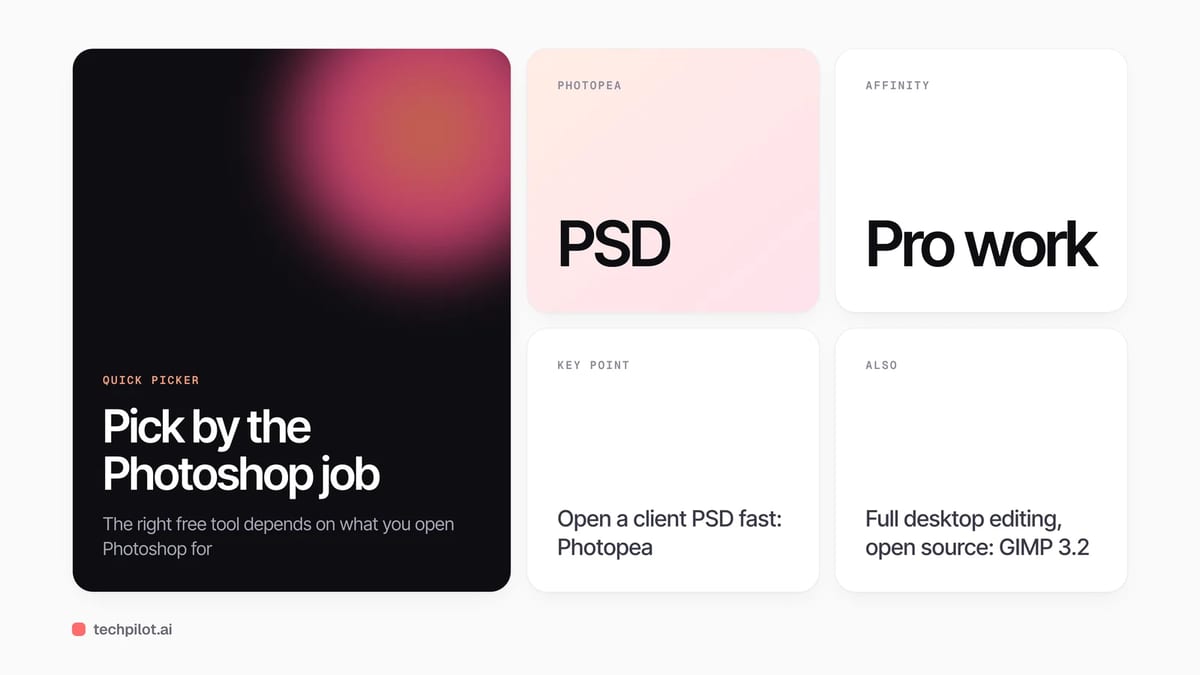
Quick answer: there’s no single free Photoshop replacement, because nobody uses all of Photoshop. Pick by the job. If you need to open and edit PSD files, use Photopea. If you want a full desktop editor that’s open source, use GIMP. If you want pro-grade photo, vector and layout tools in one app at $0, use Affinity. If you paint or draw, use Krita. We checked every app’s official site on November 5, 2026.
The quick picker
| If you use Photoshop for… | Use this instead | Runs on |
|---|---|---|
| Opening and editing PSD files | Photopea | Any browser |
| Retouching, compositing, RAW photos | Affinity | Mac, Windows, iPad |
| Full desktop editing, scripting, Linux | GIMP 3.2 | Linux, macOS, Windows |
| Digital painting and illustration | Krita | Windows, macOS, Linux, Android |
| Quick fixes and screenshots on Windows | Paint.NET | Windows |
| Social posts with AI edits | Pixlr | Browser and apps |
1. Photopea: best for PSD files in a browser
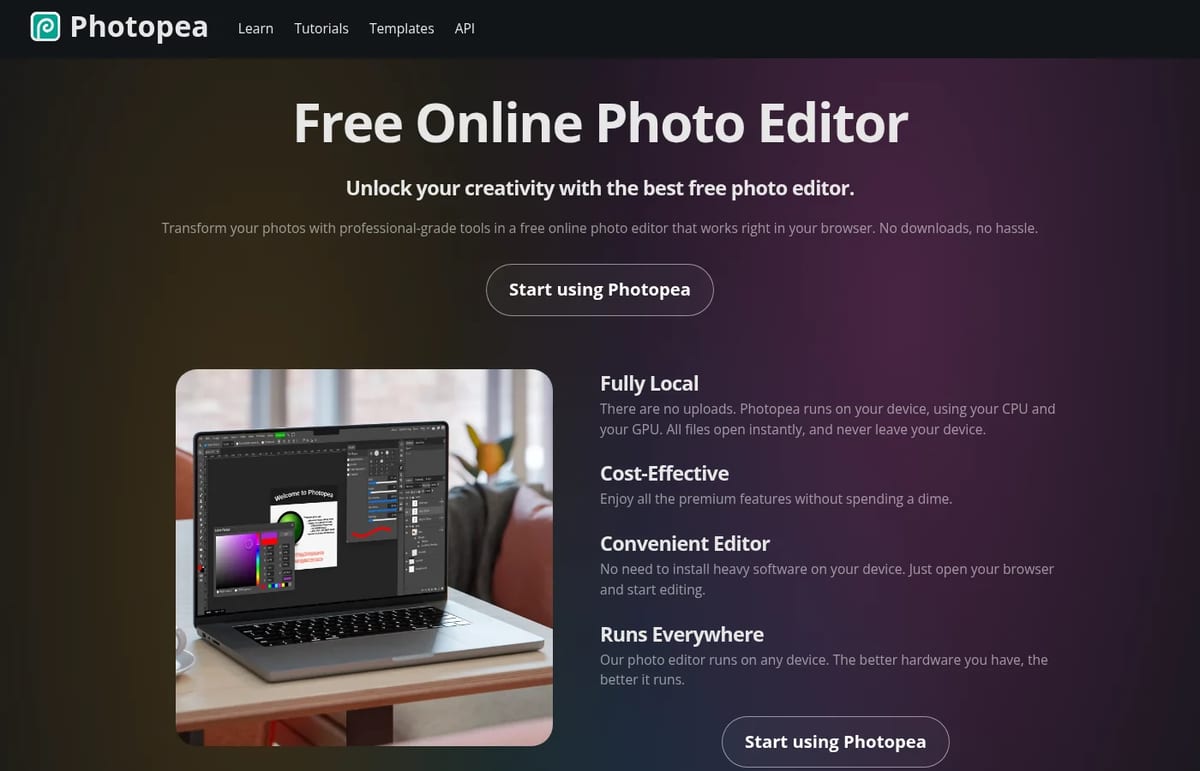
Photopea is the closest thing to Photoshop you can open in a tab. PSD is its main format, and it opens and saves PSD files with layers, masks, layer styles, smart objects, adjustment layers, channels and paths. It also reads RAW files from most camera brands (DNG, CR2, CR3, NEF, ARW and more), plus PDF, SVG, AI, Figma and around 40 other formats.
Two details make it stand out. First, Photopea says files never leave your device, because the editor runs on your own CPU and GPU. Second, its layout of menus, panels and layers will feel familiar to anyone coming from Photoshop. The free version shows ads; a Premium account removes them. It also has AI background removal and text-based fill to replace part of an image.
Pick it if: a client sent you a PSD, you work on a Chromebook, or you can’t install software.
2. Affinity: best free pro-grade editor
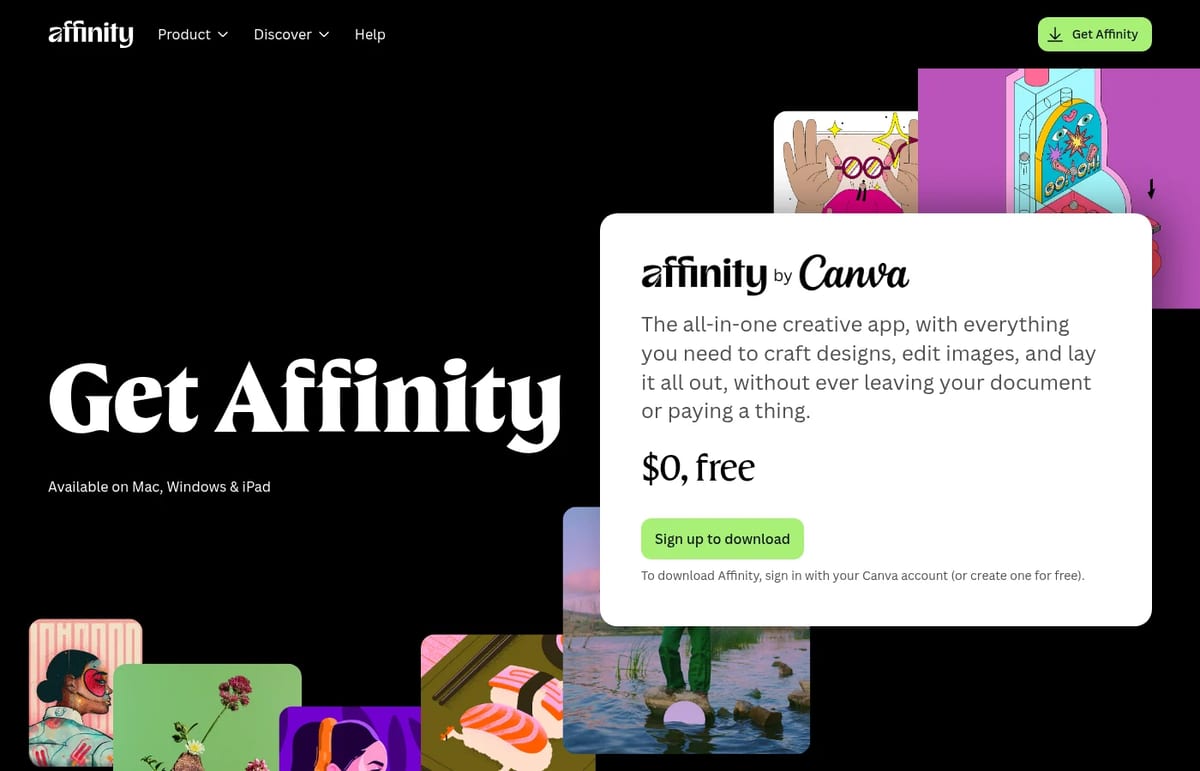
This is the biggest change in the free editing market. Affinity, now owned by Canva, is free for individuals. You sign in with a free Canva account and download one app for Mac, Windows or iPad that combines vector design, photo editing and page layout.
The photo tools are the ones Photoshop users miss most: full RAW editing, live filters and adjustments, inpainting, healing, dodge and burn, HDR merge, panorama stitching and batch processing with recordable macros. It imports PSD, AI, PDF, SVG and IDML files. The only paid layer is optional: Canva’s AI tools inside Affinity need a Canva premium plan.
Pick it if: you do client work, retouching or print, and want a polished desktop app without a subscription.
3. GIMP 3.2: best open-source desktop editor
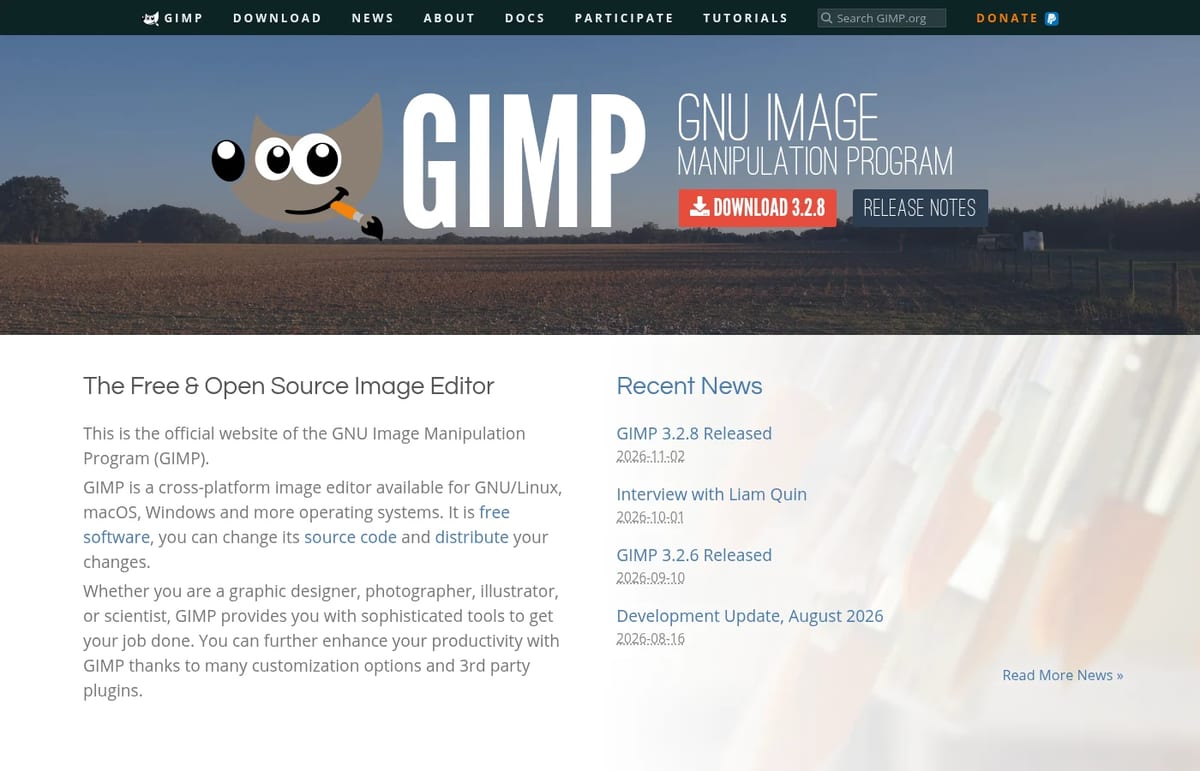
GIMP has been the default free answer for years, and the 3.x series is a big overhaul of the app. The current release is GIMP 3.2.8, published on November 2, 2026. It runs on Linux, macOS and Windows, handles retouching, restoration and compositing, has proper color management, and can be scripted in Python, Scheme and other languages, with a big library of community plug-ins.
The trade-off is the learning curve. GIMP doesn’t copy Photoshop’s layout, so expect a week of looking for tools in different places.
Pick it if: you’re on Linux, want open source, or want to automate edits with scripts.
4. Krita: best for digital painting
If you use Photoshop mainly to draw, Krita is the better tool, not just the cheaper one. It’s free and open source under the GNU GPL, made by artists, with many brush engines, layers, drawing assistants, stabilizers and frame-by-frame animation. The team released Krita 5.3.4 and 6.0.4 on September 15, 2026, which also brought video export to Android.
Pick it if: you illustrate, paint, make comics or animate. It’s not designed for photo retouching.
5. Paint.NET: best for quick Windows edits
Paint.NET is a light Windows-only editor with layers, unlimited undo, effects and a large plug-in community. Version 5.1.12 came out on March 8, 2026. It’s the fastest way to crop, blur, resize or annotate a screenshot without loading a heavy app. It’s a free download, with an optional paid Microsoft Store version to support development.
6. Pixlr: best for quick social edits with AI
Pixlr runs in the browser and focuses on fast edits, templates, collages and AI tools such as background removal and image generation. The free version has ads and limited AI use; paid plans add AI credits and remove ads. It’s a good fit for social media graphics, less so for detailed retouching. For more tools in this style, see our list of AI photo editor apps.
What you give up by leaving Photoshop
Be realistic about three things. First, Adobe’s AI features live inside Adobe’s apps, so if your workflow depends on them, test the AI options in Photopea, Pixlr or Affinity with Canva premium before you switch. Second, teams that swap layered PSD files every day may hit small differences in how effects and text render, so open a few real client files before you commit. Third, plug-ins and actions you bought for Photoshop won’t carry over.
For a lot of people, though, the gaps don’t matter. If you mostly resize, retouch, remove backgrounds or make thumbnails, a free tool plus a free AI upscaler covers it. And if your edits are simple enough to describe, you can even try our ChatGPT photo editing prompts.
Our pick
For most people leaving Photoshop, install Affinity for serious work and bookmark Photopea for the day someone sends you a PSD. Add Krita if you draw. That combination costs nothing and covers almost everything a typical Photoshop subscriber does.
Frequently asked questions
What is the best free alternative to Photoshop?
For most people it’s Affinity, which is now free for individuals and covers photo editing, vector and layout. For PSD files in a browser, Photopea is the closest match.
Is there a free Photoshop that opens PSD files?
Yes. Photopea opens and saves PSD files with layers, masks, smart objects and adjustment layers in any browser. Affinity and GIMP can also import PSD files.
Is Affinity really free?
Yes. Affinity is free for individuals on Mac, Windows and iPad. You sign in with a free Canva account. Only the optional Canva AI tools inside it need a Canva premium plan.
Is GIMP as good as Photoshop?
GIMP 3.2 handles most retouching and compositing jobs and is fully open source, but its layout differs from Photoshop and it lacks Adobe’s AI features.
What is the best free Photoshop alternative for drawing?
Krita. It’s free and open source, built for painting, with many brush engines, stabilizers, drawing assistants and animation tools.
Found this useful? Share it with someone comparing AI tools.
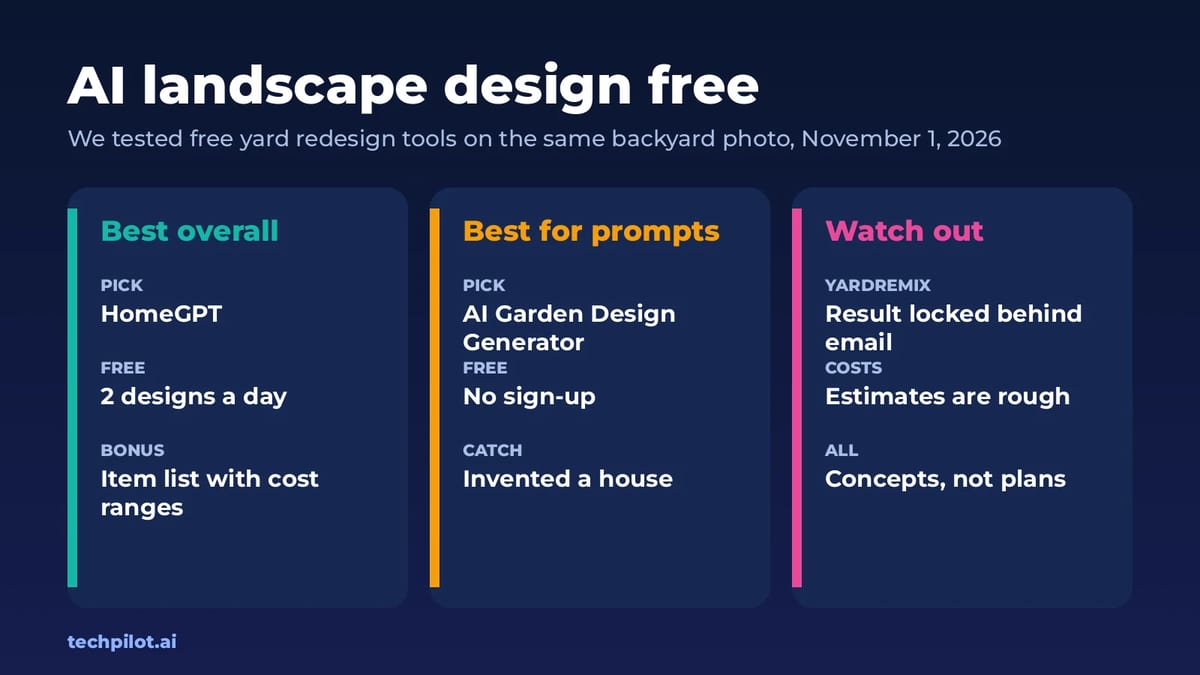
AI Landscape Design Free: 3 Tools We Tested
AI landscape design free tools redesign your yard from one photo. We tested three on one backyard: HomeGPT did best, and one hid its result behind…
 Eimantas Kazėnas · 6 min read
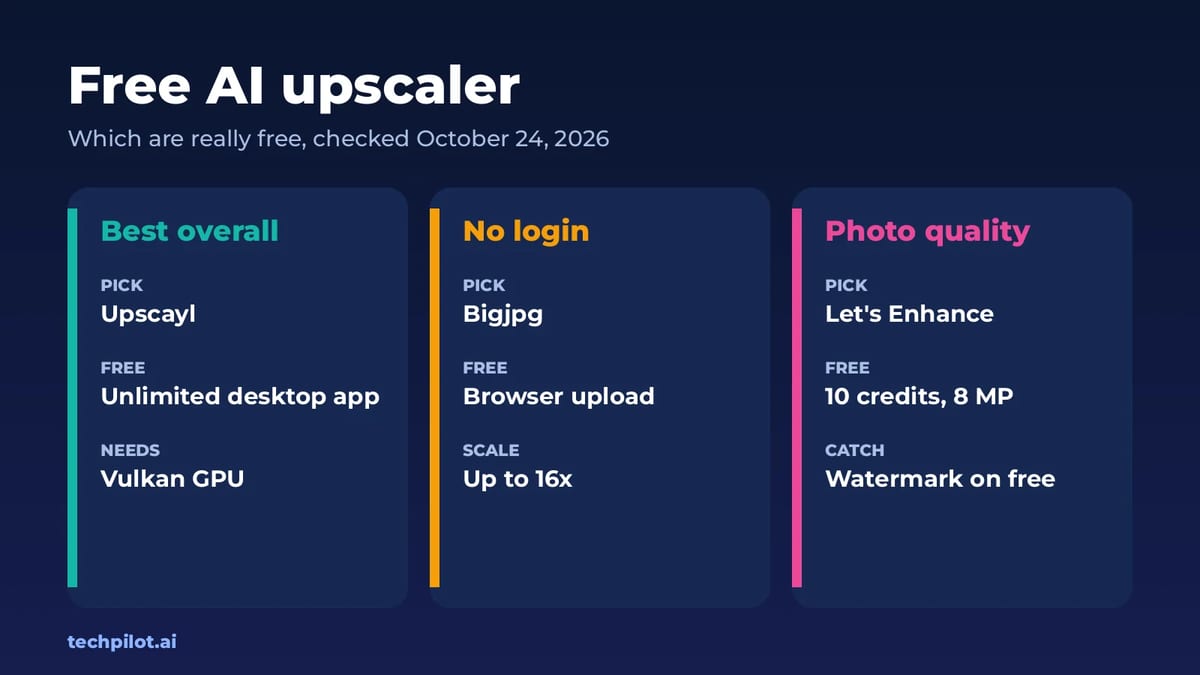
Free AI Upscaler: 4 Best Picks Compared
Free AI upscaler picks for 2026: Upscayl, Bigjpg, Let’s Enhance and Real-ESRGAN. See which are truly free, size limits, watermarks and when to pay up.
 Mihai (Mike) Bizz · 5 min read