Home / Guides / Graphics & Design
ChatGPT Photo Editing Prompts: 12 to Copy
 Mihai (Mike) Bizz Business, entrepreneurship, tech & AI
 - Published
- 12 min read
On this page How to edit a photo in ChatGPT
Independent and reader-supported. Some links may earn us a commission; it never changes our rankings. Editorial policy
ChatGPT photo editing prompts for 12 viral edits, from the 1985 retro look to figurines and headshots. Copy-paste prompts, how to edit, tips and limits.
Most “best prompts” lists give you a sentence and a pretty picture. What actually decides whether a ChatGPT photo edit works is how you upload the photo, what you tell it to keep, and which of its known weak spots you avoid. ChatGPT’s current image model, Images 2.5, launched on September 8, 2026 for every plan. OpenAI says it preserves the people in your reference photos better and edits only what you ask for. This guide gives you the 12 edits people share most, each with a prompt you can paste, plus the steps and the limits.
Quick answer:
- How to edit a photo in ChatGPT: upload it with the + button, then describe the change and list what must stay the same. To change one area, open the image, choose Select and brush over it first.
- The formula: the change, two or three details (light, backdrop, outfit), a keep list (“keep my face, skin tone and hair exactly the same”) and the format.
- Is it free? Yes. ChatGPT Images works on all plans, including Free. Free has a separate image limit that OpenAI doesn’t publish as a number, and “Images with thinking” needs Plus, Pro or Business.
- Biggest limits: selections aren’t pixel-precise, ChatGPT changes details you didn’t mention, and in-image text can come out misspelled.
How to edit a photo in ChatGPT
The steps below follow OpenAI’s Images in ChatGPT help page. They work on web, iOS and Android.
- Upload your photo. Select + in the message box and attach the image, or drag it into the chat. Use a sharp, well-lit, front-facing photo for anything involving a face.
- Describe the edit. Paste one of the prompts below, or write your own with the formula in the next section.
- For a local fix, use the editor. Select the image to open it, choose Select, brush over the area you want to change, and describe the change. On mobile, a slider sets the brush size.
- Change the shape if needed. Use the aspect ratio picker, or say “square”, “portrait 4:5” or “16:9” in the prompt.
- Refine in small steps. Ask for one change at a time (“make the light warmer”, “simplify the background”). Images 2.5 keeps earlier edits more consistent across turns than older versions did.
- Save it. Every image is stored under Images in the sidebar, where you can copy, download or share it.
Two newer shortcuts are worth knowing. Templates (sidebar, Images, Templates) give you starting points like posters and product photos. And on mobile you can share the prompt behind an image, which is how many of these trends spread: someone shares a prompt template and others run it on their own photo.
The prompt formula that works
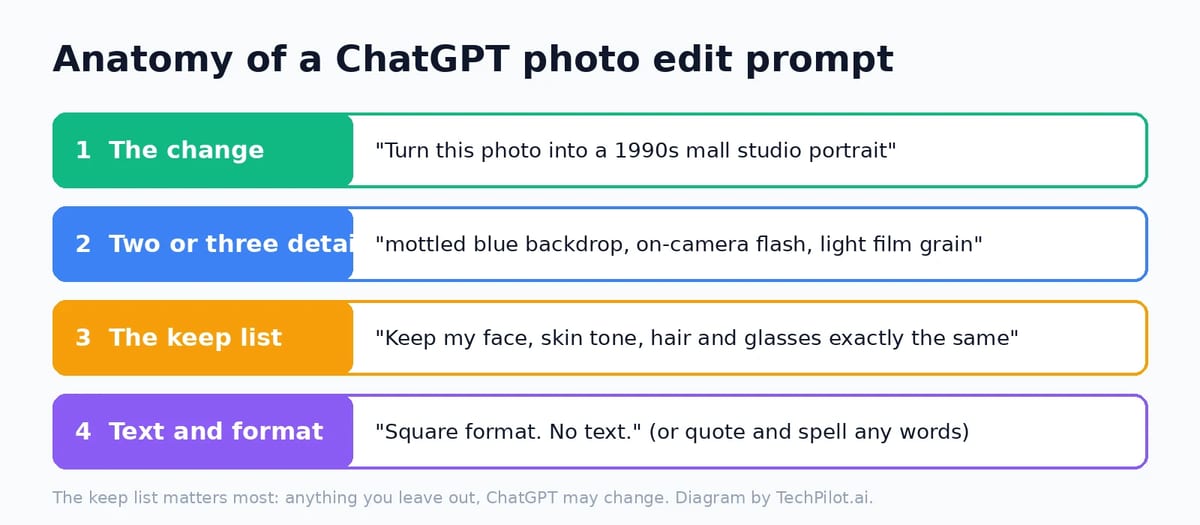
OpenAI’s own guide to creating images says one to three clear sentences are usually enough, and that the clearest way to guide a precise edit is “Change only X. Keep everything else exactly the same.” In practice, the keep list does the most work. ChatGPT treats anything you didn’t name as open to change, so a prompt that only protects your face can come back with a new jacket, new earrings or a new haircut.
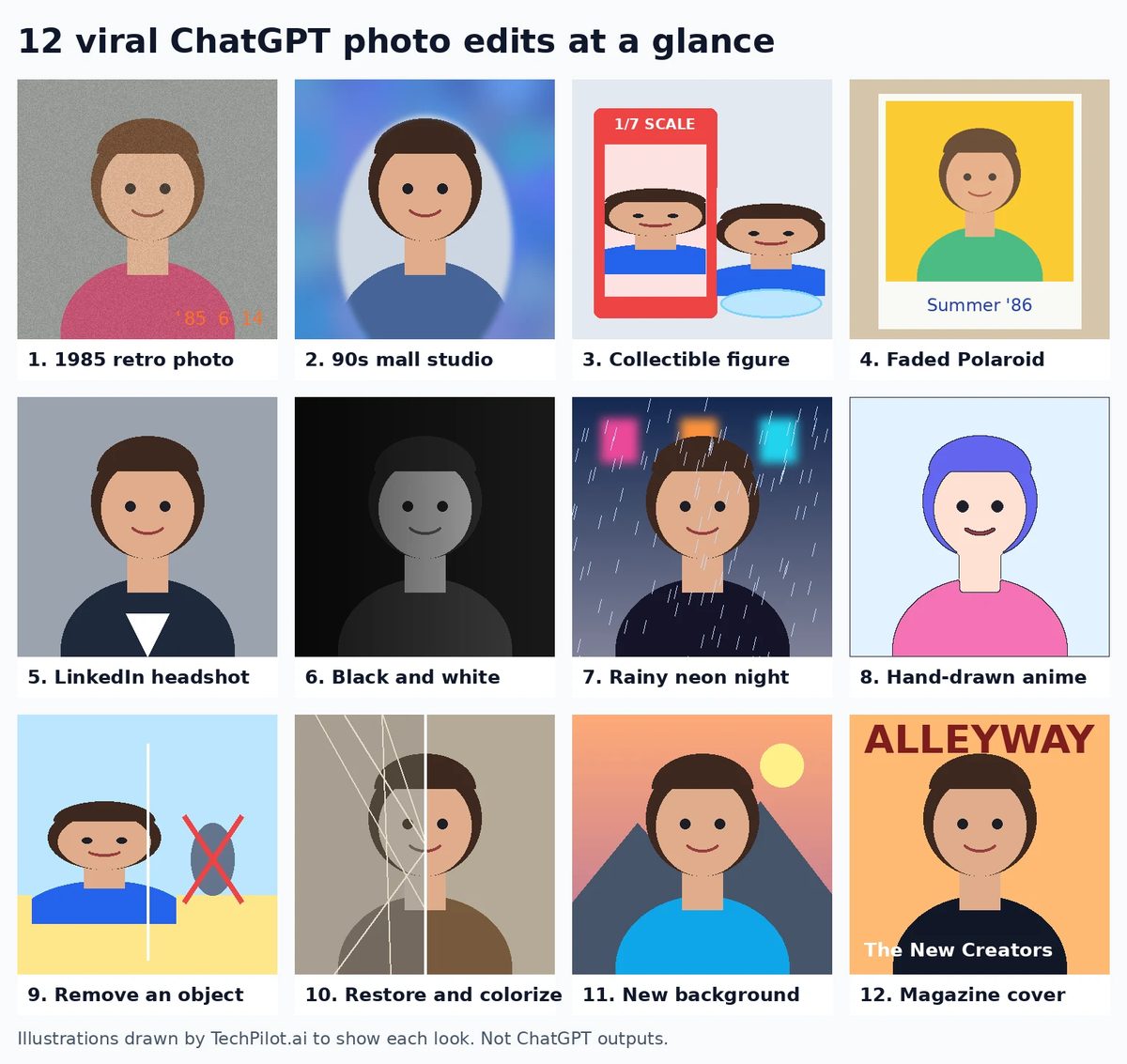
12 viral ChatGPT photo editing prompts to copy
Replace the details in each prompt with your own. Every prompt already includes a keep list. Drop the parts you don’t care about and add the ones you do.
1. The 1985 retro photo
What you get: The trend OpenAI itself pushed when it launched Images 2.5: you, restyled as a mid-80s snapshot with film grain, direct flash and an orange date stamp.
Tip: This is OpenAI’s own prompt, from its Images 2.5 announcement. Swap 1985 for 1972 or 1999 and change the styling words to match the decade.
2. The 1990s mall studio portrait
What you get: The laser-backdrop school-photo look: mottled blue background, hard on-camera flash and soft focus.
Tip: Add “denim jacket” or “oversized blazer” if you want period clothes; otherwise ChatGPT picks the outfit for you.
3. The collectible figure in a box
What you get: You as a 1/7 scale figure on a desk, next to toy packaging with your artwork. A trend that has been everywhere since 2025.
Tip: Put any name you want on the box in quotes. Without it, ChatGPT may invent brand text.
4. The faded Polaroid
What you get: A sun-faded instant photo with a white border and a handwritten caption.
Tip: Ask for “square format” or you’ll get a wide frame that no real instant photo has.
5. The LinkedIn headshot
What you get: A clean professional headshot from a casual selfie. The most practical edit on this list.
Tip: Use a front-facing photo with your eyes and hair visible. Anything the photo hides, ChatGPT has to guess.
6. The dramatic black-and-white portrait
What you get: A moody studio portrait with one hard light and deep shadow.
Tip: If it comes back too soft, repeat the lighting line in a follow-up: “Make the shadow side much darker.”
7. The rainy neon night
What you get: A cinematic street portrait in the rain with neon reflections.
Tip: “Keep my outfit” matters here. Leave it out and ChatGPT may hand you a new leather jacket.
8. The hand-drawn anime still
What you get: A soft, hand-painted animated film look, the look that went viral when ChatGPT first got its new image tool in 2025.
Tip: Describe the look instead of naming a studio. ChatGPT may decline to copy specific artists, and a precise description gives you more control anyway.
9. Remove a person or object
What you get: A practical cleanup edit: tourists, a trash can or a power line, gone.
Tip: Use the Select tool to brush over the object first, then send the prompt. Check the edges: edits can spill outside your selection.
10. Restore and colorize an old photo
What you get: Scratches and creases repaired, faded black-and-white turned into natural color.
Tip: Do restoration and color as two steps if faces start to drift. And treat the result as an interpretation: the colors are a guess, not a record.
11. Swap the background
What you get: You, somewhere else: a travel spot, an office or a clean product backdrop.
Tip: For product photos, try “pure white seamless background, soft shadow under the product” or ask for a transparent background, which ChatGPT Images supports.
12. The magazine cover
What you get: You on the cover of a fashion magazine, with a real masthead and cover line.
Tip: OpenAI’s own guide says to put text in quotes and spell unusual words letter by letter. Still read every letter before you post.
Tips for better results
- One photo, one chat. Start a new chat for each trend. Old instructions from earlier edits can leak into new ones.
- Describe light like a photographer. “Soft window light from the left” beats “beautiful lighting”, per OpenAI’s guide.
- Use two images when you need a style match. Say “Image 1 is my photo, image 2 is the style reference” and explain what to take from each.
- Quote and spell any text. Put words in quotes, keep them short, and spell brand names letter by letter.
- Fix, don’t restart. If one thing is wrong, ask for just that change and repeat the keep list. Rerolling the whole prompt changes everything else too.
What ChatGPT photo editing can’t do well
- Precise masks. OpenAI says highlights aren’t always precise and edits may extend beyond the area you selected. It’s not Photoshop’s lasso.
- Leave unmentioned details alone. Outfits, jewellery and backgrounds drift unless you lock them in the keep list.
- Perfect text. Long headlines and unusual words still come out misspelled sometimes.
- Exact likeness every time. Images 2.5 keeps faces more recognizable than earlier versions, but small features can shift. Compare the result with your original before posting it as you.
- Anything about real people that you don’t have the right to make. OpenAI says to make sure you have permission to use someone’s likeness, and its usage policies apply to every edit. Some requests will be refused.
- Unlimited free edits. Free accounts hit an image limit and have to wait for it to reset. Upgrading to Plus resets the limit right away, according to OpenAI’s free tier FAQ.
Common problems and fixes
- “It changed my face”: use a clearer photo, add “keep my face, skin tone and age exactly the same”, and edit in smaller steps.
- “It changed things I didn’t ask for”: name everything that must stay, or use the Select tool and “change only the selected area”.
- The edit spilled outside the selection: undo, make a tighter selection, and add “keep everything outside the selected area exactly the same”.
- Wrong shape: say the format (“square”, “portrait 4:5”) or use the aspect ratio picker.
- Misspelled text: quote the word, spell it letter by letter, add “No other text.”
- “You’ve reached your image limit”: wait for the reset time ChatGPT shows, or upgrade.
- The request was refused: rephrase without real names of public figures, sexual content or a specific artist’s style, and make sure you have permission to edit the people in the photo.
Is it safe to upload your selfie?
Your photo goes to OpenAI like any other upload, and the edited image stays in your Images library until you delete the conversation it came from. Your chats can also be used to train models unless you turn that off. Our guide to whether ChatGPT is safe shows the settings to change. OpenAI also adds C2PA metadata and an invisible watermark to images it generates, so edited photos can be identified as AI-made. That’s a good reason not to pass off an edit as an untouched photo.
When to use a different tool
ChatGPT is the easiest place to try these trends because the chat remembers your edits. If ChatGPT keeps changing details, Google’s image editor is worth a try. Our Nano Banana tool page covers it. To turn an edited photo into a short video without leaving ChatGPT, see how to use Pika in ChatGPT. And if image answers in ChatGPT start showing up in a cluttered layout, our guide to ChatGPT Intelligent UI explains how to switch to the simple view.
Frequently asked questions
How do I ask ChatGPT to edit a photo?
Upload the photo with the + button, then describe the change and list what must stay the same, for example: Turn this into a LinkedIn headshot with a grey backdrop. Keep my face, hair and glasses exactly the same. To edit one area, open the image, choose Select and brush over it first.
Is ChatGPT photo editing free?
Yes. ChatGPT Images is available on all plans, including Free, on web, iOS and Android. Free accounts have a separate image limit that OpenAI doesn’t publish as a number. Images with thinking needs Plus, Pro or Business.
How do I do the ChatGPT picture trend?
Pick a trend prompt, such as the 1985 retro photo OpenAI shared with Images 2.5, upload a clear front-facing photo, paste the prompt and send it. Add a keep list for your face, skin tone and hair so the result still looks like you.
Why does ChatGPT change my face or outfit?
It treats anything you didn’t name as open to change. Name every detail you want kept, use a sharp front-facing photo, and make one change at a time. Selections can also spill a little outside the area you brushed.
Can ChatGPT remove objects or people from a photo?
Yes. Open the image, use Select to brush over the object, and ask ChatGPT to remove it and fill the area with the background. Check the edges afterwards, because OpenAI says edits may extend beyond the selection.
Can people tell a photo was edited with ChatGPT?
Often, yes. OpenAI adds C2PA metadata and invisible watermarking to images made with its tools, so they can be identified as AI-generated. Don’t present an edited photo as an untouched one.
Found this useful? Share it with someone comparing AI tools.