Home / Guides / Productivity
How to Find Archived Chats in ChatGPT (2026)
 Eimantas Kazėnas Marketing & Tech
- Published
- 4 min read

On this page Find archived chats on the web or desktop app
Independent and reader-supported. Some links may earn us a commission; it never changes our rankings. Editorial policy
How to find archived chats in ChatGPT: open Settings, Data controls, Archived chats, or search a word from the chat, since archived chats stay searchable.
Quick answer: archiving in ChatGPT hides a chat from your sidebar; it does not delete it. On the web, desktop app, iPhone or Android, open Settings, then Data controls, then Archived chats (called View archived chats on some devices, with a Manage button). Faster still, open Search and type a word you remember from the conversation, because OpenAI says archived chats stay searchable. We checked each step against OpenAI’s help pages on November 16, 2026.
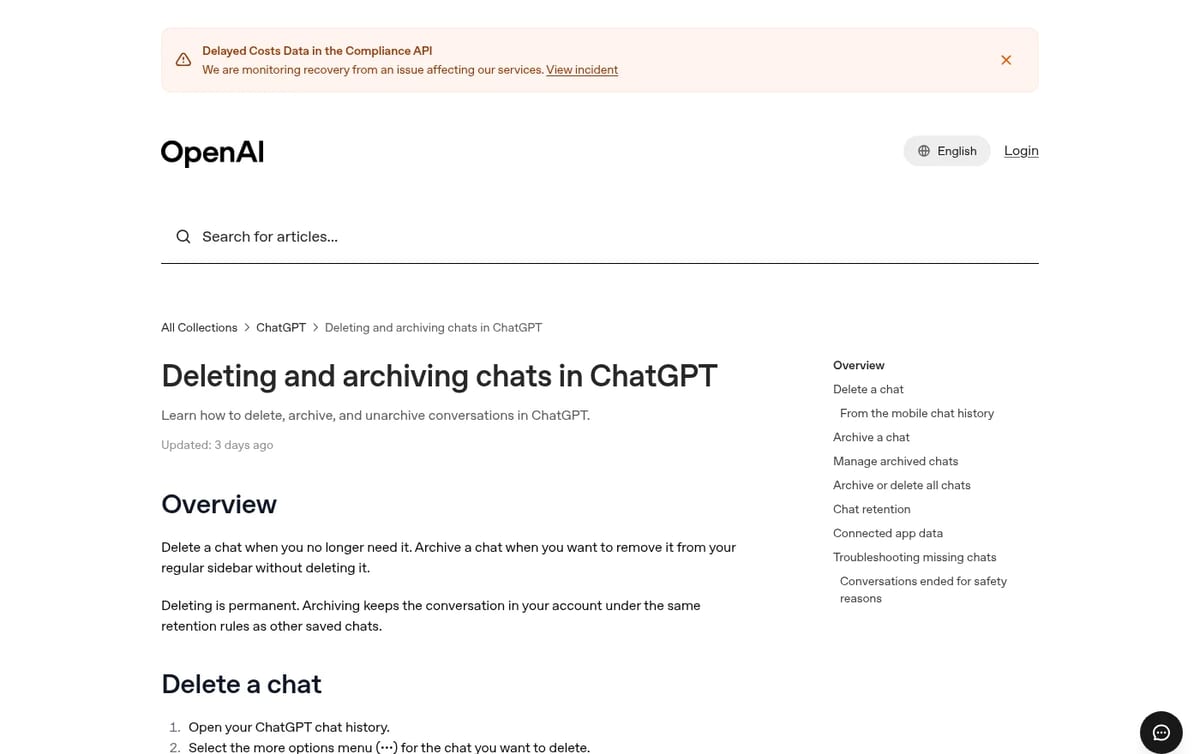
Find archived chats on the web or desktop app
- Open Settings from your profile menu.
- Open Data controls.
- Select Archived chats; if a Manage button appears, click it.
- Click a chat to read it, or choose Unarchive to send it back to your sidebar, or Delete to remove it for good.
Find archived chats on iPhone or Android
- Open the ChatGPT app and tap the menu icon (two horizontal lines).
- Open Settings, then Data controls.
- Tap Archived chats or View archived chats.
- Open a chat, or unarchive or delete it from the list.
The faster way: search for it
You do not have to dig through settings at all. Open Search at the top of the sidebar, or press Ctrl+K on Windows or Cmd+K on a Mac, and type a word or phrase from the chat. Search matches words in a chat’s title and its messages, and archived chats appear in the results alongside regular ones. Search works for signed-in users on every ChatGPT plan, on the web, iOS and Android. If you remember a project name or a file you uploaded, try the All filter so projects and files show up too.
Archive vs delete: what actually happens
| Archive | Delete | |
|---|---|---|
| Shown in the sidebar | No | No |
| Shown in search | Yes | No |
| Can you get it back? | Yes, Unarchive in Data controls | No, not even through OpenAI Support |
| What OpenAI keeps | Saved like any other chat until you delete it | Scheduled for permanent deletion within 30 days, with legal and security exceptions |
| Confirmation needed | None | Yes |
That missing confirmation is why so many people archive chats by accident: one click on Archive in the ••• menu and the chat simply vanishes from the sidebar. If a chat disappeared right after you used that menu, it is almost certainly archived, not lost. One more catch from OpenAI’s help page: archiving a chat that holds results from a scheduled task can pause that task on a later run.
Not in Archived chats? Check these next
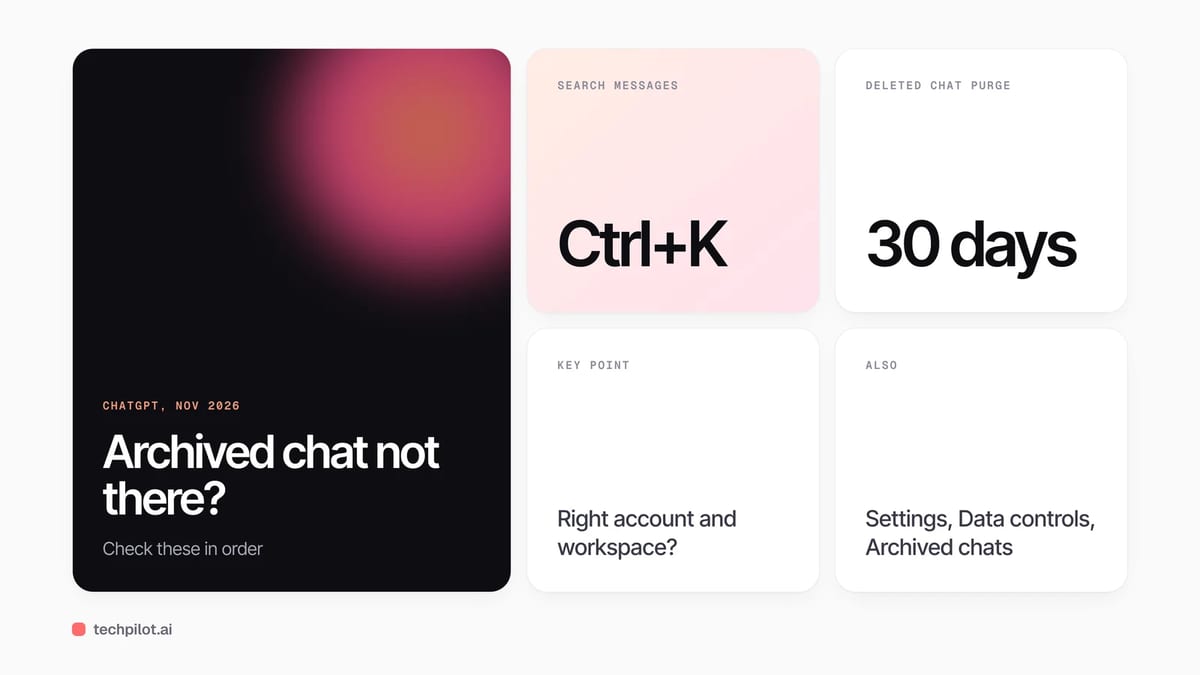
- Wrong account or workspace. Chats belong to the account and workspace you used. If you have a personal and a work login, or signed in once with Google and once with email, check the other one.
- Locked chats. Locked chats do not show in normal search or history. Go to Projects, then Locked chats, and enter your PIN or use device authentication.
- Inside a project. If you started the chat in a project, open that project from the sidebar and look there.
- Bulk archive. Archive all chats in Data controls moves everything at once, including chats in projects, so a whole history can disappear from the sidebar in one step.
- Deleted, not archived. A deleted chat cannot be restored. Deleting also does not remove files saved separately in Library.
- Ended for safety reasons. If ChatGPT ended a conversation over concerns about violence or harm to others, it no longer appears in history or search, even though you did not delete it.
- A glitch. Refresh, sign out and back in, and check OpenAI’s status page for an outage before assuming the worst.
If you need to see everything tied to your account, request a data export, either from ChatGPT’s settings or through OpenAI’s Privacy Portal. Self-service export works on Free, Go, Plus and Pro accounts but not in Business or Enterprise workspaces, where the workspace owner handles data access. An export is the most reliable way to search very old conversations offline.
Keep chats you want to find later
Archive works best as a tidy-up tool for chats you are finished with. For anything you will come back to, rename the chat with a clear keyword, move it into a project, or keep it in the sidebar. If your aim is to clear out history rather than hide it, our guides on how to delete ChatGPT history and how to delete a ChatGPT account cover the permanent options. New to the app? Start with how to use ChatGPT.
Frequently asked questions
Where are archived chats in ChatGPT?
They are in Settings, then Data controls, then Archived chats (or View archived chats on some devices). Archived chats also show up when you search for words from them.
How do I unarchive a chat in ChatGPT?
Open Settings, then Data controls, then Archived chats, and choose Unarchive next to the chat. It returns to your regular chat history in the sidebar.
Does archiving a ChatGPT chat delete it?
No. Archiving only hides the chat from the sidebar. It stays saved in your account and searchable until you delete it.
Can I recover a deleted ChatGPT chat?
No. A deleted chat cannot be restored in ChatGPT or by OpenAI Support. OpenAI schedules it for permanent deletion within 30 days.
Why can I not find a chat in ChatGPT search?
Check that you are in the right account and workspace, look in Projects for locked chats, and remember that deleted chats and chats ended for safety reasons do not appear in search.
Found this useful? Share it with someone comparing AI tools.

How to Cancel Claude Subscription (2026)
How to cancel Claude subscription: open Billing in Settings, click Cancel on web or desktop, or cancel in the App Store or Google Play if you paid…
 Eimantas Kazėnas · 5 min read

How to Use Gemini: Beginner Guide for 2026
How to use Gemini: open gemini.google.com or the app, sign in with Google, type a prompt and add files if needed. Steps, best features and plans…
Eimantas Kazėnas · 4 min read