Home / Guides / AI Video Generator
How to Make an AI Video for Free (2026)
 Eimantas Kazėnas Marketing & Tech
 - Published
- 6 min read
On this page How to make AI videos: the free 5-step workflow
Independent and reader-supported. Some links may earn us a commission; it never changes our rankings. Editorial policy
How to make an AI video for free: write a short script, make key images, animate them in a free AI video generator and finish in a free editor. Here’s how.
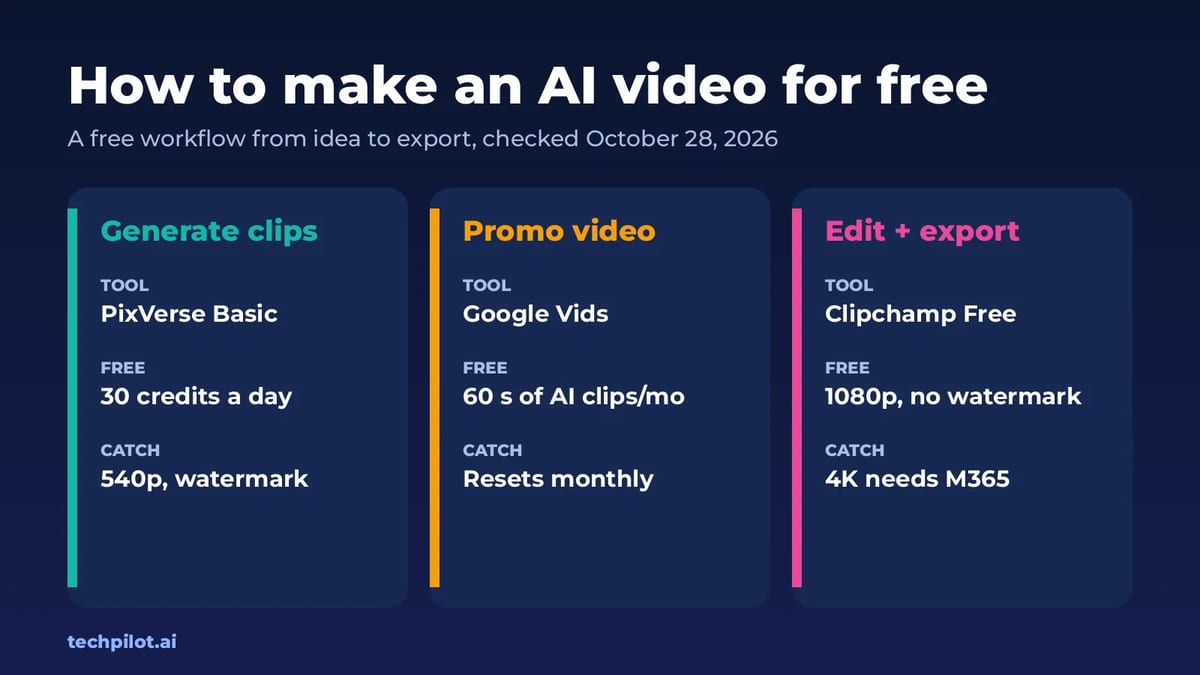
Quick answer: the simplest free route in 2026 is to write a 30 to 60 second script with a free chatbot, generate short clips in PixVerse (30 free credits a day) or CapCut’s free AI video generator, and edit everything in Clipchamp Free, which exports at up to 1080p with no watermark. For a polished promo with a Google account, Google Vids gives personal accounts 60 seconds of AI video clips a month. We checked each free plan on the official pages on October 28, 2026.
Most people searching this want one finished video, not a pile of 5-second test clips. So instead of another tool list, this guide gives you a repeatable free workflow, the free tool for each step, and the limits that usually trip people up. If you want to compare generators first, see our best AI video generator free ranking.
How to make AI videos: the free 5-step workflow
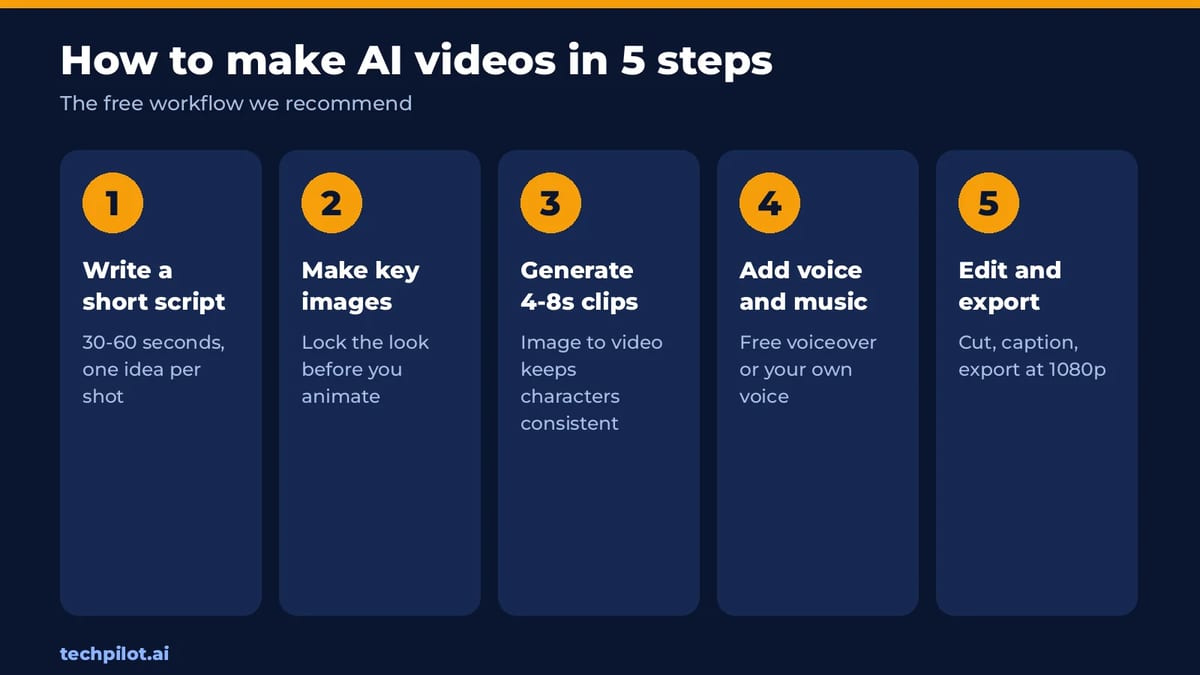
- Write a short script. Ask ChatGPT or Claude (both free) for a 30 to 60 second script split into 5 to 8 shots, with one idea per shot and a line of voiceover for each.
- Make key images. Create one still for each shot with a free image tool such as Gemini or Canva. Locking the look in images first keeps your character, colors and style consistent.
- Turn images into 4 to 8 second clips. Upload each image to a free AI video generator and describe the motion: “slow push-in, steam rising from the cup.” Image to video gives far more consistent results than text alone.
- Add voice and music. Record your own voiceover with Clipchamp’s free voice recorder, or use a free AI voice, and add a music track.
- Edit and export. Put the clips in order, trim, add captions and export at 1080p in Clipchamp Free, with no watermark from the editor.
Free AI video tools for each step
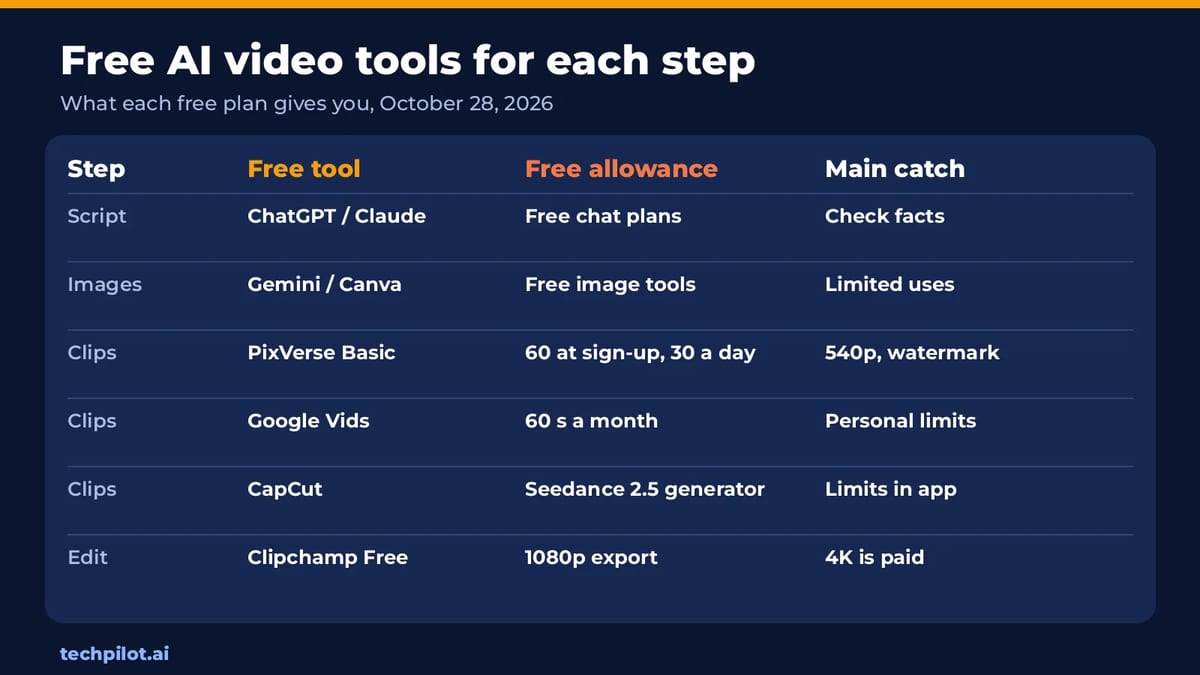
| Step | Free tool | What you get free | Main catch |
|---|---|---|---|
| Script | ChatGPT or Claude | Free chat plans | Check any facts it writes |
| Key images | Gemini or Canva | Free image generation and editing | Limited AI uses |
| Video clips | PixVerse Basic | 60 credits at sign-up, then 30 a day | Up to 540p, watermark on free |
| Video clips | CapCut AI video generator | Free generator powered by Seedance 2.5 | Limits shown in the app |
| Promo video | Google Vids | 60 seconds of AI clips a month (personal account) | Resets monthly |
| Editing | Clipchamp Free | AI editing tools, watermark-free 1080p export | 4K needs Microsoft 365 |
How to make an AI video from text
If you’d rather skip images and type a prompt, these are the free text to video options we’d start with:
PixVerse: best for daily free clips
PixVerse’s free Basic plan gives 60 credits when you sign up and 30 credits every day, with video up to 540p. Watermark-free export is a paid perk: Standard costs $8 a month billed yearly ($96) or $10 monthly, with 720p, 60 daily credits and 1,200 monthly credits. Free 540p clips are fine for Reels and Shorts tests.
CapCut: best if you edit in CapCut anyway
CapCut’s free AI video generator runs on Seedance 2.5. You start from a script or a reference image, pick a visual style, preview the result and then edit it in CapCut before export, with avatars and templates for formats like news updates and explainers. CapCut shows the current limits in the app rather than on the page.
Google Vids: best for one polished promo
Personal Google accounts get 60 seconds of AI video clips a month in Google Vids, and the limit resets at midnight Pacific time on the first day of each month. Clips go straight into an editor with templates, text and music, which makes Vids good for a single promo or explainer rather than many experiments. Google says personal accounts may have some restrictions on AI video editing.
What about Google Flow? Google’s Flow help page now lists a Google AI Plus, Pro or Ultra subscription (or a qualifying Workspace plan) as a requirement to use Flow, while the free Gemini plan lists only limited Flow access, including limited Nano Banana Pro image generation. Don’t plan a free video project around Flow without checking your own account first.
For more prompt-only tools and their free allowances, see our AI text to video generator free list.
How to make an AI video from a photo
Starting from a photo is the most reliable way to make an AI video for free, because the model doesn’t have to invent your subject. Upload a sharp, well-lit image, describe one movement per clip, and keep clips short. Our image to video free AI guide compares the best free tools for this.
How much free AI video can you really make?
- PixVerse: 30 credits a day, every day, on top of 60 at sign-up. The cost per clip depends on model, length and resolution, so check the number on the generate button.
- Google Vids: 60 seconds of AI clips a month on a personal account. That’s one short promo, so write the script first and don’t waste generations.
- Your own GPU: open models like Wan 2.2 run locally with no credit limit if you have a powerful graphics card, as we explain in the free video generator guide linked above.
Our take: combine tools. Generate clips where your daily credits are, then assemble them in one free editor. That’s how you get a 30 to 60 second video without paying.
Watermarks and commercial use
Free plans usually watermark the generated clip, not the edit. PixVerse lists watermark-free output as a paid feature, while Clipchamp’s free plan includes watermark-free exports, so the editor won’t add its own logo. A watermark on the source clip stays, though. If you need clean footage for a client, budget for one month of a paid generator plan and read its commercial use terms first.
Common mistakes to avoid
- Prompting a whole story at once. AI generators make short clips. Plan 4 to 8 second shots and join them in an editor.
- Changing the look every shot. Reuse the same image or reference so characters don’t change between clips.
- Too much motion. One clear camera move or action per clip looks far better than “everything moves.”
- Skipping sound. A voiceover and music make even simple AI clips feel finished.
- Editing in the generator. Use a real editor for cuts and captions. Our free AI video editor list compares Clipchamp, DaVinci Resolve, Descript and more.
Frequently asked questions
How do you make AI videos for free?
Write a short script with a free chatbot, make key images, animate them in a free generator such as PixVerse or CapCut, then edit and export in Clipchamp Free at up to 1080p.
How do I make an AI video from text?
Type a prompt describing the scene and motion into a text to video tool. PixVerse Basic gives 30 free credits a day, and Google Vids gives personal accounts 60 seconds of AI clips a month.
Can I make an AI video for free without a watermark?
Partly. Clipchamp Free exports with no watermark, but most free generators, including PixVerse Basic, watermark the clip itself. Watermark-free clips usually need a paid plan or a local open model.
How long can a free AI video be?
Generators make short clips, usually a few seconds each. Join several clips in a free editor to build a 30 to 60 second video. Google Vids caps personal accounts at 60 seconds of AI clips a month.
Is Google Flow free for making AI videos?
Not fully. Google’s Flow help page lists a Google AI Plus, Pro or Ultra subscription or a qualifying Workspace plan as a requirement, and the free Gemini plan lists only limited Flow access.
Found this useful? Share it with someone comparing AI tools.
What Is a World Model? AI World Models 2026
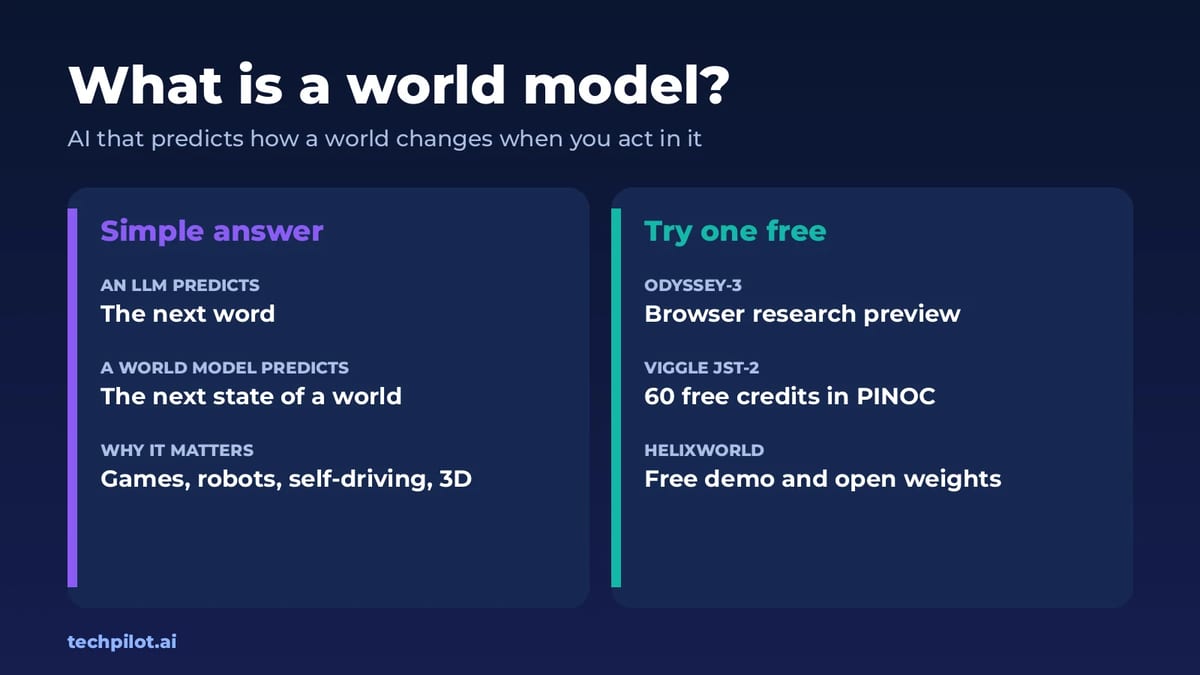
What is a world model? It’s an AI that learns how a world works so it can predict what happens next when you act. Here’s how it works and where to…
 Eimantas Kazėnas · 6 min read
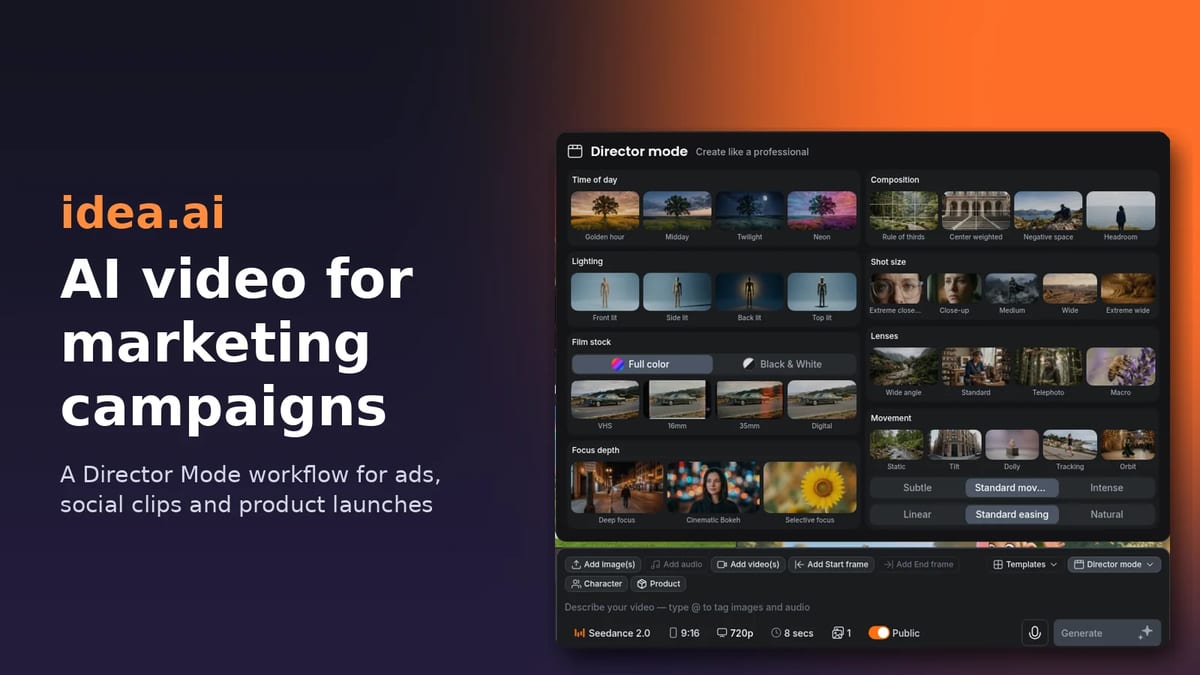
idea.ai Video Generator: AI Video for Marketing Campaigns
See how marketers use the idea.ai video generator and Director Mode for ads, social clips and launch videos, plus workflow steps, pricing, pros and…
 Mihai (Mike) Bizz · 10 min read