Home / Guides / AI Video Generator
Image to Video Free AI: 6 Best Tools (2026)
 Mihai (Mike) Bizz Business, entrepreneurship, tech & AI
 - Published
- 7 min read
On this page Free image to video AI tools compared
- Free image to video AI tools compared
- How much free image to video do you really get?
- 1. Google Flow: best free image to video AI overall
- 2. PixVerse: best for daily social clips
- 3. Kling AI: best for realistic motion
- 4. Vidu: best for anime and 2D art
- 5. Hailuo: best for a quick test of MiniMax H3
- 6. Wan 2.2: best free option with no watermark
- How to turn an image into a video for free
- Which free image to video AI should you use?
- Frequently asked questions
Independent and reader-supported. Some links may earn us a commission; it never changes our rankings. Editorial policy
Image to video free AI tools compared: Google Flow, PixVerse, Kling, Vidu, Hailuo and Wan 2.2. See free credits, watermarks and which photo animator wins.
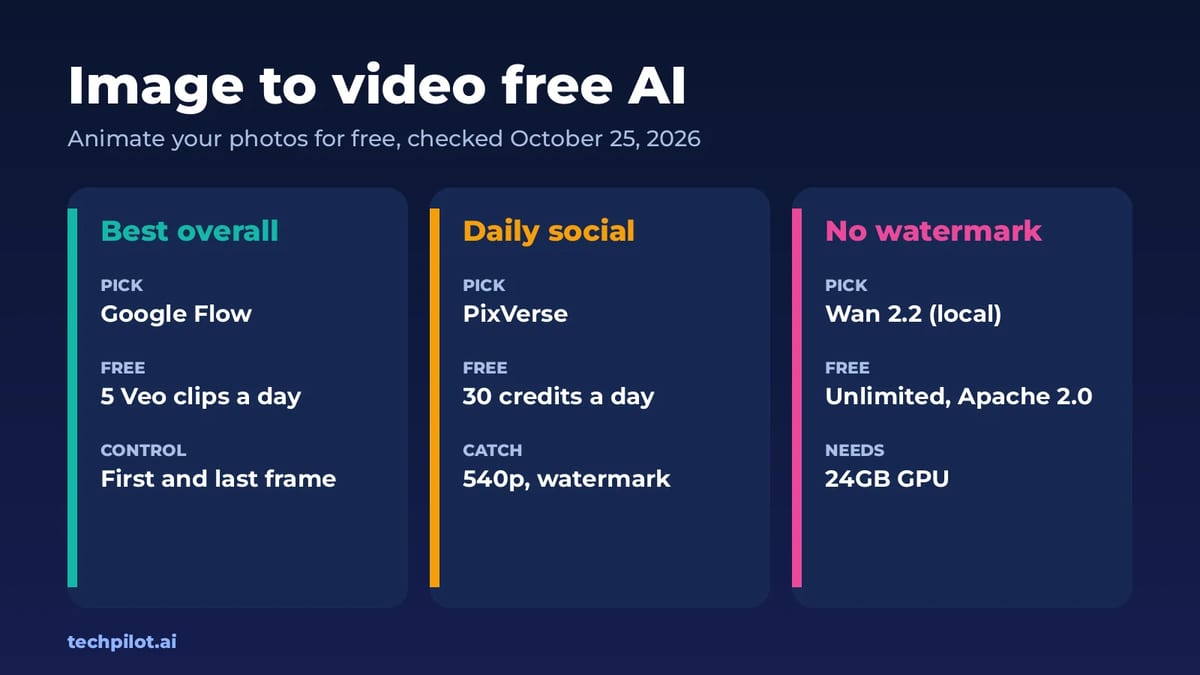
Quick answer: the best image to video free AI tool for most people is Google Flow. Its 50 free credits a day cover five 8-second Veo 3.1 Lite clips from your own photo, and you can set both a first and a last frame. For daily social clips, PixVerse gives 30 free credits a day. If you want no watermark and full commercial rights, run Wan 2.2 on your own GPU. We checked each tool’s own pricing and help pages on October 24 and 25, 2026.
Image to video is a different job from typing a prompt. You already have the picture, a product shot, a portrait or an AI image, and you want it to move without the face or the logo changing. So we judged these tools on three things: how much free video you really get, whether there’s a watermark, and how much control you have over the motion.
Free image to video AI tools compared
| Tool | Free allowance | Watermark on free | Paid from |
|---|---|---|---|
| Google Flow | 50 credits a day (5 Veo 3.1 Lite clips) | Invisible SynthID; visible mark can be turned off in most countries | Google AI Plus |
| PixVerse | 60 credits at sign-up, then 30 a day, up to 540p | Yes | $8/mo yearly, $10 monthly |
| Kling AI | Small free allowance, standard quality | Yes | $6.99 first month, then $8.80/mo |
| Vidu | Sign-up bonus credits; Q4 at 540p costs 4 credits a second | Yes | $8.25/mo yearly, $10 monthly |
| Hailuo | One-time sign-up credits | Yes | From $9.99/mo |
| Wan 2.2 (local) | Unlimited on your own GPU, 720p | None | Free (Apache 2.0) |
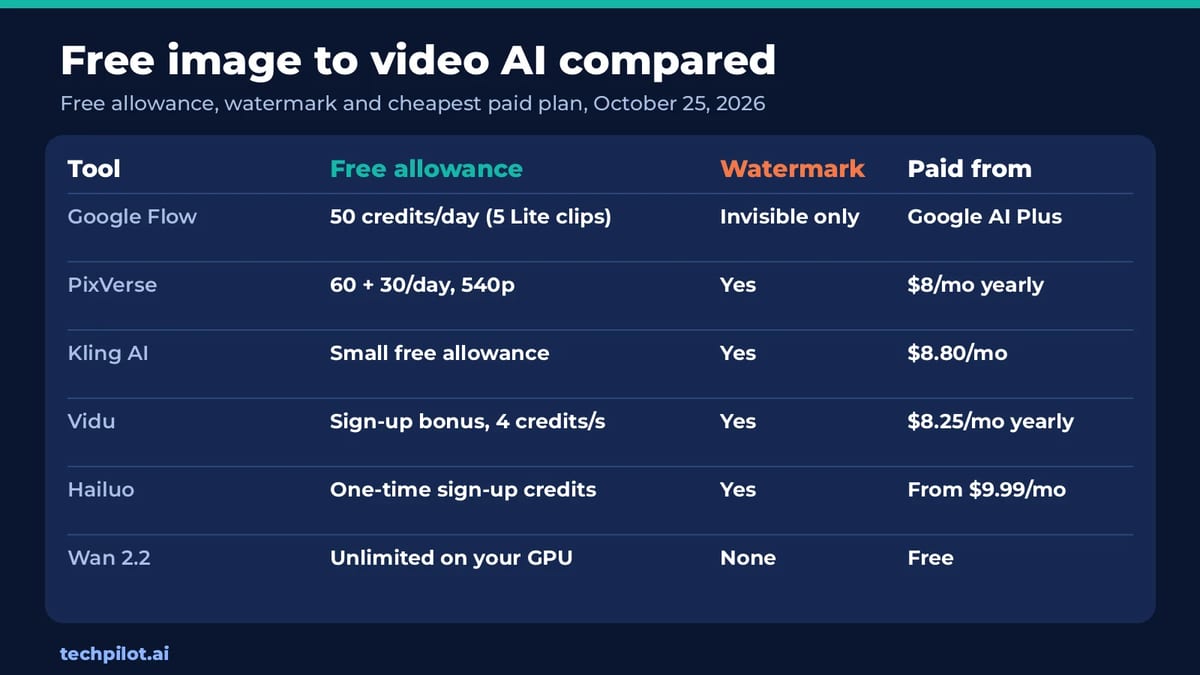
The pattern is the same as with text to video: hosted tools give you a taste, then charge for clean, high-resolution downloads. What’s different with images is control. Google Flow lets you pin both the first and the last frame on a free account, which is the single most useful trick for animating a photo without it drifting.
How much free image to video do you really get?
- Google Flow: 50 credits a day. Veo 3.1 Lite costs 10 credits per 4, 6 or 8-second clip, so that’s five clips or up to 40 seconds a day. Gemini Omni Flash at 360p costs half as much as 720p and can make 10-second clips.
- PixVerse: 60 credits when you join, then 30 a day. The cost per clip depends on model, length and resolution, so check the number on the generate button.
- Vidu: the free plan bills its Q4 model at 4 credits a second at 540p, twice the paid rate. A 5-second clip uses 20 credits, so your sign-up bonus decides how far you get.
- Wan 2.2: no credits at all. Alibaba says the 5B model makes a 5-second 720p clip in under 9 minutes on one consumer GPU.
Our take: if you only try one tool, try Google Flow. Nothing else gives away 40 seconds of good-looking video from your own photos every day.
1. Google Flow: best free image to video AI overall
- Free: 50 Flow credits a day, with or without a subscription. Veo 3.1 Lite supports Frames to Video with a first frame, or a first and last frame, at 4, 6 or 8 seconds in both aspect ratios.
- Watermark: every video carries Google’s invisible SynthID mark. The visible watermark has a toggle in your profile menu, but it’s added automatically in India, South Korea and Vietnam.
- The catch: credits don’t roll over, and free users can be blocked from video at busy times. Veo 3.1 Quality costs 100 credits a clip, so it’s out of reach on free.
- Best for: product shots, portraits and AI images where the result has to look polished.
Tip: upload your photo as the first frame and a lightly edited copy as the last frame, for example the same product turned a few degrees. Flow fills the motion in between, and the subject stays far more stable than with a prompt alone.
2. PixVerse: best for daily social clips
- Free: the Basic plan gives 60 credits at sign-up and 30 credits a day, which reset daily, for text and image to video.
- Watermark: yes. Free output tops out at 540p, and watermark-free, ad-free export starts on a paid plan.
- Paid: Standard is $10 a month, or $8 a month billed yearly ($96).
- Best for: effect and template videos for Reels, TikTok and Shorts, where 540p is fine.
More in our PixVerse review.
3. Kling AI: best for realistic motion
- Free: a free account gets a small allowance for standard generation, enough to test how Kling animates people.
- Watermark: yes. Kling lists brand watermark removal, 1080p and 4K video and commercial use as subscriber benefits.
- Paid: Standard is $6.99 for the first month, then $8.80 a month, with 660 credits.
- Best for: photos of people, where walking, dancing or turning has to look natural.
See our Kling 4.0 page for current plans.
4. Vidu: best for anime and 2D art
- Free: log in for bonus credits. The Q4 model costs 4 credits per second at 540p on the free plan, and you get 10 references a month.
- Watermark: yes on free, and Vidu lists commercial use only on paid plans.
- Paid: Standard is $10 a month, or $8.25 a month billed yearly ($99), with 800 credits and Q4 at 2 credits per second.
- Best for: illustrations and anime-style images, which Vidu animates smoothly.
5. Hailuo: best for a quick test of MiniMax H3
- Free: new users get free credits when they sign up; the offer on Hailuo’s site showed 150 when we checked.
- Watermark: yes on free downloads.
- Paid: plans start from $9.99 a month, according to Hailuo’s site.
- Best for: trying MiniMax’s newest H3 video model on a few of your own images before you commit.
6. Wan 2.2: best free option with no watermark
- Free: Alibaba’s Wan 2.2 is open source under Apache 2.0. The TI2V-5B model handles text and image to video at 720p and 24 fps.
- Watermark: none, and no credits or queues.
- The catch: you need a GPU with at least 24GB of VRAM, such as an RTX 4090, plus some setup in Python or ComfyUI.
- Best for: agencies and shops that need clean commercial clips in volume.
See our Wan AI page for the model family.
How to turn an image into a video for free
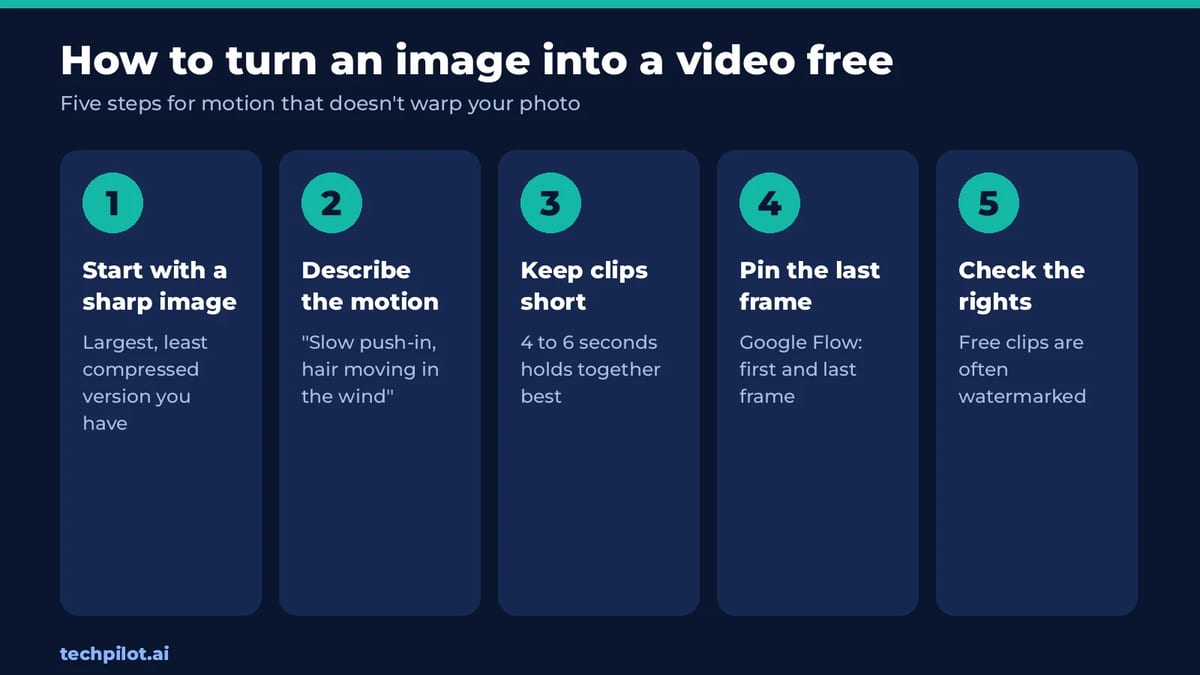
- Start with a sharp image. Use the largest, least compressed version you have. Faces and text should be clear before you animate them.
- Describe motion, not the picture. The tool can already see the image, so write “slow push-in, hair moving in the wind” rather than describing the person again.
- Keep it short. 4 to 6 seconds holds together far better than 10. Make two short clips and join them if you need more.
- Pin the last frame when you can. In Google Flow, adding a last frame stops the subject from drifting or morphing.
- Check the rights. Free clips from PixVerse, Kling and Vidu carry a watermark, and Vidu lists commercial use only on paid plans.
Don’t have a starting image yet? Make one with a free AI image generator, then animate it here.
Which free image to video AI should you use?
- You want the best quality for free: Google Flow.
- You post short clips every day: PixVerse.
- Your photo has people in it: Kling AI.
- You’re animating art or anime: Vidu.
- You need commercial use with no watermark: Wan 2.2 on your own GPU.
Want to start from text instead of a photo? See our free AI text to video generator list and the best free AI video generators ranked by watermark. For more categories, browse our free AI tools hub.
Frequently asked questions
What is the best free image to video AI?
Google Flow is the best for most people. It gives 50 free credits a day, enough for five 8-second Veo 3.1 Lite clips from your own photo, with first and last frame control.
Can I turn an image into a video for free without a watermark?
Yes, with Wan 2.2. It’s open source under Apache 2.0 and runs on your own GPU with no watermark. Google Flow adds only an invisible SynthID mark in most countries.
Is PixVerse image to video free?
Yes. The free Basic plan gives 60 credits at sign-up and 30 credits a day. Free videos top out at 540p and carry a watermark.
How long can a free AI video from an image be?
Usually 4 to 10 seconds per clip. Google Flow’s Veo 3.1 Lite makes 4, 6 or 8-second clips, and Gemini Omni Flash can make 10-second clips.
Can I use free image to video clips commercially?
It depends on the tool. Vidu and Kling list commercial use as a paid benefit. Wan 2.2’s Apache 2.0 licence allows commercial use.
Found this useful? Share it with someone comparing AI tools.
What Is a World Model? AI World Models 2026
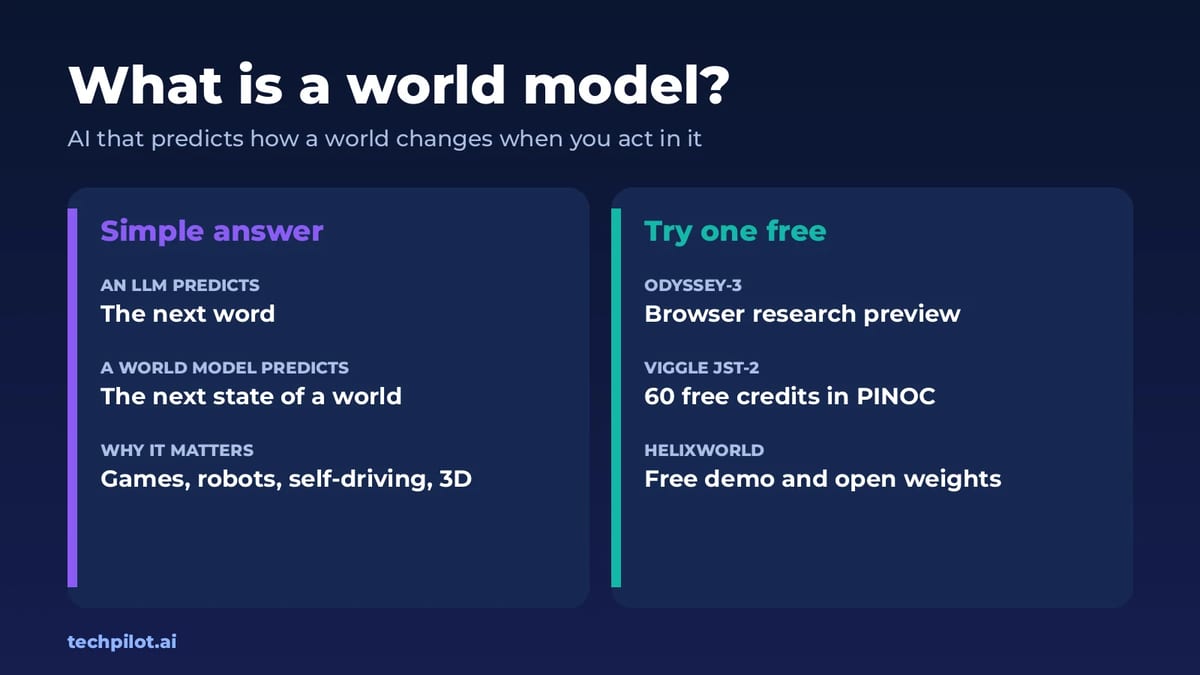
What is a world model? It’s an AI that learns how a world works so it can predict what happens next when you act. Here’s how it works and where to…
 Eimantas Kazėnas · 6 min read
idea.ai Video Generator: AI Video for Marketing Campaigns
See how marketers use the idea.ai video generator and Director Mode for ads, social clips and launch videos, plus workflow steps, pricing, pros and…
 Mihai (Mike) Bizz · 10 min read